Posted on

Follower groups: organize and act on many accounts

Follower groups put your follower accounts under collapsible headers, one row per group, so a long list is easy to scan and you can act on several accounts with one click. A group header shows how its accounts are doing together, and it has its own Flatten and Rearm buttons.

  • Two kinds of follower group: list your followers under one header per broker connection, or build custom groups with the accounts you choose.
  • One row tells the story: the header shows the group’s most important status and the combined position, orders and PnL of its accounts.
  • One click for the whole group: turn it on or off, switch ATM Copy, Market Only or Cross Order, or type a Ratio, Pct. Change or Pre Allocation value for every account at once.
  • Flatten or Rearm one group: close the positions of a single group after a question, or re-arm its Disarmed accounts that are flat.
  • Copying stays the same: grouping is off by default and does not change how trades are copied. Each follower keeps its own ratio, status and settings.

How it works

Groups organize the Follower Accounts list and let you act on several accounts together. Replikanto copies each follower with that follower’s own Ratio, status and options, whether or not the account sits in a group. Until you turn on grouping by connection or create a custom group, the list is a flat list, as usual.

Two kinds of group

  • By connection. Replikanto lists the followers under one header for each broker connection, for example Simulation or Live. You turn it on with Group followers by connection. It is off by default and is set separately for each Replikanto tab. A connection header is listed only while at least one of its accounts is in the list.
  • Custom groups. You pick the accounts and name the group, for example Swing or Day trading. A custom group does not depend on the connection, and its header stays in the list even when all of its accounts are disconnected.

The two kinds work together, and the custom group wins. An account in a custom group is listed under that group, not under its connection. An account in no custom group goes under its connection header when Group followers by connection is on, and stays loose in the list otherwise. An account can be in at most one custom group. The groups come first, sorted by name, then the accounts that are in no group.
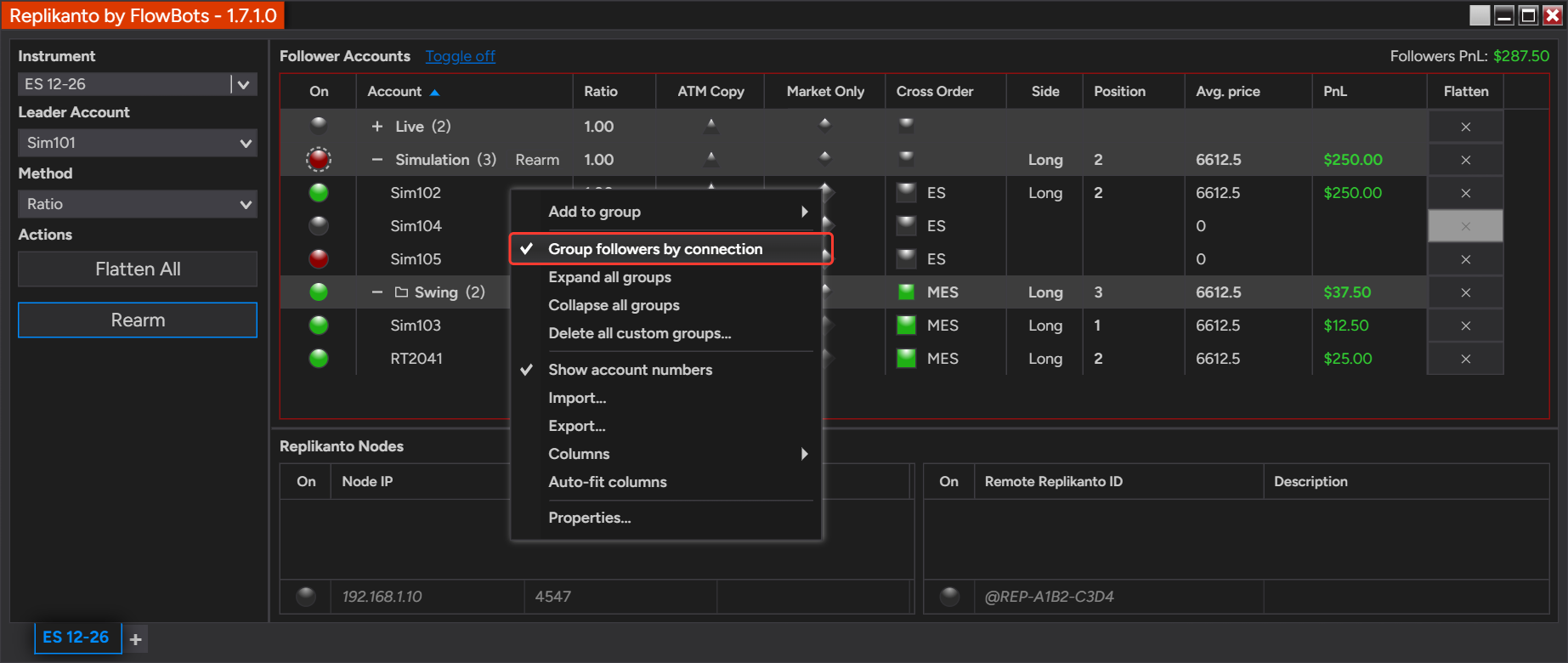
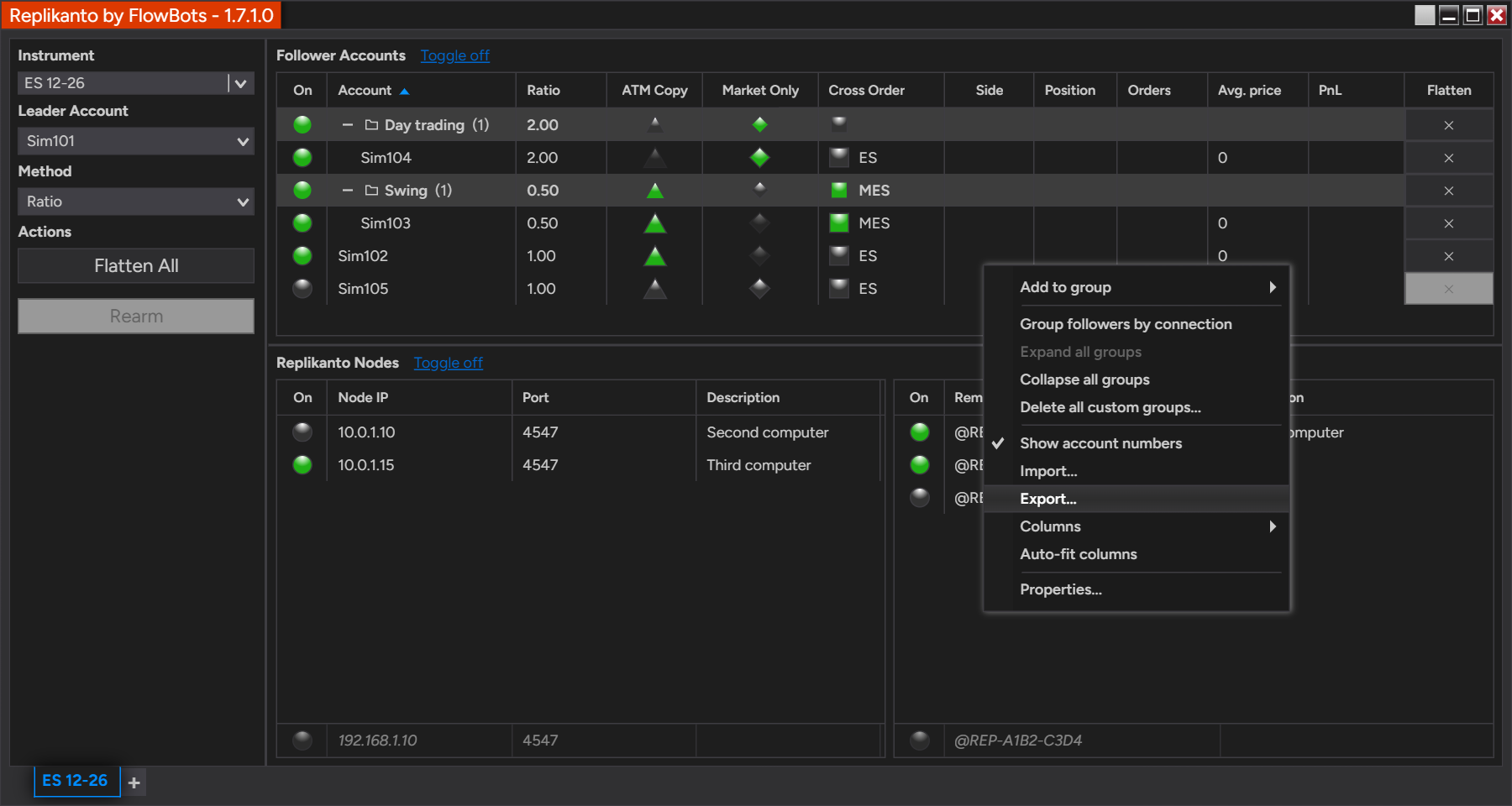
Right-click menu of the Follower Accounts grid with Group followers by connection checked
Group followers by connection in the Follower Accounts right-click menu.

Reading a group header

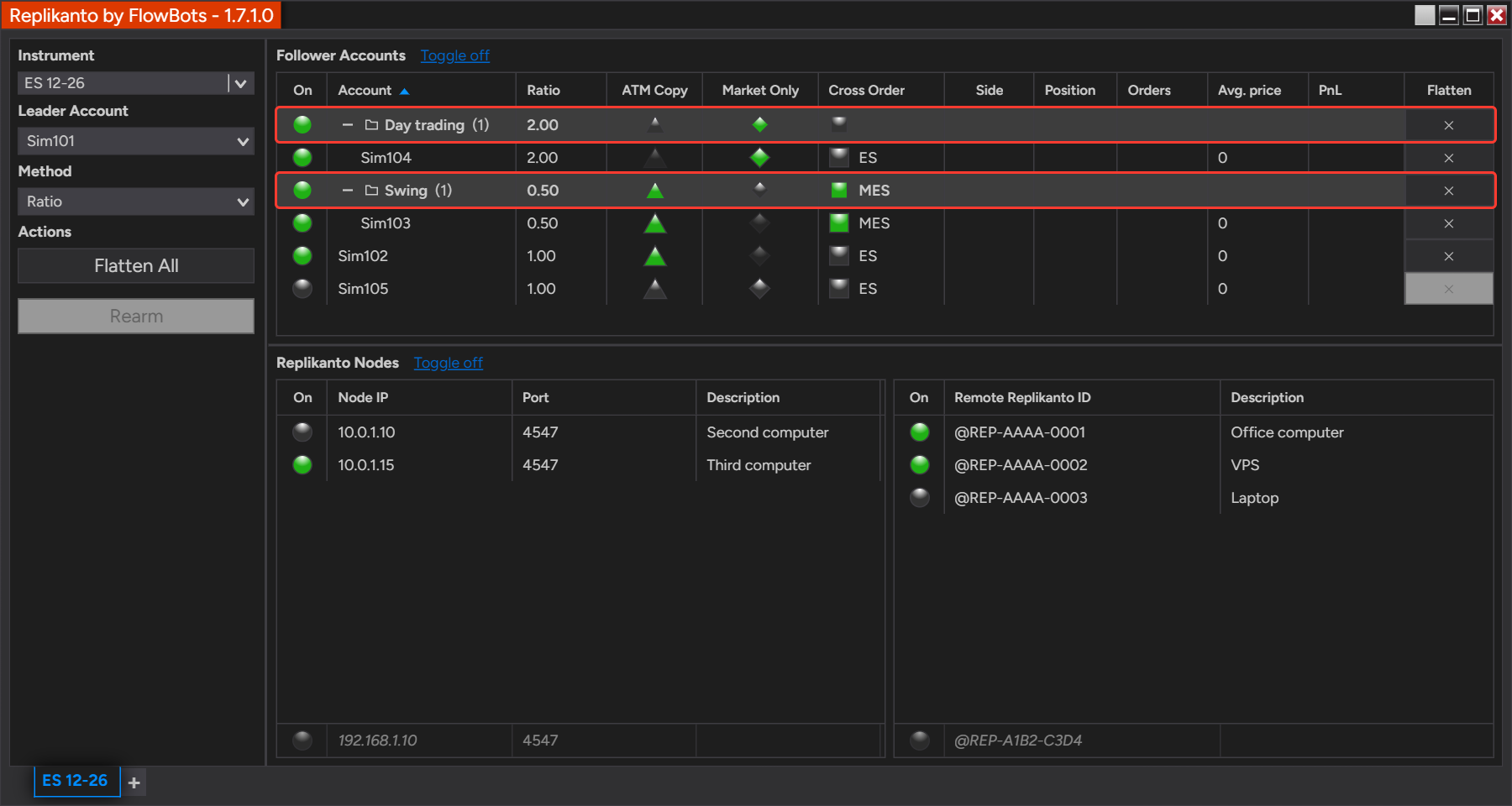
Each header shows the group name and the number of accounts, for example Simulation (3), and each cell summarizes the accounts of the group.
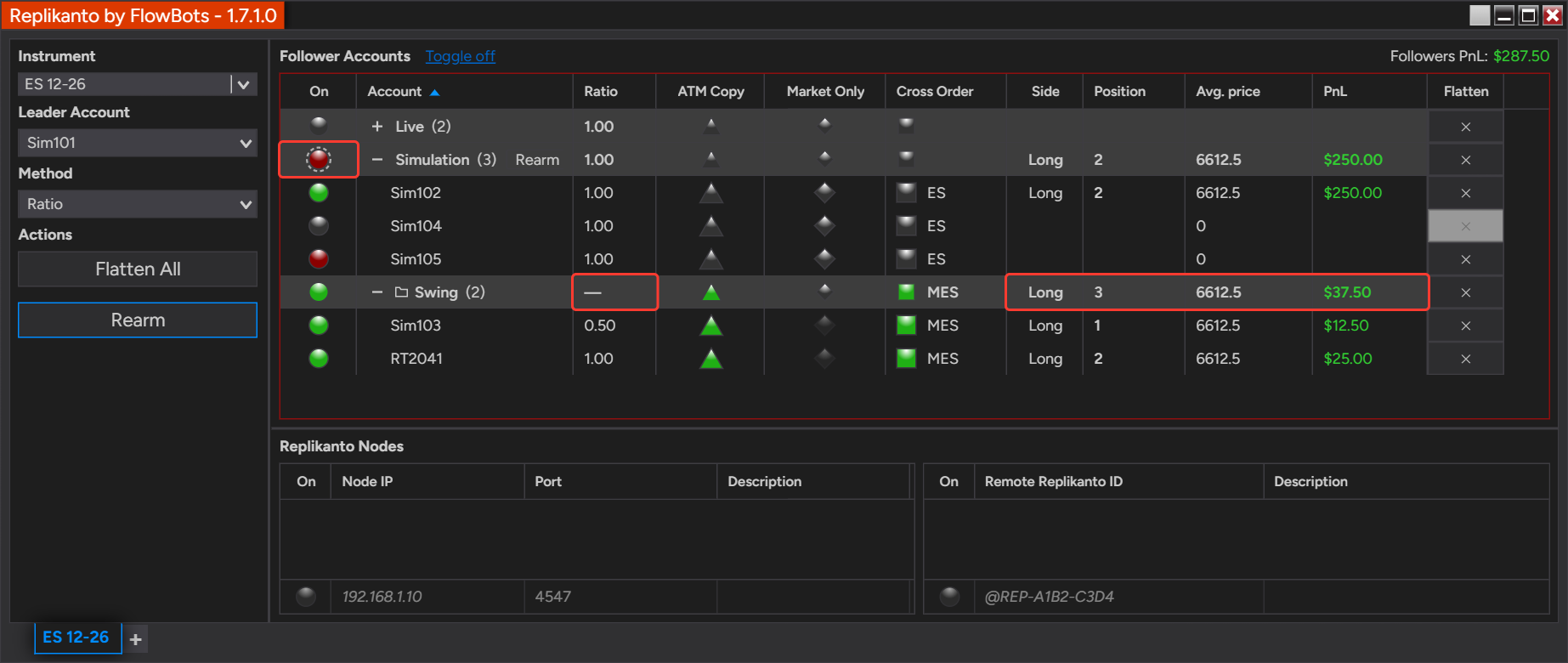
Follower Accounts grid with the Live, Simulation and Swing group headers, the Live group collapsed
Simulation shows Disarmed with a dashed ring; Swing shows a dash for Ratio and its combined position and PnL.
  • Status circle (On): the most important status in the group, in this order: Disarmed (red), Out of sync (yellow), On (green), Off (gray). A dashed ring means the accounts do not all have the same status, and hovering over the circle shows the counts.
  • ATM Copy, Market Only and Cross Order: the state shared by the group. A half-filled box means the accounts differ.
  • Ratio, Pct. Change and Pre Allocation: the value when all accounts have the same one, or a dash when they differ. Only the column of the active copy Method is shown.
  • Side, Position, Orders and PnL: combined figures of the accounts that are not Off. The average price is weighted by position size and by the value of a point of each account’s instrument, and PnL shows a dash when the accounts use different currencies.

A custom group with accounts that are not connected shows two numbers, such as Swing (2/3): 2 of its 3 accounts are present in the list. Click the + or – button, or double-click the header, to open or close a group. A collapsed group still works: its header keeps its status and totals, and its buttons keep working.

One click on a whole group

Each cell of a header acts on every account of the group, with the same rules as the cell of a single account. Replikanto writes an account only when its value changes, and adds one line to the NinjaTrader Log tab for each group action.
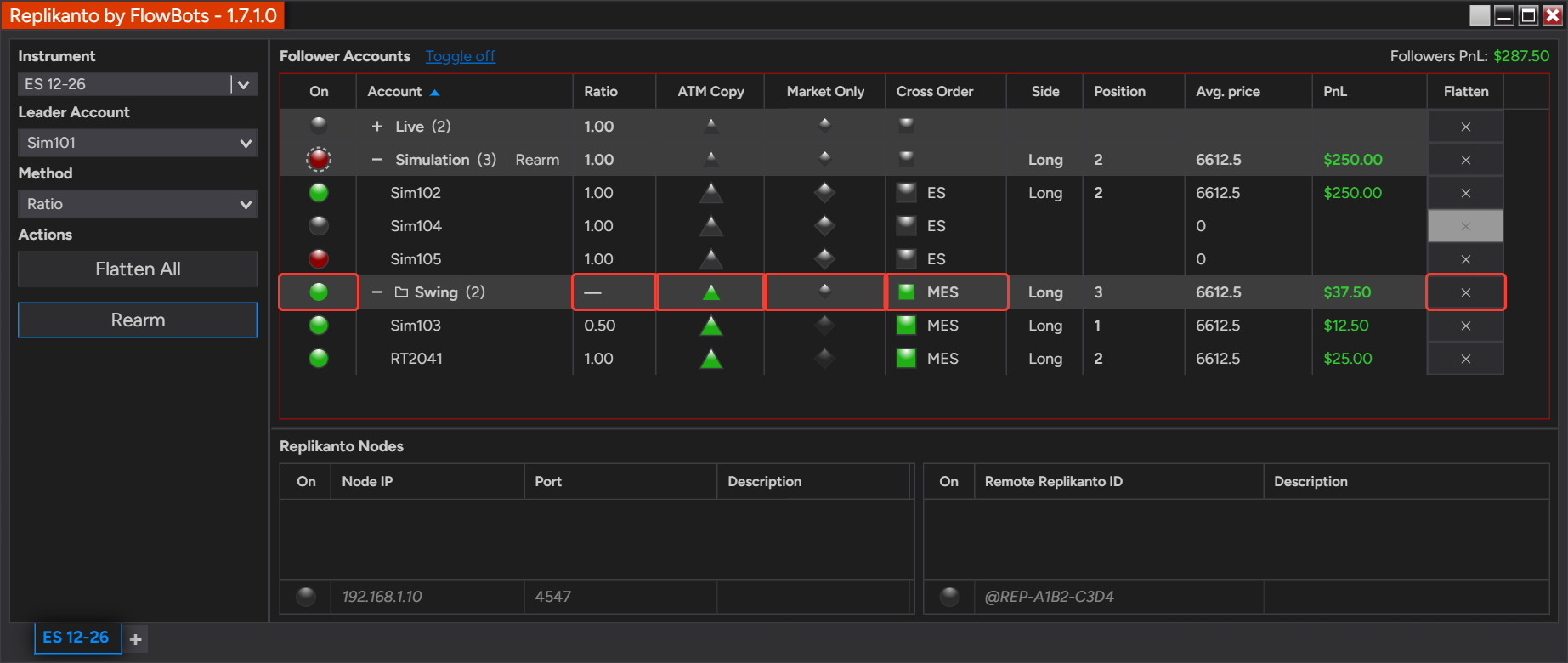
Swing group header with its clickable cells framed
The cells of a group header act on every account of the group.
  • Status circle: if some account is Off and can be turned on, the click turns on only the accounts that are Off. When none can be turned on, the click turns the whole group Off. Turning a group on does not re-arm a Disarmed account (see Follower Guard): use Rearm for that.
  • ATM Copy and Market Only: a click turns the option on for the group, or off when it is on for all. ATM Copy and Market Only do not work together on the same follower, so ATM Copy is not turned on for an account that has Market Only on, and Market Only is not turned on for an account that has ATM Copy on.
  • Cross Order: when all accounts have the same target, a click moves them to the next one. When they differ, a click turns them all Off.
  • Ratio, Pct. Change and Pre Allocation: click the cell, type a value and press Enter. A value outside the limits of the single-account cell is not accepted and nothing changes, instead of being adjusted to the nearest allowed one.

Before a click that could leave positions unmanaged or resize other followers, Replikanto asks a Yes/No question, and the default answer is No. This happens when you turn off accounts that hold a position or working orders, when you turn accounts on while the leader holds a position, and when the Copy Method sizes each follower from the number of active followers (Pooled Quantity, Available Cash or Net Liquidation) while the leader or another follower is in a trade. These questions come with the status click.
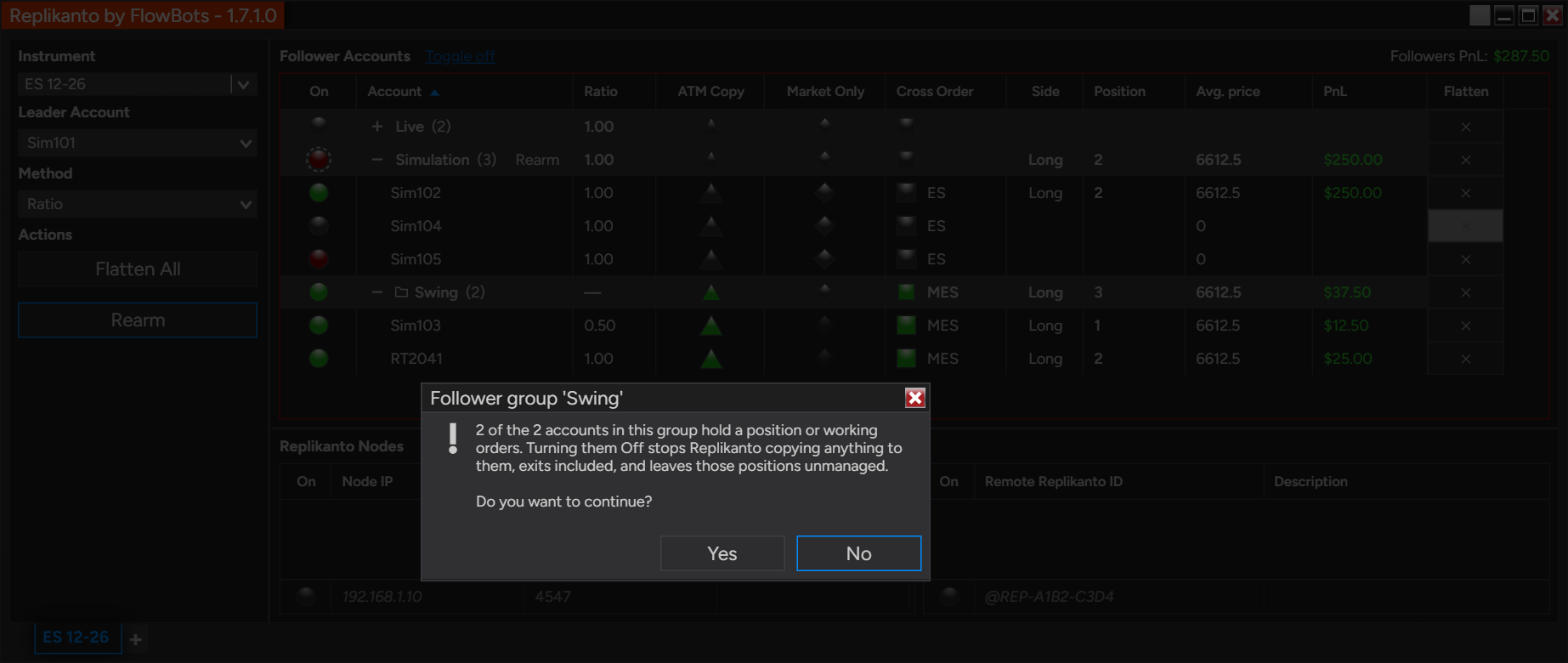
Confirmation window before turning off a group whose accounts hold a position
Turning Swing Off while its two accounts are in a trade asks first, and No is the default.

With Lock follower settings while in a trade on (the default, see Why you cannot change follower settings during a trade), a header click skips the accounts that are in a trade for ATM Copy, Market Only, Cross Order and the typed values. A window then lists the accounts that were not changed and why, and the Log tab records the same list. The Status click is the exception: you can turn an account Off while it is in a trade.

Flatten and Rearm a group

The × in the Flatten column of a header flattens only that group, on the leader’s instrument. It asks first, and like Flatten All its confirmation has a “Don’t show this message again” box for traders who want the click to flatten at once. Unlike Flatten All, it also closes accounts that are Off, and it does not close the leader account.
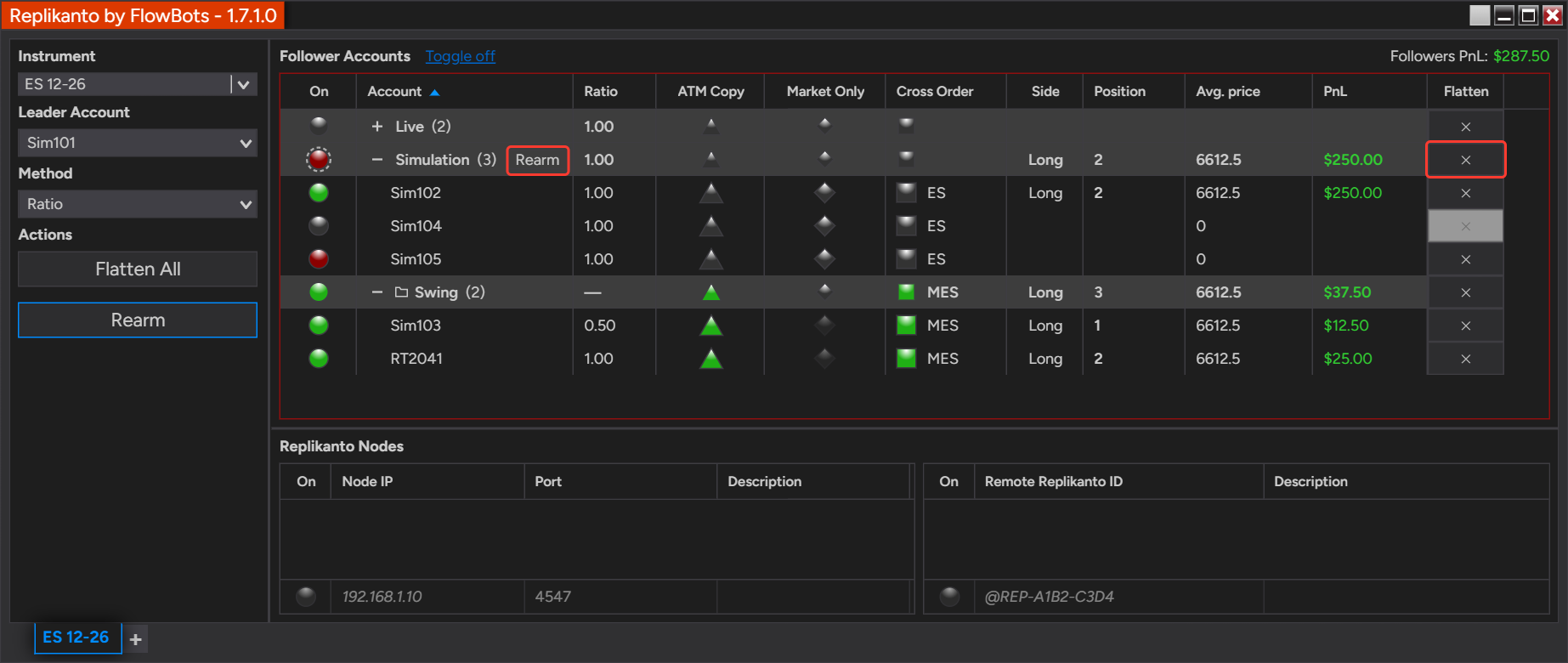
Simulation group header with the Rearm button and the group Flatten button framed
Rearm appears because Sim105 is Disarmed; the × flattens only the Simulation group.
  • What it closes: the position and the working orders of every follower account in the group, whatever its status and whether or not it uses Market Only.
  • After the flatten: a Disarmed account is re-armed only if its position reads flat. Flatten sends the close order, and the broker decides whether it fills. If the account still shows a position, it stays Disarmed and the Log tab says so.
  • The Rearm button appears next to the group name only while the group has a Disarmed account. It re-arms the Disarmed accounts that are flat, leaves the ones that still hold a position as they are, and sends no order.
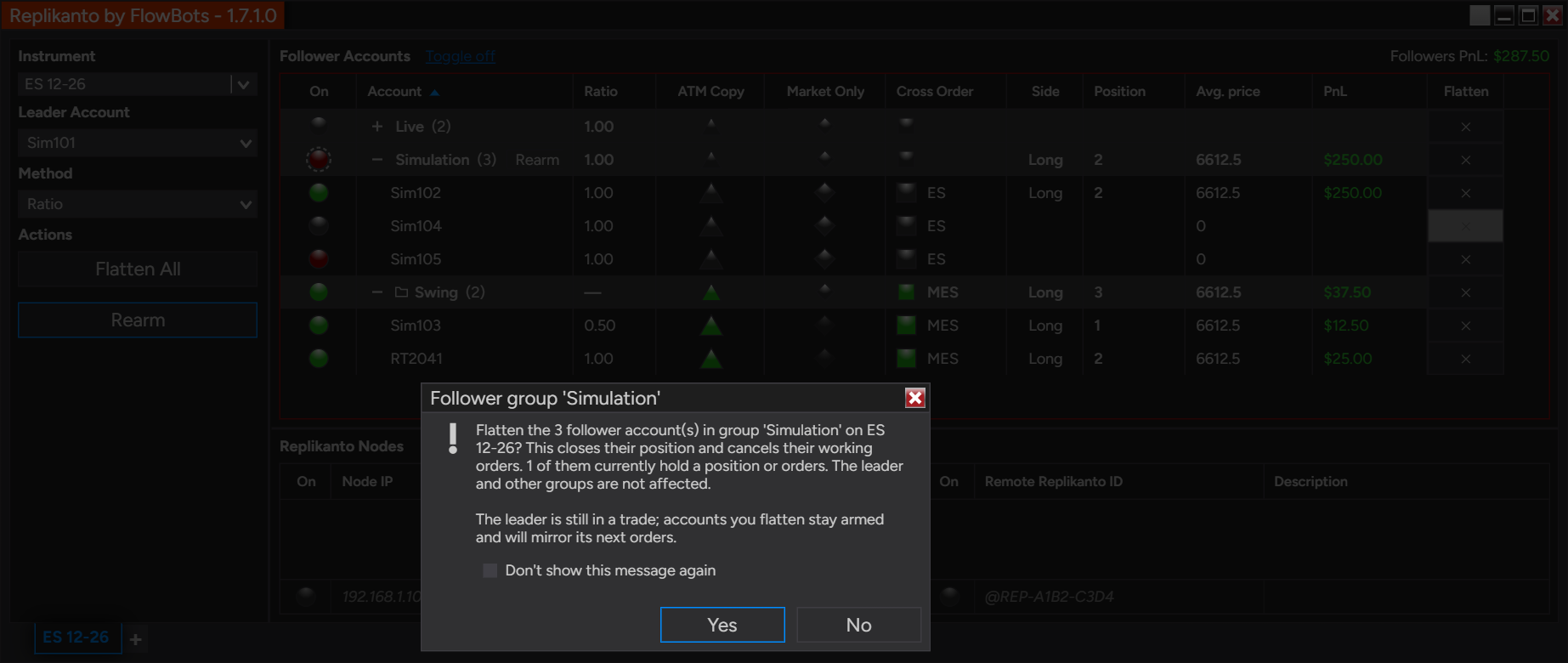
Confirmation window of a group Flatten with the Don't show this message again box
The group Flatten asks first. The leader is in a trade, so the window adds that flattened accounts stay armed.

A group Flatten closes positions and cancels orders, but it does not turn any account Off. An account that is On stays armed and mirrors the leader’s next orders. To stop copying to it, turn it Off.

Saved with the workspace, and Export and Import

  • Workspace: your custom groups, their accounts, which headers are collapsed and the Group followers by connection setting of each tab are saved with the NinjaTrader workspace.
  • Export and Import: Export… writes the name of each account’s custom group as a ninth field at the end of its line, and a file with no groups keeps eight fields per line. Import… creates the groups named in the file, or puts the account in the group that already has that name. An empty group field leaves an account in its group unless the file names a different group for it. Grouping by connection is not in the file.
  • Earlier versions of Replikanto: a workspace saved with groups can be opened in an earlier version, where the groups are ignored. If you save it there, the groups are dropped. Your followers and their settings stay, so export the follower list first if you plan to go back.

A line of the follower file with a custom group looks like this, with the group name as the last field:

Sim103;True;MES;0.5;0;0;Checked;False;Swing

How to set it up

  1. Open the Replikanto tab, right-click inside the Follower Accounts grid and check Group followers by connection. You can also check it in Properties… under General.
  2. Click the + or – button of a header to open or close one group. Right-click the grid and choose Expand all groups or Collapse all groups to change them all.
  3. To build a custom group, right-click a follower account and choose Add to group > New group…. The account is already checked in the window. To start with nothing checked, right-click an empty part of the grid and choose New group….
  4. Type the name in Group name:, check the accounts in Accounts: and click OK. The header appears with its accounts under it.
  5. To add an account to a group you already have, right-click it, choose Add to group and click the name of the group.
  6. To change a group later, right-click its header and choose Edit group…, Rename group… or Delete group. To take one account out, right-click it and choose Remove from group.
  7. Try a header click on Sim accounts first: click the status circle or the ATM Copy cell of a group and read the question or the list that Replikanto shows.
  8. Save the NinjaTrader workspace, so your groups are there the next time you start NinjaTrader.
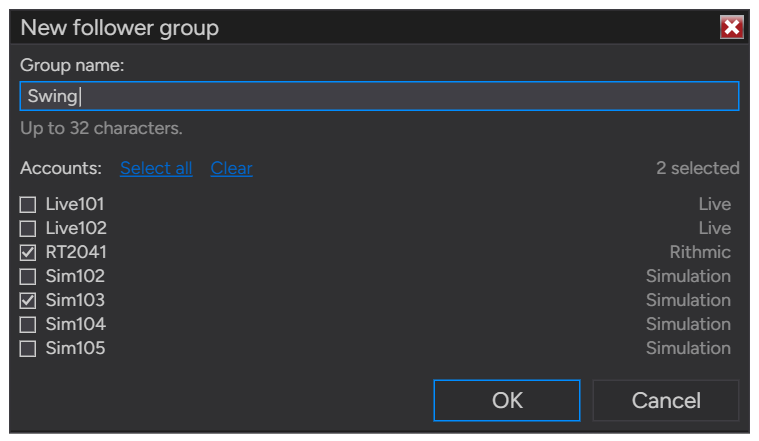
New follower group window with the name Swing and two accounts checked
Creating the Swing group with Sim103 and RT2041.

Good to know

  • Name rules: a custom group name has up to 32 characters, cannot contain a semicolon, and must differ from the other groups. Upper and lower case do not count as different.
  • One group per account: choosing an account that is in another custom group moves it. A custom group is removed when its last account leaves. Delete group removes only the group, and its accounts stay in the list with their settings.
  • Accounts that are not connected: an account whose broker connection is offline has no row. It is left out of the header figures and of what a click applies, except that turning the group Off is also saved for it. When the connection comes back, the account appears under its group again.
  • Which cells you see: the ATM Copy cell exists only while ATM Copy is checked in the Replikanto window’s right-click menu, and the Cross Order cell only while Cross Order is checked and the leader has an instrument with a counterpart.
  • Group Flatten covers your own list: it flattens the follower accounts in this tab’s list. Followers on other computers, reached through the Replikanto Nodes lists (Network Node Mode or Remote Node Mode), are not flattened by this button.
  • Editing is paused during a Flatten: for a moment after you confirm a group Flatten, the group items of the Follower Accounts right-click menu are disabled.
  • Show account numbers: when it is unchecked in the Follower Accounts right-click menu, the account names in the group window are masked, as in the grid.

Related

Questions? Browse the Replikanto Knowledge Center or contact us. New to Replikanto? Try it free for 7 days.
Posted on

Market Only: copy only the leader’s executions

Market Only copies only what actually fills on the leader: each leader execution is sent to the follower as a market order. The leader’s working orders, such as limit entries, stops and targets, are not placed on the follower, so the follower tracks the leader’s position fill by fill with far fewer orders to manage.

  • Executions only: the follower copies the leader’s fills, including partial fills, as market orders sized by your copy method.
  • No working orders on the follower: limit and stop orders that have not filled on the leader, including its stop loss and profit target, are not copied.
  • Leftover fractions carry over: quantities round down to whole contracts or shares, and the leftover fraction is added to later fills.
  • Local and remote followers: it works for followers on the same computer and on other computers, over your local network or the internet.
  • Per follower: turn it on only for the followers you choose, one by one or for a whole group. It cannot be combined with ATM Copy on the same follower.

How it works

Entries

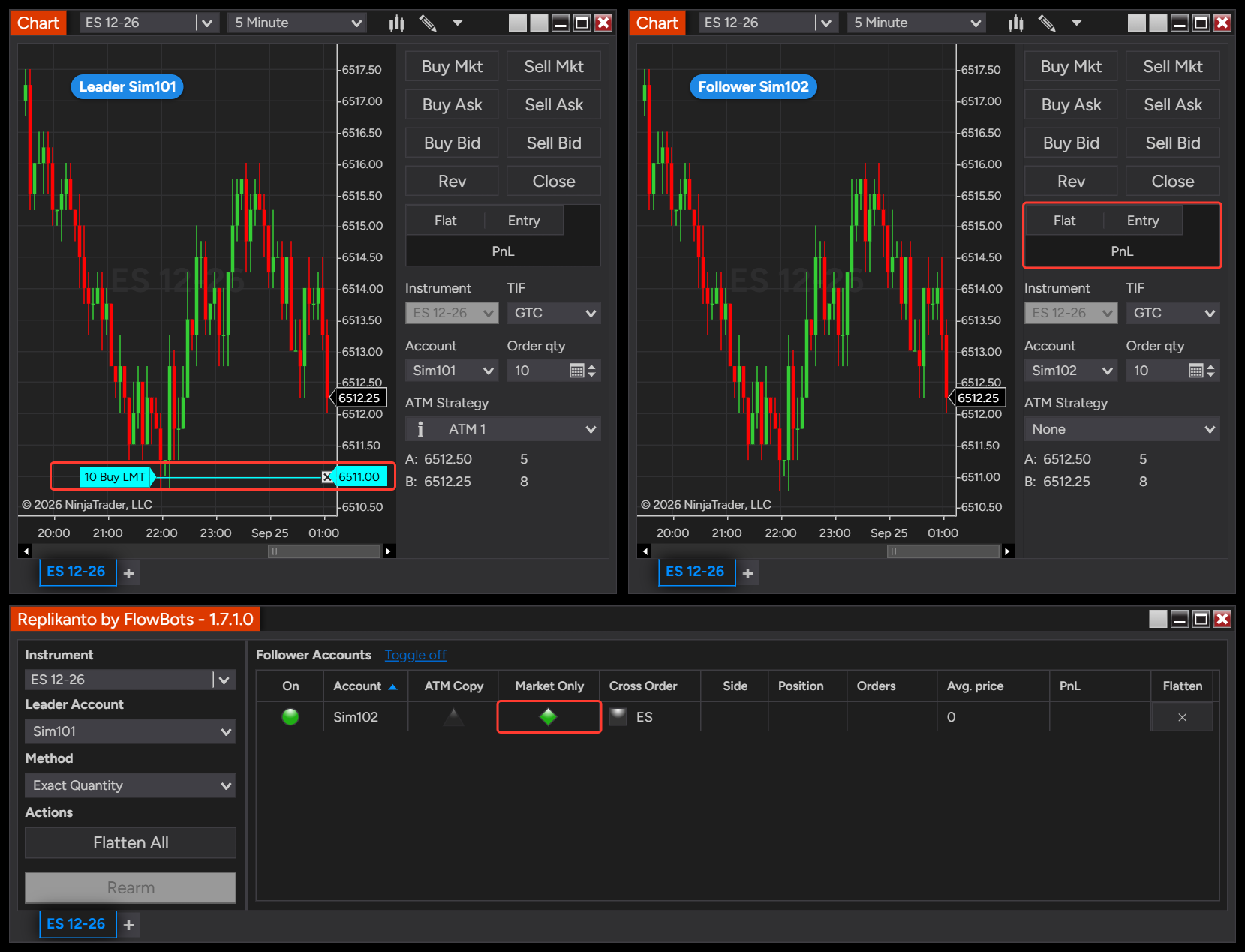
A market entry on the leader is copied as soon as it fills. A limit or stop entry on the leader is not copied while it is working: the follower waits, and enters with a market order only when the leader’s order fills. If the leader’s order fills in parts, the follower receives one market order for each part, sized by your copy method.

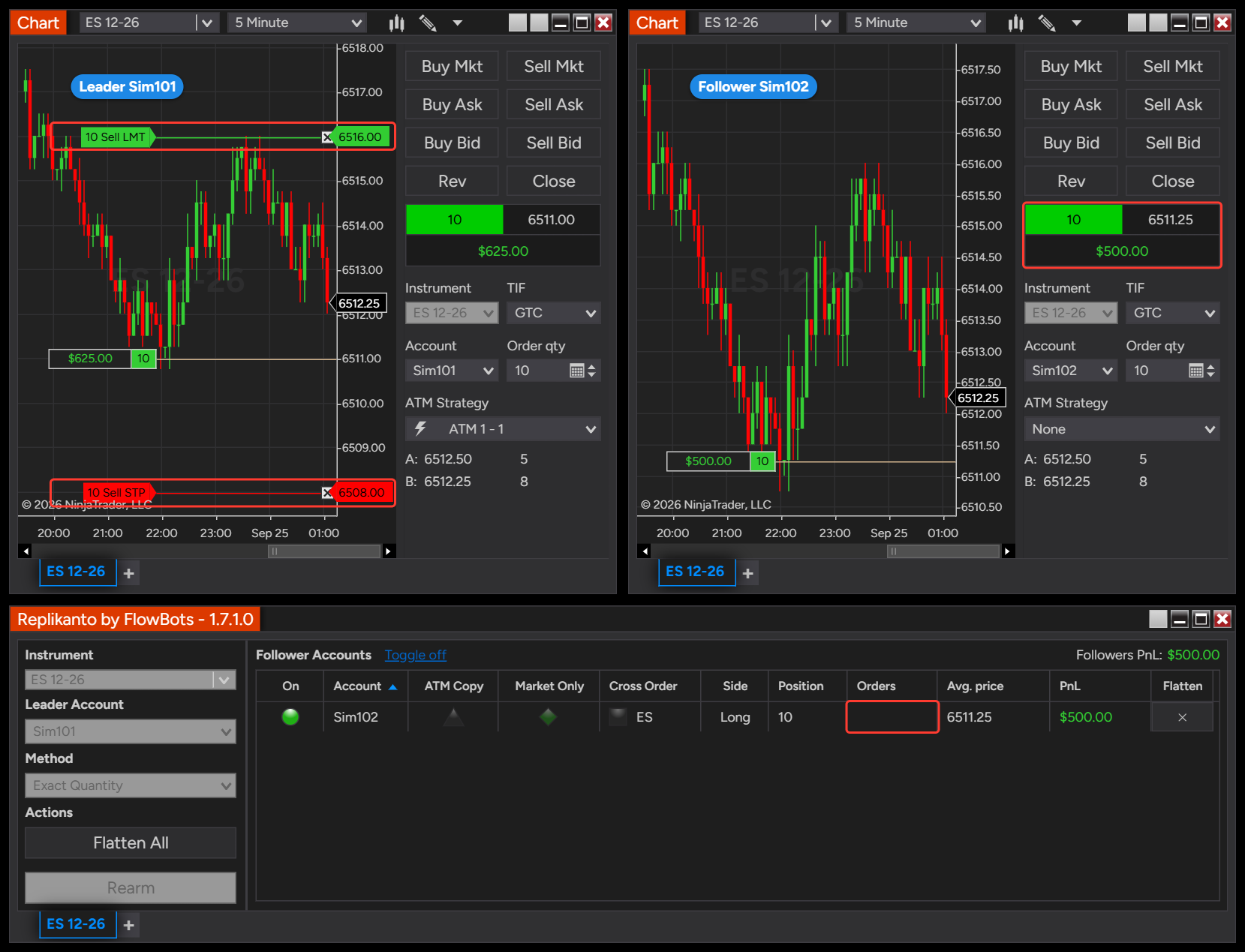
Leader Sim101 with a working 10-contract buy limit order, and the Market Only follower Sim102 with no order and no position
A working limit entry on the leader (left) is not copied to the Market Only follower (right)

Exits

The leader’s stop loss and profit target are not copied, so the follower has no exit orders at the broker. When one of the leader’s exits fills, that execution is sent to the follower as a market order in the exit direction, sized by your copy method. When you close the leader’s position with NinjaTrader’s Close button, the Market Only follower’s position on that instrument is flattened, whatever its size. Only Market Only followers that are On or Out of sync are flattened this way: a follower that is Off or Disarmed is left as it is.

Leader Sim101 long 10 contracts with a stop loss and a profit target, and the Market Only follower Sim102 long 10 contracts with no exit orders
The leader (left) has a stop and a target; the Market Only follower (right) holds the same position without them

Quantities

Each market order is sized with the tab’s copy method, such as Exact Quantity, Ratio or Pre Allocation. With Exact Quantity the follower receives the same quantity as each leader fill. With the other methods, quantities are rounded down to whole contracts or shares and the leftover fraction carries over to the next fill. For example, with Ratio 0.5 and a 2-contract leader entry that fills in two parts of 1, the first fill gives 0.5 and nothing is sent; the second adds another 0.5 and the follower receives 1 contract. With Pre Allocation, each leader order is copied with the follower’s pre-allocated quantity, spread over that order’s fills.

When to use it

  • You care more about the follower holding the same position as the leader than about matching the leader’s average price.
  • You copy an automated strategy that works many limit or stop orders, and you want the followers to follow its position rather than every order it places.
  • Your followers are Tradovate accounts and you run into Tradovate’s API rate limit and frozen orders. Copying only executions sends fewer orders and no order changes to the follower’s broker.

The trade-off is price. Every follower order is a market order, so it can fill at a different price than the leader’s limit or stop, for better or worse. The follower’s average price and PnL can end up further from the leader’s than with regular copying.

How to set it up

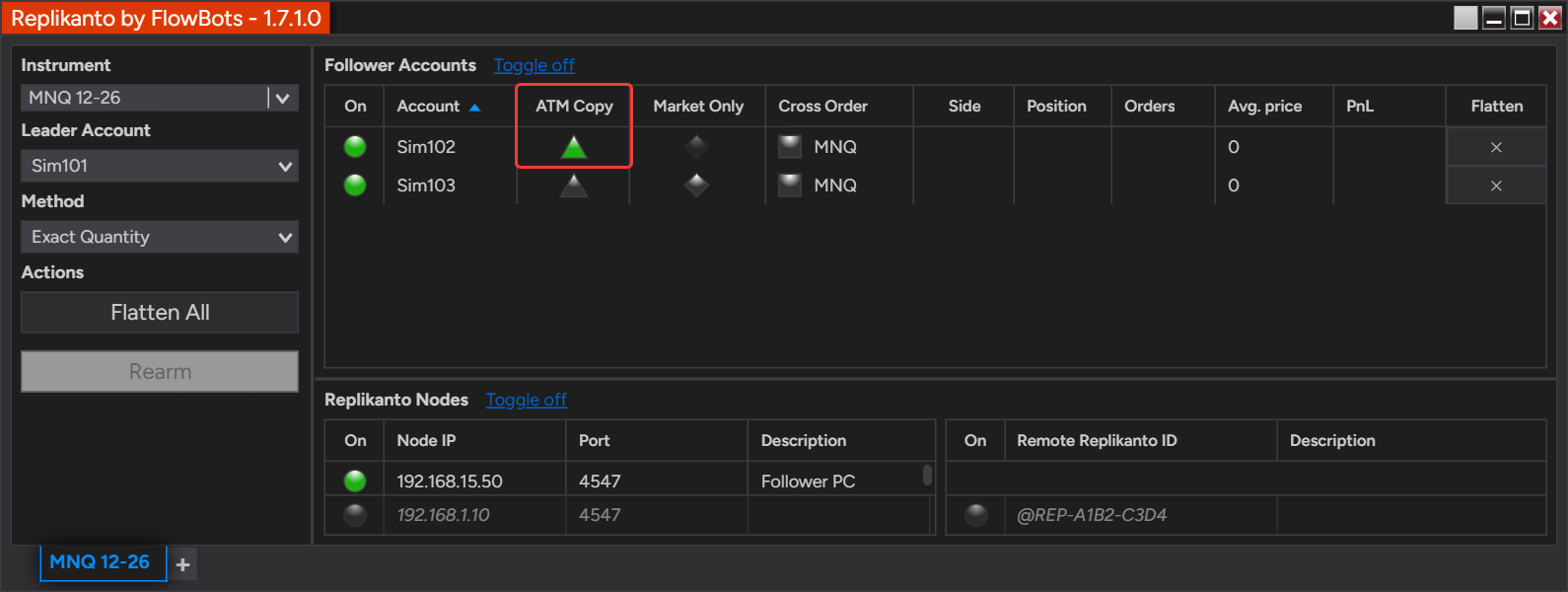
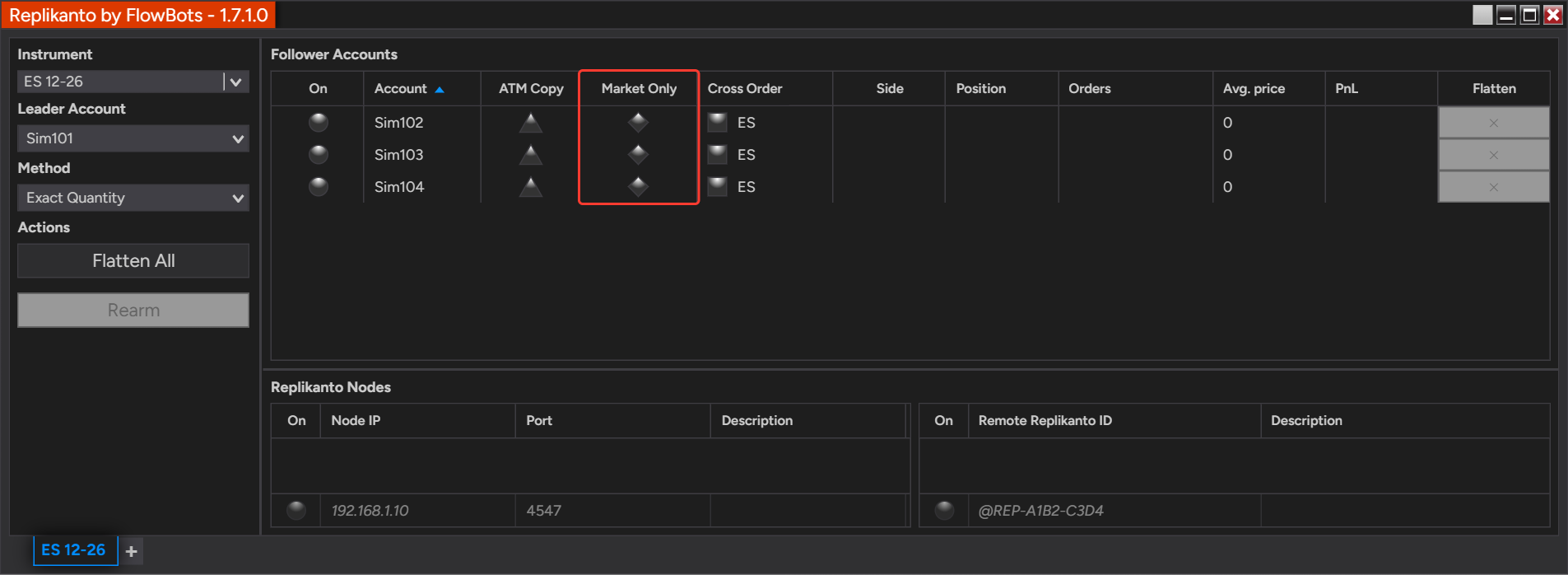
  1. In the Follower Accounts grid, find the Market Only column, which shows a diamond for each follower.
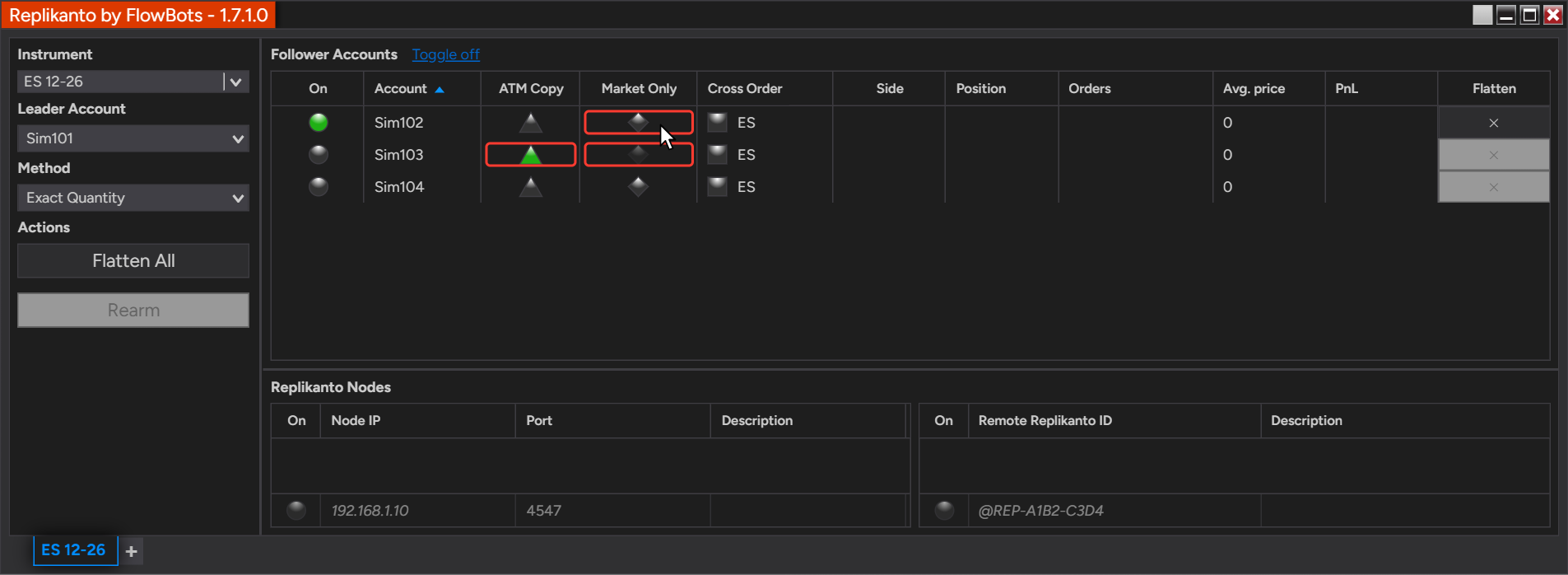
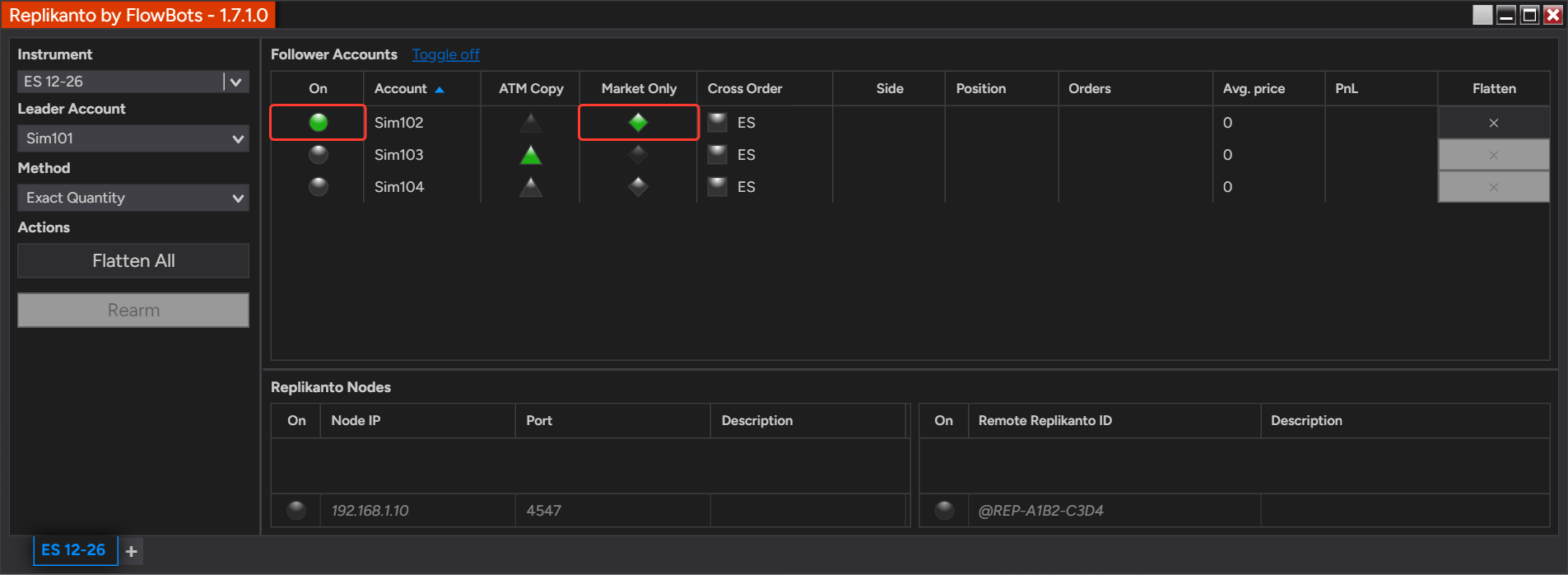
  2. Click the diamond of each follower that should copy only executions. Green means on, grey means off.
  3. If a diamond is dimmed and its tooltip says Market Only is unavailable, ATM Copy is on for that follower: click its triangle in the ATM Copy column to turn it off first. A dimmed diamond can also mean the follower is in a trade and its settings are locked.
  4. Make sure the follower itself is on in the On column.
  5. For followers on another computer, turn on Market Only in the Replikanto tab on that computer (Network Node Mode (Local Network) or Remote Node Mode (Internet)). The setting belongs to the follower, wherever the leader is.
  6. Consider turning on Follower Guard, for example Flatten the follower if it becomes out of sync, and test on Sim accounts first.
Replikanto Follower Accounts grid with the Market Only column and its diamonds, all off
The Market Only column in the Follower Accounts grid
Mouse pointer on the Market Only diamond of follower Sim102, and follower Sim103 with ATM Copy on and a dimmed Market Only diamond
Click the diamond to turn Market Only on or off for that follower
Follower Sim102 turned on with a green Market Only diamond
Sim102 copies only the leader’s executions

Turn it on for a whole group

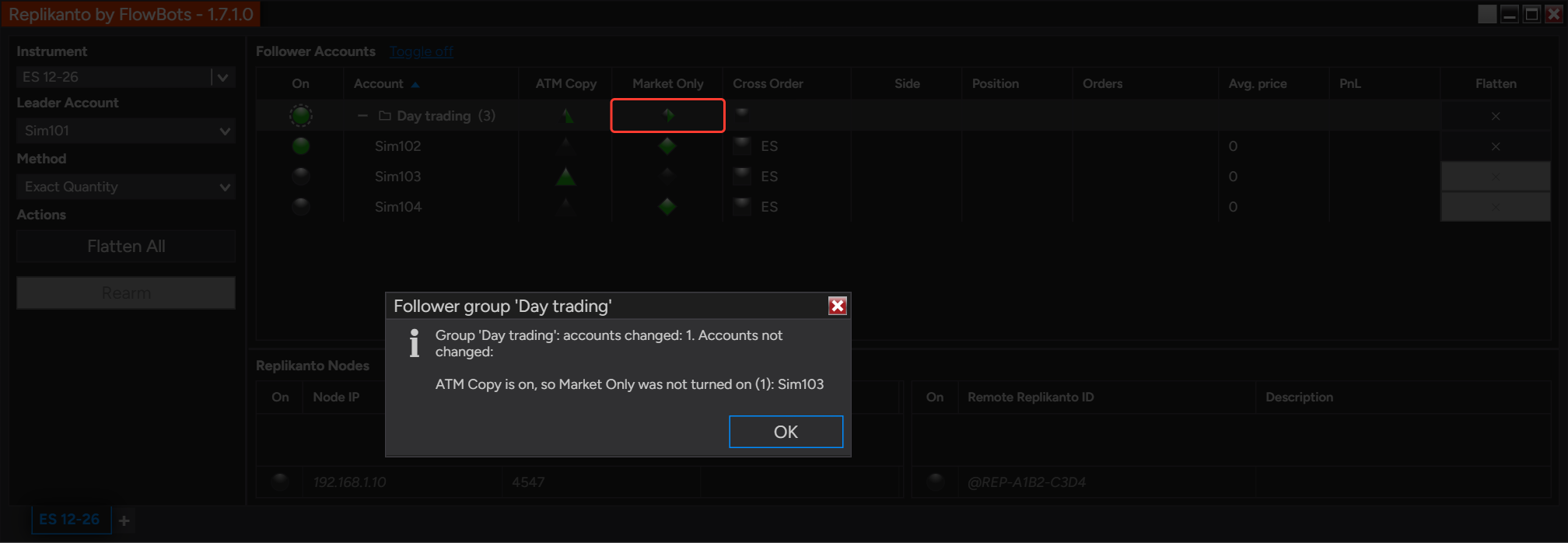
If your followers are listed in follower groups, the Market Only cell of a group header turns Market Only on for every account of the group, or off when it is on for all of them. It skips the accounts that are in a trade while Lock follower settings while in a trade is on (the default), and it does not turn Market Only on for an account that has ATM Copy on. Replikanto lists the accounts it skipped in a message. Grouping is off by default: the list stays flat until you turn on Group followers by connection or create a custom group.

Day trading group header after a Market Only click, with a message that Sim103 was not changed because ATM Copy is on
A group click turns Market Only on for Sim104 and skips Sim103, which has ATM Copy on.

Good to know

  • A Market Only follower has no stop loss or profit target at its broker. If the connection to the leader is lost, the follower’s position stays open without a stop, so watch it closely and consider Follower Guard.
  • Moving or cancelling the leader’s stop or target changes nothing on a Market Only follower: only fills are copied.
  • Flatten All also closes Market Only followers, including one that Follower Guard has disarmed.
  • The Flatten button of a follower group header also closes the group’s Market Only followers, on the leader’s instrument. It asks first.
  • Market Only and ATM Copy cannot be combined on the same follower. Turn one off before turning the other on.
  • With Lock follower settings while in a trade on (the default), you cannot change a follower’s Market Only while it holds a position or a working order.
  • Market Only works with Cross Order: the market order goes to the follower’s Cross Order instrument.
  • With a small ratio, a small fill can round down to zero and wait for the next fill before anything is sent.
  • With Pre Allocation, each leader order is copied with the pre-allocated quantity. If the leader exits in several orders, such as two profit targets, each one sends the full pre-allocated quantity and can take the follower past flat into an opposite position: with Market Only and Pre Allocation, exit with one order, or use Ratio.
  • The follower’s broker can still reject a market order, for example for margin or position limits.
  • You remain responsible for making sure your use of Replikanto complies with each broker’s, platform’s and prop firm’s applicable rules and account agreements.

Related

Questions? Browse the Replikanto Knowledge Center or contact us. New to Replikanto? Try it free for 7 days.
Posted on

Remote Leader Filter: copy only the leader you choose

When more than one leader sends trades to the same follower computer, Remote Leader Filter lets each Replikanto tab accept trades only from the leader you choose. You can send each leader, or each leader account, to its own follower accounts, even when they all trade the same instrument.

  • Two filters: Leader Replikanto ID picks the computer that sends the trades, and Leader Account Name picks the leader account on that computer. Use one or both.
  • One filter per tab: a node tab accepts trades only from the one leader Replikanto ID and/or leader account name you enter, and copies them to that tab’s followers.
  • Local network and internet: it works in Network Node Mode (Local Network) and in Remote Node Mode (Internet).
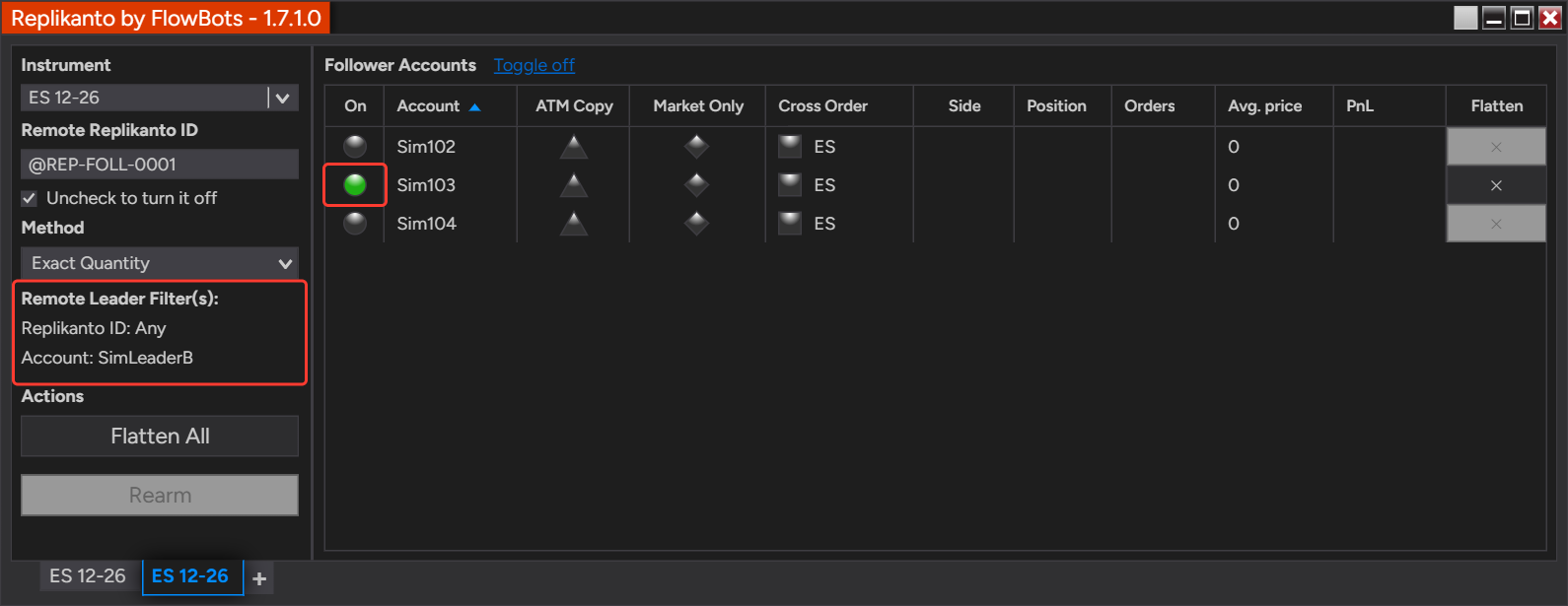
  • Visible on the tab: the active filter is shown on the tab under Remote Leader Filter(s):, so you can see at a glance which leader each tab follows.

How it works

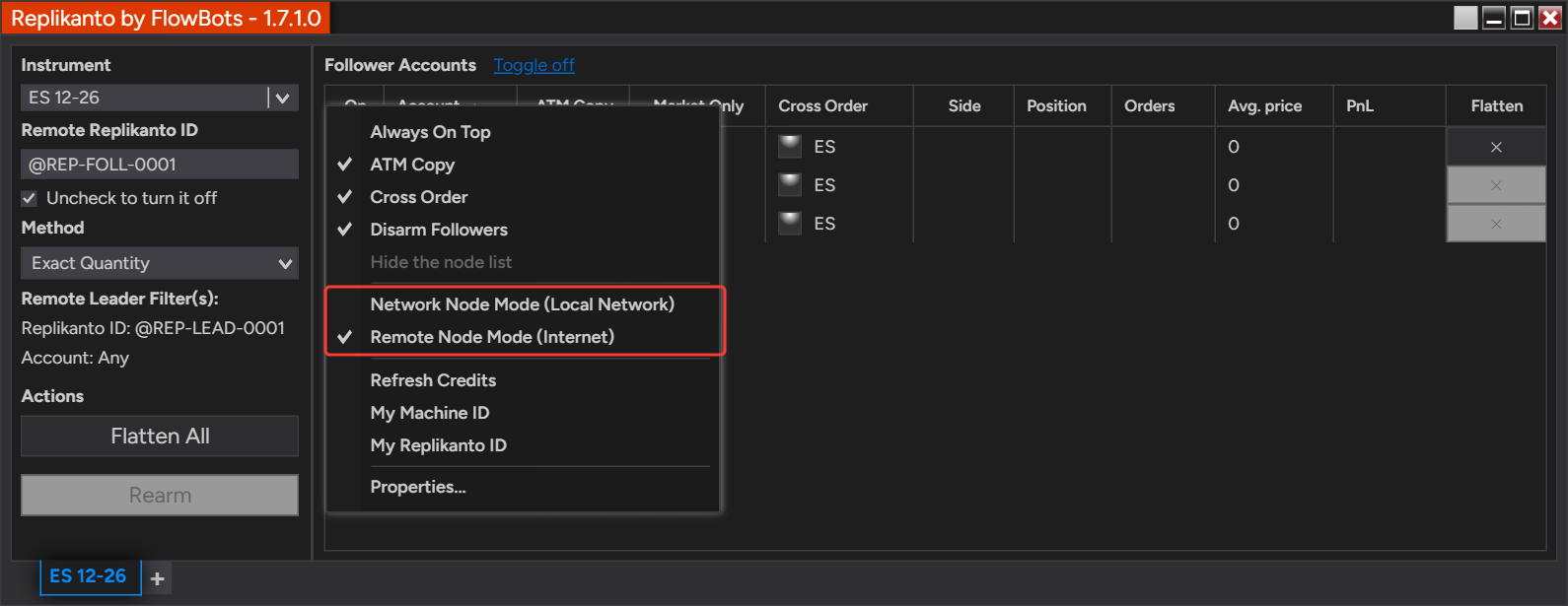
A follower computer receives trades from other computers when a Replikanto tab on it is in Network Node Mode (Local Network) or Remote Node Mode (Internet). Without a filter, that tab copies the trades of every leader that sends to this computer on the tab’s instrument. With a filter, the tab copies a trade only when it comes from the leader Replikanto ID and/or leader account name you entered. The tab ignores the other trades, and another tab on the same computer can still copy them.

Replikanto right-click menu open on a node tab, with the Network Node Mode (Local Network) and Remote Node Mode (Internet) items framed in red
The filter applies to tabs in one of these two modes

A field you leave empty accepts any leader. When you fill in both fields, a trade must match both. The comparison ignores upper and lower case, and the account name can be the leader account’s name or its display name as NinjaTrader shows it on the leader computer.

The examples below use Remote Node Mode (Internet). Network Node Mode (Local Network) works the same way.

Two leader computers on the same instrument

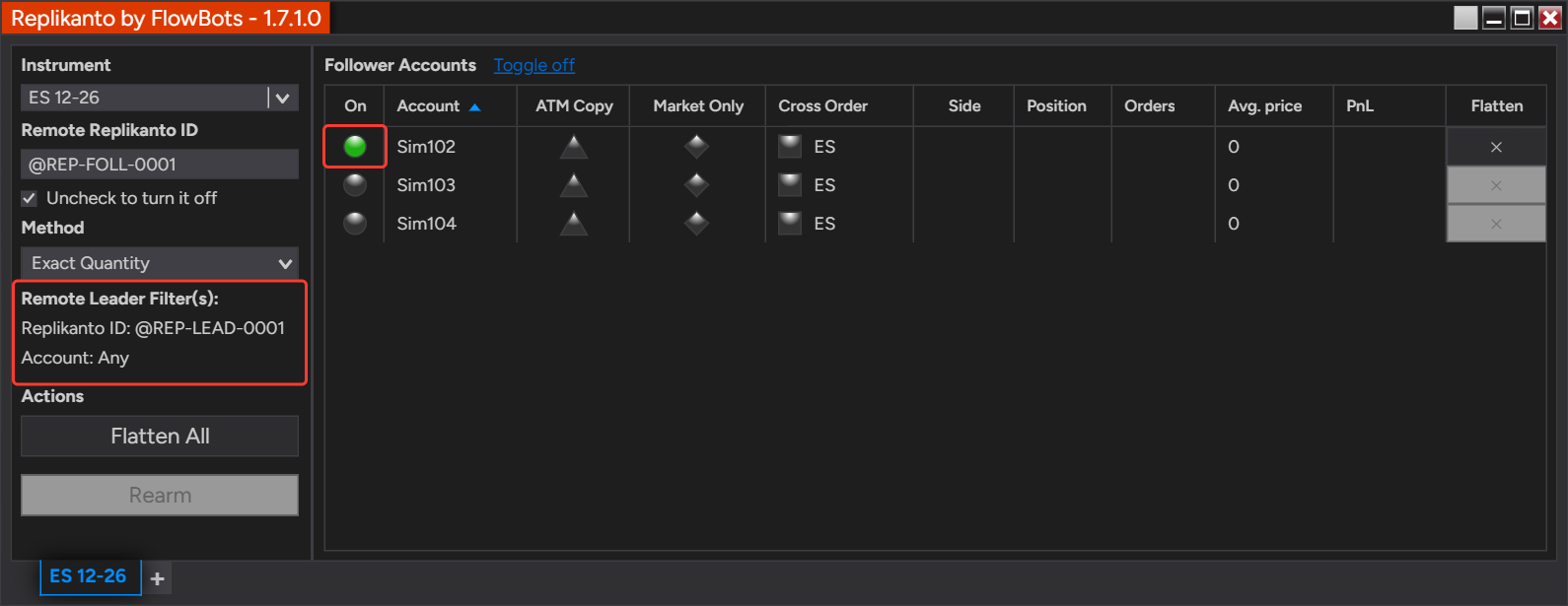
Two leader computers send ES trades to your computer. Their Replikanto IDs are @REP-LEAD-0001 and @REP-LEAD-0002 (example IDs). You want the first leader copied to Sim102 and the second to Sim103. Set Leader Replikanto ID to @REP-LEAD-0001 in the first tab, with Sim102 on:

Replikanto tab in Remote Node Mode on ES showing Remote Leader Filter(s): Replikanto ID @REP-LEAD-0001, Account Any, with follower Sim102 on
First tab: only trades from @REP-LEAD-0001 are copied, to Sim102

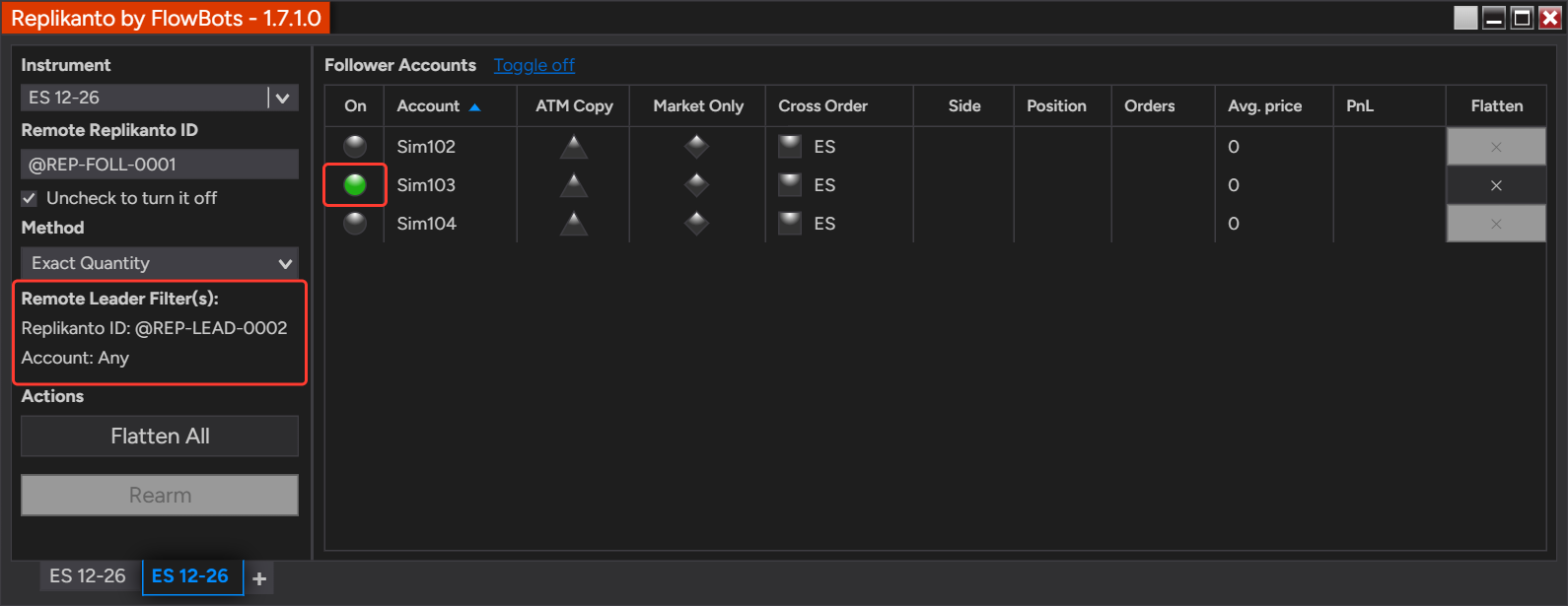
Then add a second tab on ES in the same mode, set Leader Replikanto ID to @REP-LEAD-0002 and turn on Sim103:

Second Replikanto tab on ES showing Remote Leader Filter(s): Replikanto ID @REP-LEAD-0002, Account Any, with follower Sim103 on
Second tab: only trades from @REP-LEAD-0002 are copied, to Sim103

Both leaders trade ES, and each one’s trades reach only its own follower account.

Two leader accounts on one leader computer

One leader computer sends ES trades from two accounts, SimLeaderA and SimLeaderB, for example two strategies on the same instrument. Both trades come from the same Replikanto ID, so filter by account instead: set Leader Account Name to SimLeaderA in one tab and to SimLeaderB in another, each with its own followers.

Replikanto tab on ES showing Remote Leader Filter(s): Replikanto ID Any, Account SimLeaderA, with follower Sim102 on
Trades from the leader account SimLeaderA go to Sim102
Replikanto tab on ES showing Remote Leader Filter(s): Replikanto ID Any, Account SimLeaderB, with follower Sim103 on
Trades from the leader account SimLeaderB go to Sim103

Both filters together

When several leader computers use the same account names, fill in both fields: the tab then copies only the trades of that account on that computer.

How to set it up

  1. On the leader computer, right-click the Replikanto window and select My Replikanto ID. Replikanto copies the leader’s ID to the clipboard and writes it in the NinjaTrader Log tab. If you want to filter by account, note the leader account’s name too.
  2. On the follower computer, open a Replikanto tab, right-click it and select Network Node Mode (Local Network) or Remote Node Mode (Internet), then tick Check to turn it on. Select the instrument and turn on the follower accounts for this leader.
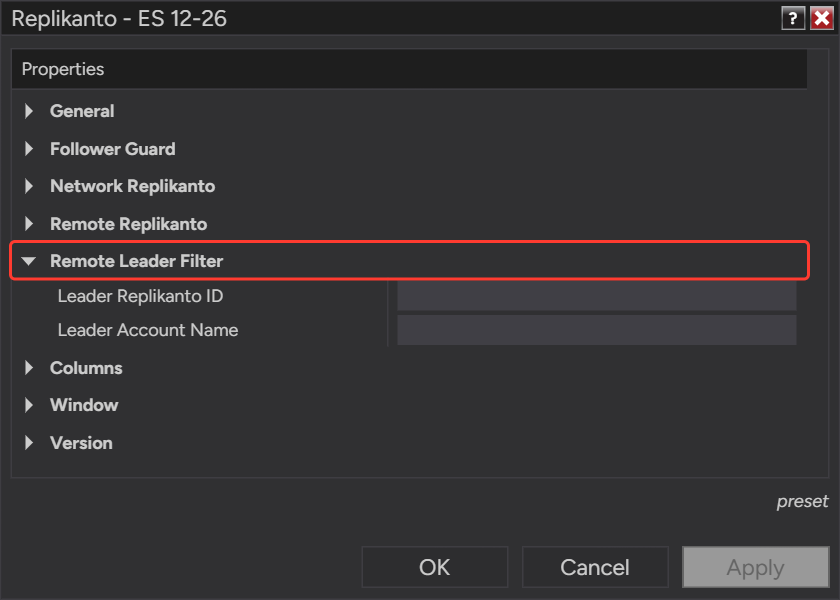
  3. Right-click the tab and select Properties. Open the Remote Leader Filter group.
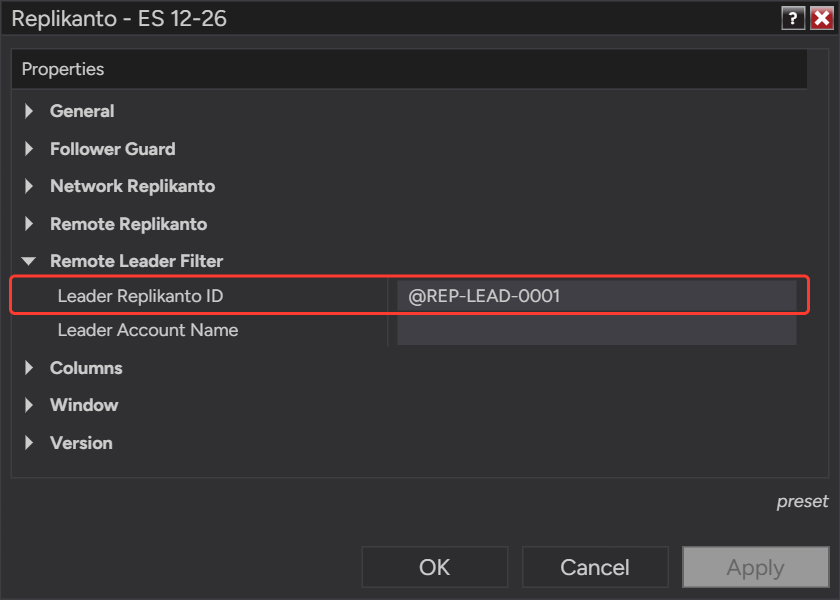
  4. Enter the leader’s ID in Leader Replikanto ID, the leader account in Leader Account Name, or both, and click OK.
  5. Check the tab: under Remote Leader Filter(s): it shows Replikanto ID: and Account:, with Any for a field you left empty.
  6. For each additional leader, add a tab with the + button and repeat steps 2 to 5 with that leader’s filter and followers.
  7. Save the NinjaTrader workspace, so each tab keeps its filter the next time you start NinjaTrader.
Replikanto Properties window with the Remote Leader Filter group open, showing the empty Leader Replikanto ID and Leader Account Name fields
The Remote Leader Filter group in Properties
Replikanto Properties window with the Remote Leader Filter group open and Leader Replikanto ID set to the example ID @REP-LEAD-0001
Leader Replikanto ID set to the example ID @REP-LEAD-0001

Good to know

  • The filter is used only in Network Node Mode (Local Network) and Remote Node Mode (Internet). On a leader tab, with neither mode selected, it has no effect and the tab does not show it.
  • Each tab takes one Leader Replikanto ID and one Leader Account Name. To follow several leaders separately, use one tab per leader. To copy every leader that sends to this computer, leave both fields empty.
  • The filter comes on top of the instrument: a tab copies only trades on its own instrument, from the leader you chose.
  • When a tab ignores a trade because of its filter, the NinjaTrader Log tab (Control Center > Log) records a line that includes “Ignored a trade: it came from a different leader”. If trades you expect are not copied, check the ID or account name in Properties for a typo.
  • The filter works on the receiving computer. The leader still sends to every node turned on in its node list, so over the internet it uses Submit credits for each remote computer it sends to, even when that computer’s filter ignores the trade. Turn on, in a leader’s node list, only the computers that should receive its trades.
  • Leader Replikanto ID can only match when the leader’s Replikanto has its ID, which it gets from the Replikanto server when it starts. On a local network, check that My Replikanto ID shows an ID on the leader; a trade that arrives without one is not filtered by ID.

Related

Questions? Browse the Replikanto Knowledge Center or contact us. New to Replikanto? Try it free for 7 days.
Posted on

Export and import Replikanto followers and nodes

Export saves a Replikanto list to a text file, and Import loads it back. Use it to keep a backup of your followers and nodes, move your setup to another computer or VPS, or give another tab or workspace the same follower settings without clicking through every row again.

  • Three lists, each on its own: the Follower Accounts grid, the local network node list (Node IP and Port) and the remote node list (Remote Replikanto ID).
  • Plain text: a .txt file with one line per row and the fields separated by semicolons, easy to read and to edit.
  • Any Windows language: Import reads a follower list exported on a computer that uses a decimal comma, such as Portuguese or German, including fractional Ratio and Pct. Change values.
  • Only what is in the file changes: Import updates the accounts or nodes named in the file and leaves the other rows as they are.
  • Custom groups included: if a follower is in a custom follower group, its group name is saved in the file, and Import creates the group or puts the account in it.

How it works

Each list has its own Import… and Export… items in its right-click menu. Export writes the rows of the list with their settings; for the follower list, that is every account in the grid, including accounts in collapsed groups. Import reads a file in the same format and applies it to the list of the tab you are in. The file holds only that list: the leader account, the instrument, the Properties and the rest of the tab are saved with the NinjaTrader workspace.

Follower list

Right-click the Follower Accounts grid to export or import the followers. The default file name is Followers.txt.

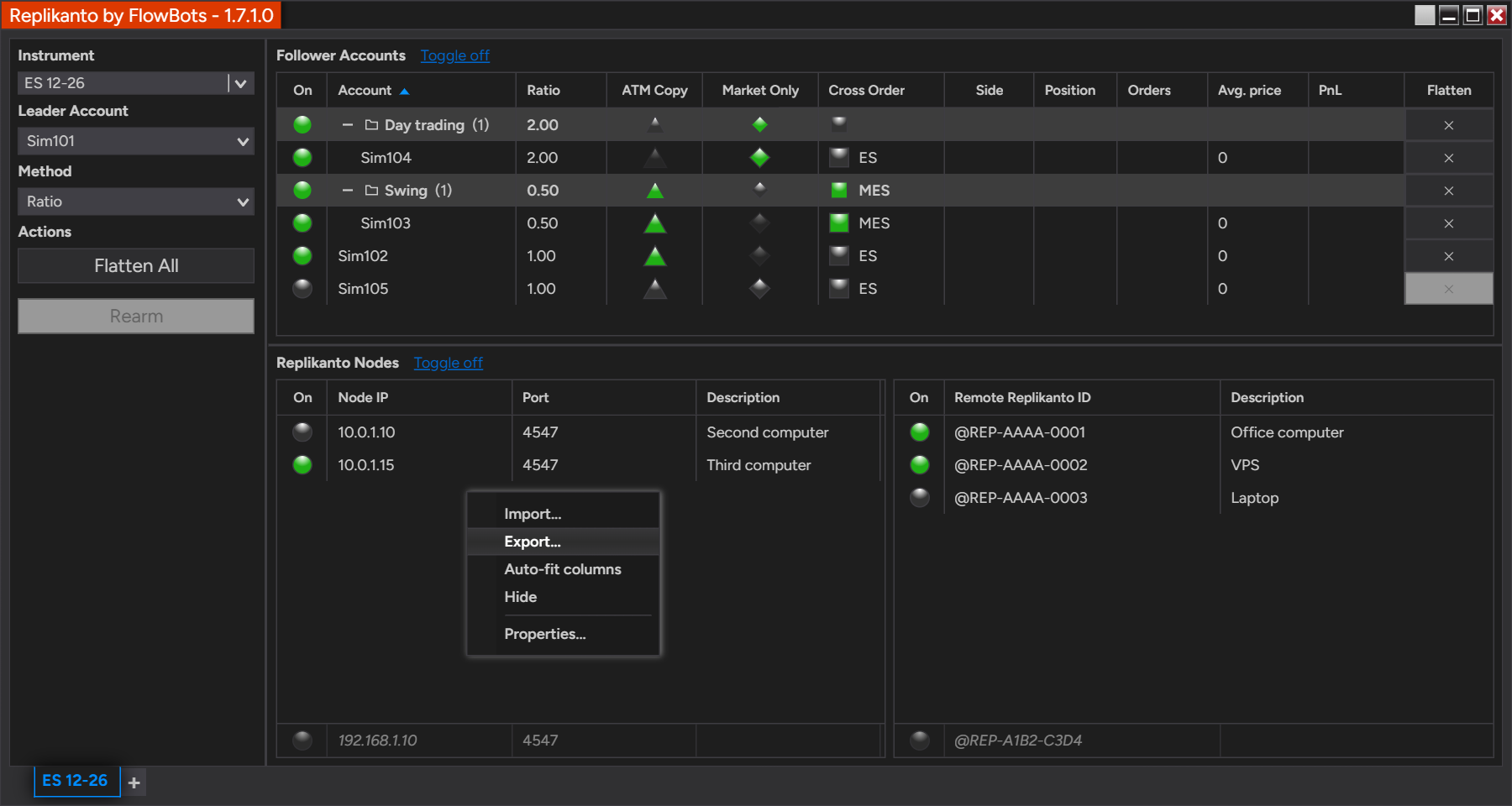
Replikanto window with the right-click menu of the Follower Accounts grid open, showing Import... and Export...
Import… and Export… in the Follower Accounts grid menu

Each line of the file holds one account’s settings, in this order, plus an optional last field with the account’s custom group (the file itself has no header line):

Account;ATM Copy;Cross Order;Ratio;Pre Allocation;Pct. Change;Status;Market Only;Group (optional)

Example:

Sim102;True;False;1;0;0;Checked;False
Sim103;True;MES;0.5;0;0;Checked;False;Swing
Sim104;False;False;2;0;0;Checked;True;Day trading
Sim105;False;False;1;0;0;Off;False
Follower Accounts grid with the custom groups Swing and Day trading and two accounts that are in no group
The follower list of the example: Sim103 in Swing, Sim104 in Day trading, Sim102 and Sim105 in no group.
  • ATM Copy and Market Only are True or False.
  • Cross Order is False when it is off; otherwise it holds the Cross Order target, such as MES.
  • Ratio and Pct. Change use a decimal point and no thousands separator, whatever the Windows language.
  • Status is Checked (on) or Off. A file can also hold Disarmed or OutOfSync, which Import reads as Checked.
  • Group is the name of the custom follower group the account is in. It is written only for an account that is in a custom group, so a file from a list with no custom groups has eight fields per line. A group name has at most 32 characters and no semicolon. In the example, Sim103 is in the group Swing and Sim104 in Day trading. To create groups, see Follower groups.

When you import a follower list:

  • Every account named in the file gets the settings from the file. Accounts that are not in the file keep their settings.
  • An account that has no row in the grid yet, usually because its broker connection is still starting, keeps its imported settings, and Replikanto applies them when the account appears. Its group name is applied too: the group is created or joined, and the account shows as a member that is not connected until its broker connects.
  • If one field cannot be read, or is outside what the grid accepts (Ratio and Pct. Change from -100 to 100), that follower keeps its current value for that field, the rest of the line is still applied, and the NinjaTrader Log tab shows a warning naming the field.
  • If a line turns on both ATM Copy and Market Only, Market Only wins and ATM Copy stays off, as in the grid.
  • If a line has a group name, Import creates that group, or puts the account in the existing custom group with the same name (upper and lower case do not matter, and the existing spelling is kept). An account that was in another custom group moves to the group in the file.
  • An empty or missing group field does not take an account out of its group, so importing a file without groups leaves your groups as they are. An account leaves its group only when the file names a different group for it.
  • Only custom groups are in the file. The grouping of the list by connection (the Group followers by connection option) is not saved in the file.
  • A follower stays Off when turning it on would create a copy loop with another Replikanto tab, or when its Cross Order target has no match for this tab’s instrument.

Local network node list

On a leader tab, right-click the node list with the Node IP and Port columns, under Replikanto Nodes. The default file name is Nodes.txt.

Replikanto window with the right-click menu of the local network node list open, showing Import... and Export...
Import… and Export… in the local network node list menu

Each line holds, in this order:

Node IP;Port;Status;Description

Example:

10.0.1.10;4547;Off;Second computer
10.0.1.15;4547;Online;Third computer

The file has no header line. Status is Online (sending on), Away (on, but the node did not answer the last trade) or Off. A line with only an IP address is read with port 4547, status Off and no description.

Remote node list

On a leader tab, right-click the node list with the Remote Replikanto ID column, under Replikanto Nodes. The default file name is RemoteNodes.txt.

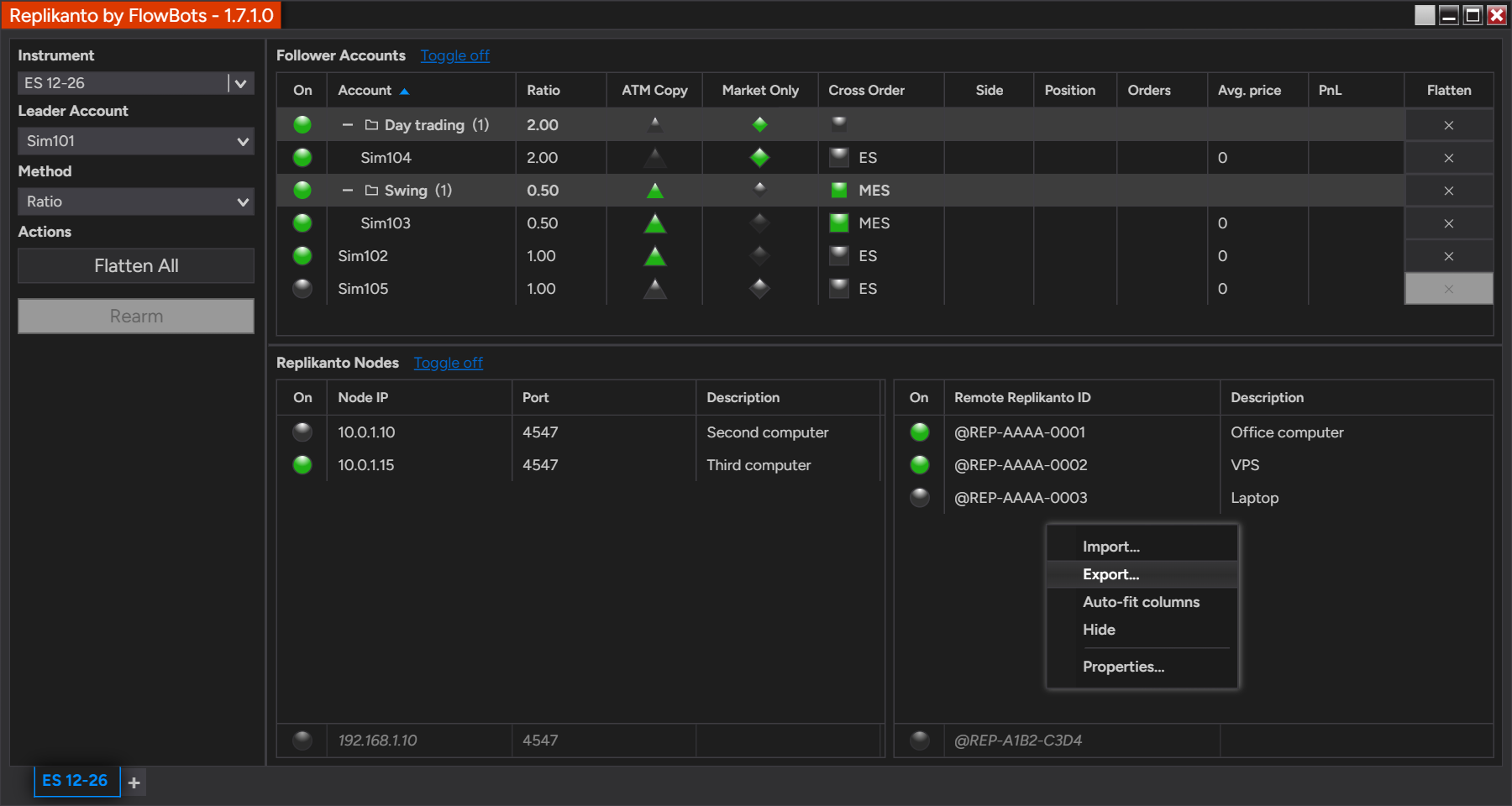
Replikanto window with the right-click menu of the remote node list open, showing Import... and Export...
Import… and Export… in the remote node list menu

Each line holds, in this order:

Remote Replikanto ID;Status;Description

Example (the IDs are made up):

@REP-AAAA-0001;Online;Office computer
@REP-AAAA-0002;Online;VPS
@REP-AAAA-0003;Off;Laptop

The file has no header line. Status is Online, Away or Off, as in the local network node list.

For both node lists, Import adds the nodes that are not in the list yet and updates the status and description of the nodes already there. Nodes that are not in the file stay in the list.

How to set it up

  1. To export, open the Replikanto tab, right-click the list you want to save (Follower Accounts, or one of the two node lists under Replikanto Nodes) and click Export….
  2. Choose a folder and a file name (Followers.txt, Nodes.txt or RemoteNodes.txt by default) and click Save.
  3. To import, open the tab you want to configure. For a follower list, select the leader account and the instrument first.
  4. Right-click the same list, click Import…, select the file and click Open.
  5. Check the grid, then save the NinjaTrader workspace, so the imported settings are there the next time you start NinjaTrader.

Good to know

  • Rows imported as Checked, Online or Away are on as soon as the import ends: followers copy the leader’s next trade and nodes receive it. Check the file before you import it on a tab with a live leader account.
  • With Lock follower settings while in a trade on (Properties, on by default), the follower list’s Import… is greyed out while a trade is open on the tab: the leader account holds a position, or a follower that is on holds a position or a working order. Flatten it, or wait for the trade to finish. Export… stays available.
  • Export writes the accounts that are in the list at that moment. An account whose broker connection is not connected is left out of the file, together with its group.
  • Custom groups are saved with the NinjaTrader workspace, together with which groups are open. An earlier version of Replikanto ignores the group field and reads the first eight fields of each line. If you open and save the workspace in an earlier version, the groups are dropped, so export the follower list first.
  • The node lists are shown on leader tabs only. A tab in Network Node Mode (Local Network) or Remote Node Mode (Internet) receives trades and has no node list to export.
  • If you edit a file by hand, keep the semicolons, one row per line, and the account names exactly as NinjaTrader shows them. A group name cannot contain a semicolon.
  • Each imported follower is recorded in the NinjaTrader Log tab (Control Center > Log), with the settings it ended up with. When the import changes groups, one more line reports how many accounts and groups were imported.

Related

Questions? Browse the Replikanto Knowledge Center or contact us. New to Replikanto? Try it free for 7 days.
Posted on

Replikanto Follower Guard

Follower Guard watches your follower accounts and warns you when one stops matching the leader. If you choose, it also cancels a follower entry that did not fill, flattens a follower that stays out of step, disarms it so it stops copying, and sends you an e-mail, so a problem on one account does not keep growing while you trade.

  • Status at a glance: each follower shows whether it is On, Out of sync, Disarmed or Off.
  • Automatic actions: cancel an unfilled follower entry, or flatten a follower that is out of sync, in the opposite direction or hit by an order error, after a delay you set.
  • Disarm and alert: with Disarm Followers on, a follower that Follower Guard acted on stops copying until you rearm it, and you get a message and an optional e-mail.
  • Position check before it acts: on Rithmic accounts, Replikanto re-reads a follower’s real position from the broker before Follower Guard or a Replikanto flatten acts on it; on other connections, Follower Guard gives NinjaTrader time to apply a late fill before its timers flatten a follower.
  • You decide how strict it is: every action is off by default; only Disarm Followers is on.

How it works

Follower status

The dot in the On column of the Follower Accounts grid shows each follower’s state. Hover over it for a short description.

Four status dots, top to bottom: yellow, green, gray and red
  • Out of sync (yellow): the follower’s position does not match the leader’s. It keeps copying trades as usual.
  • On (green): the follower copies the leader and matches it.
  • Off (gray): the follower does not copy, and Follower Guard leaves it alone.
  • Disarmed (red): Follower Guard acted on this follower. It copies no new orders until you rearm it, but it is still flattened when the leader closes its position (Market Only followers excepted).

Click a follower’s dot to turn it On or Off. Clicking the dot of a Disarmed follower turns it back On.

When a follower is Out of sync

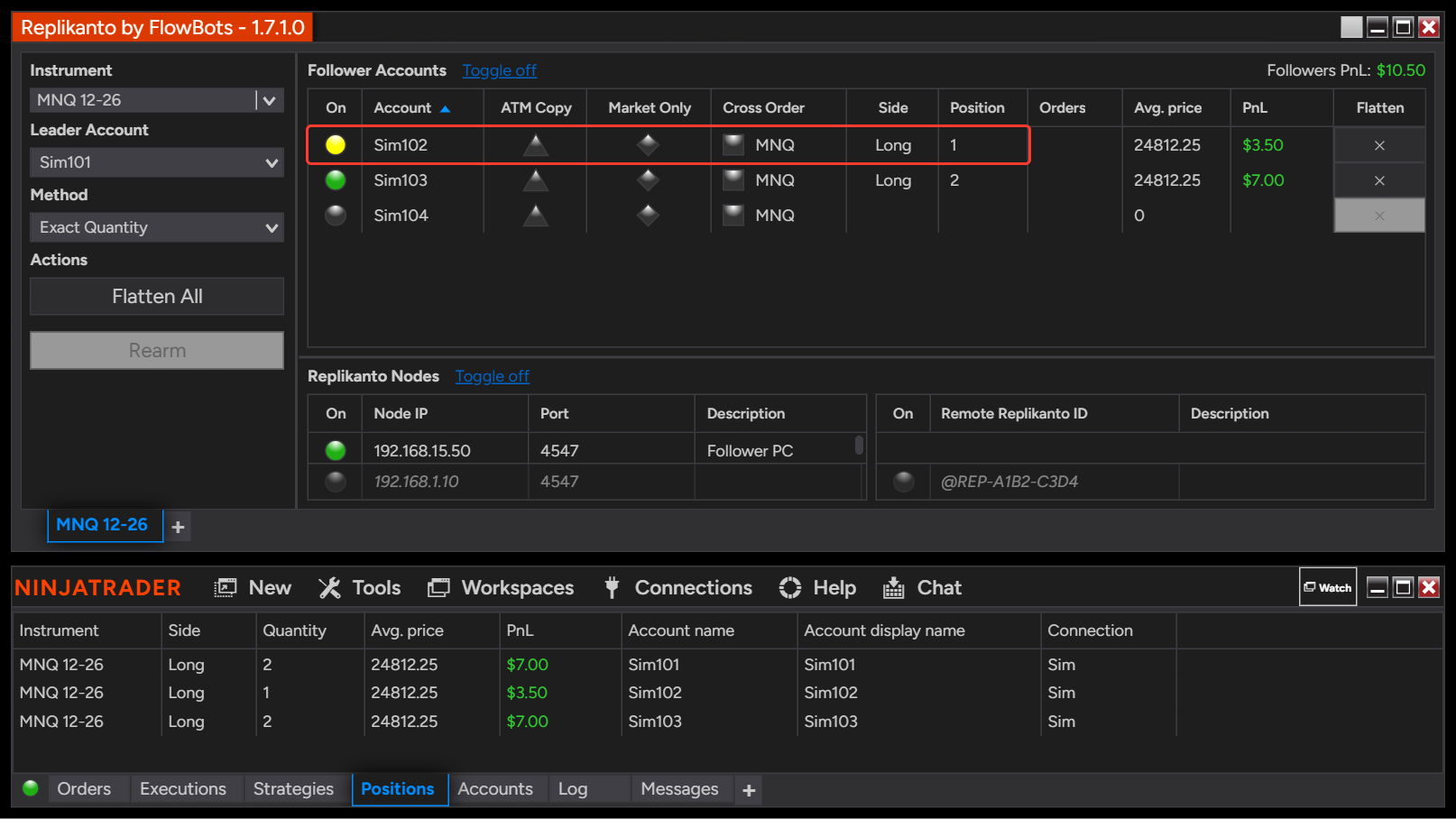
Each time positions change, Replikanto waits for them to settle and then compares every follower that is On with the leader, on the tab’s instrument (or on the follower’s Cross Order instrument). It checks the direction (long, short or flat) and the quantity the tab’s copy method says the follower should hold. A difference in either marks the follower Out of sync. When the positions match again, the follower turns back On by itself.

Out of sync is a warning, not an action: the follower keeps copying. You can close it yourself with the Flatten button (×) on its row, or let one of the options below act for you.

Replikanto window with follower Sim102 marked Out of sync (yellow dot) holding 1 contract while Sim103 holds 2, above the NinjaTrader Control Center Positions tab showing the leader Sim101 long 2
A follower marked Out of sync

Some followers are compared in a way that fits their copy method, so they are not flagged for a position they are meant to hold:

  • Negative Ratio: the follower’s direction is inverted before the comparison, so a follower that trades the opposite side on purpose is in sync.
  • Pct Change: not marked Out of sync. This method adds to or reduces the position the follower already holds, so there is no leader size or direction to match.
  • Ratio with decimals, Available Cash, Net Liquidation, Pooled Quantity (more than one follower) and Pre Allocation: each leader entry is sized and rounded down on its own, so Replikanto allows for the small shortfall that rounding leaves on a follower that scaled in with the leader. A follower holding more than expected is still flagged.
  • A flat follower sized to zero: when the copy method gives a follower 0 contracts, a flat follower is in sync.

The NinjaTrader Log tab records why each follower was marked Out of sync (direction or quantity), with the leader, follower and expected quantities.

The Follower Guard options

All options are in the Follower Guard group of the Replikanto Properties. They apply to the tab you open them from.

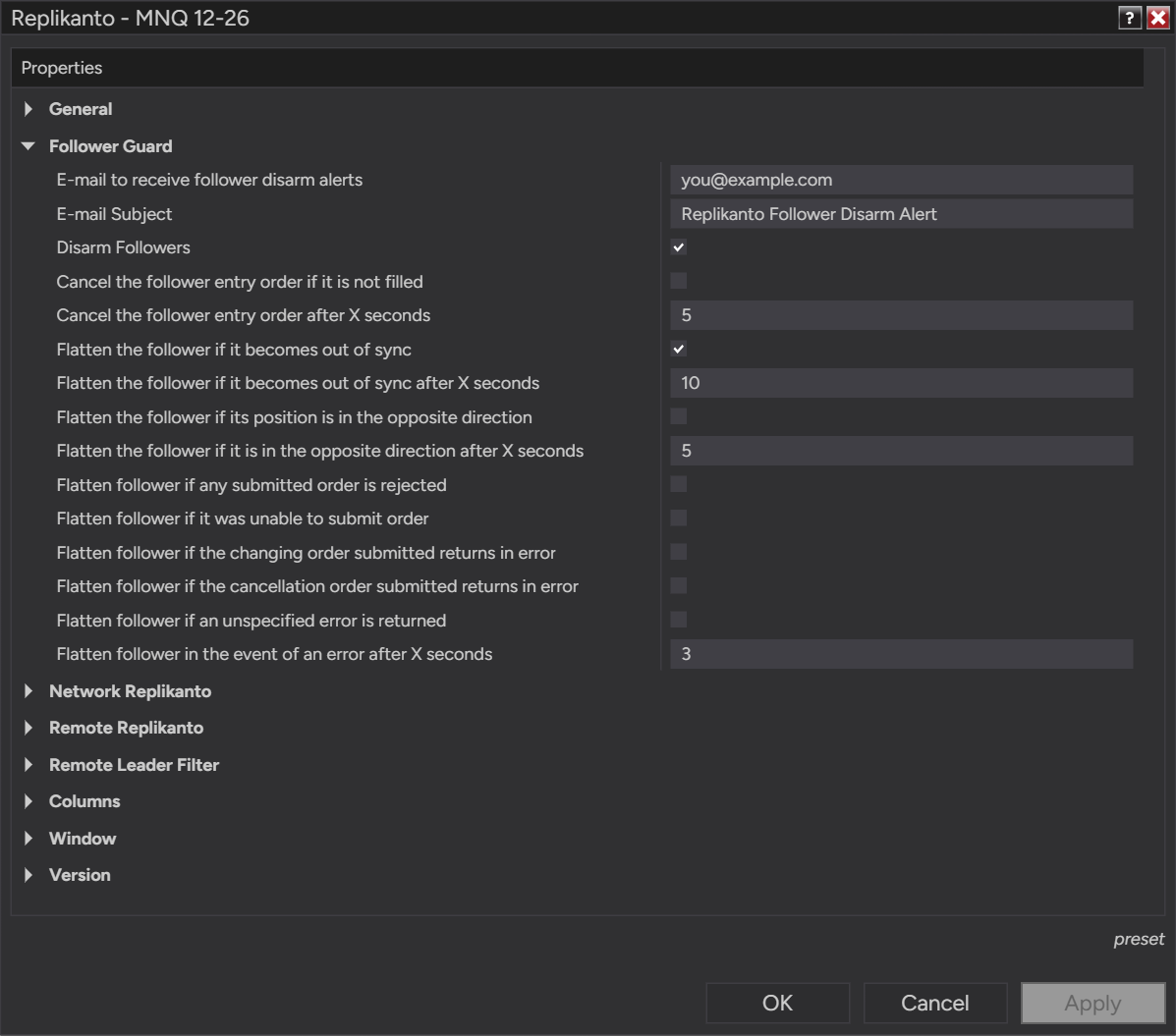
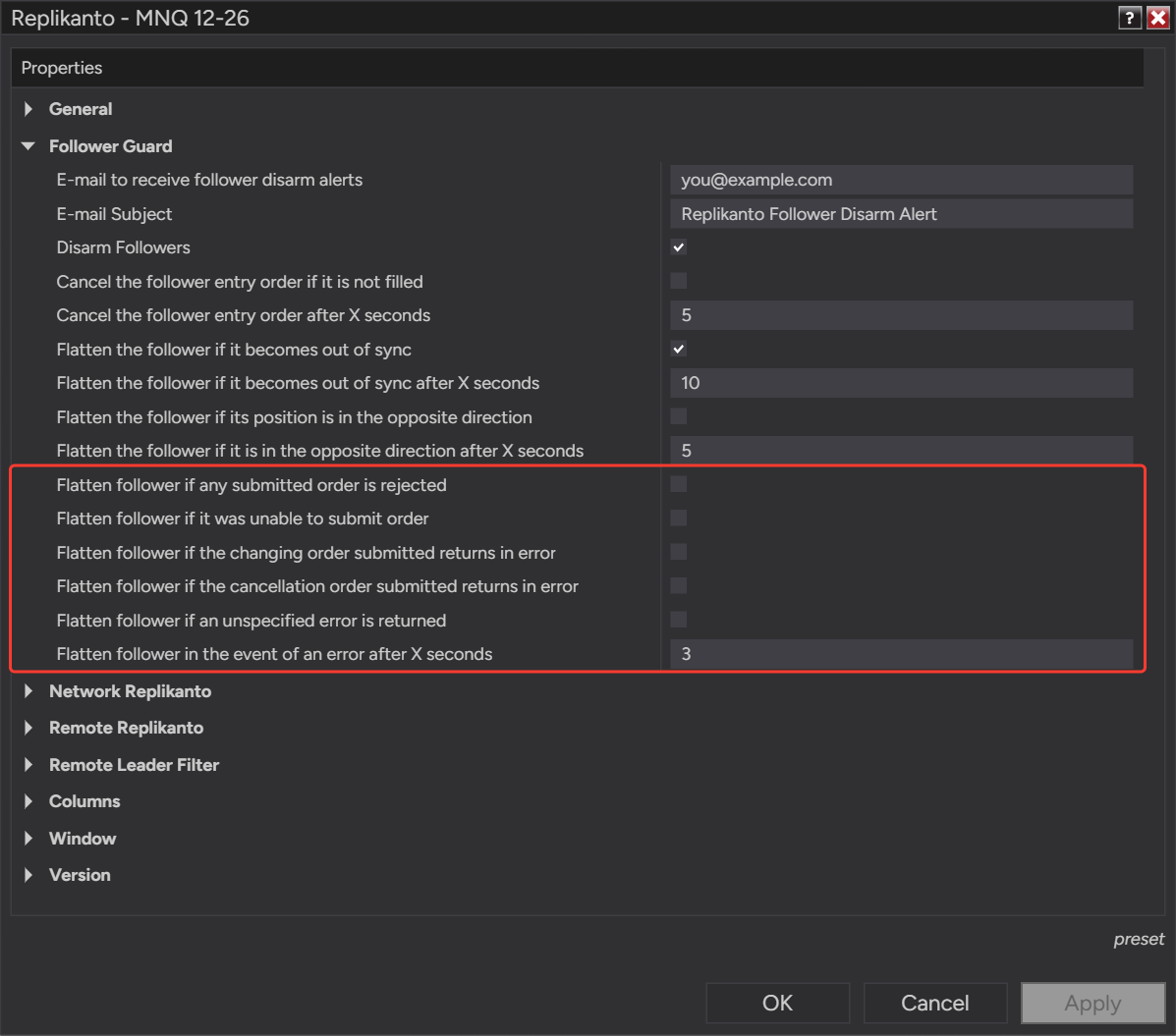
Replikanto Properties with the Follower Guard group expanded, showing the e-mail fields, Disarm Followers, the cancel and flatten options and their delays in seconds
The Follower Guard group in the Replikanto Properties

Cancel the follower entry order if it is not filled

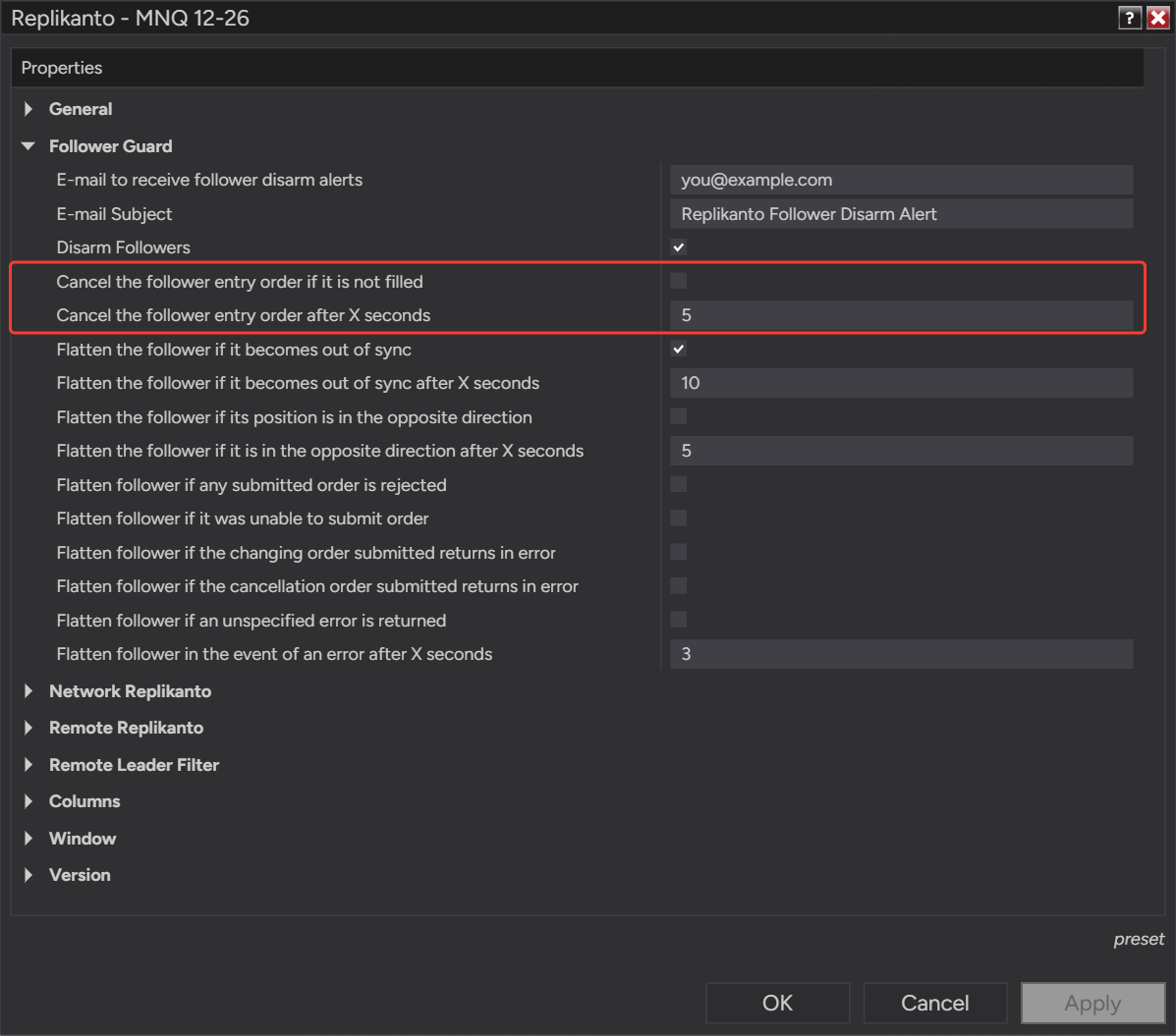
When the leader’s entry order fills, even partly, Replikanto starts a countdown set by Cancel the follower entry order after X seconds (5 by default). If a follower’s copy of that entry has not received any fill when the time is up, Replikanto cancels it, together with the stop and target this tab copied for that entry on the same instrument. The follower’s other working orders, on another instrument, placed by hand or copied by another Replikanto tab, stay in place. A partially filled entry is left working. With Disarm Followers on, the follower is also disarmed.

Follower Guard options Cancel the follower entry order if it is not filled and Cancel the follower entry order after X seconds, set to 5
Cancel an unfilled follower entry

Flatten the follower if it becomes out of sync

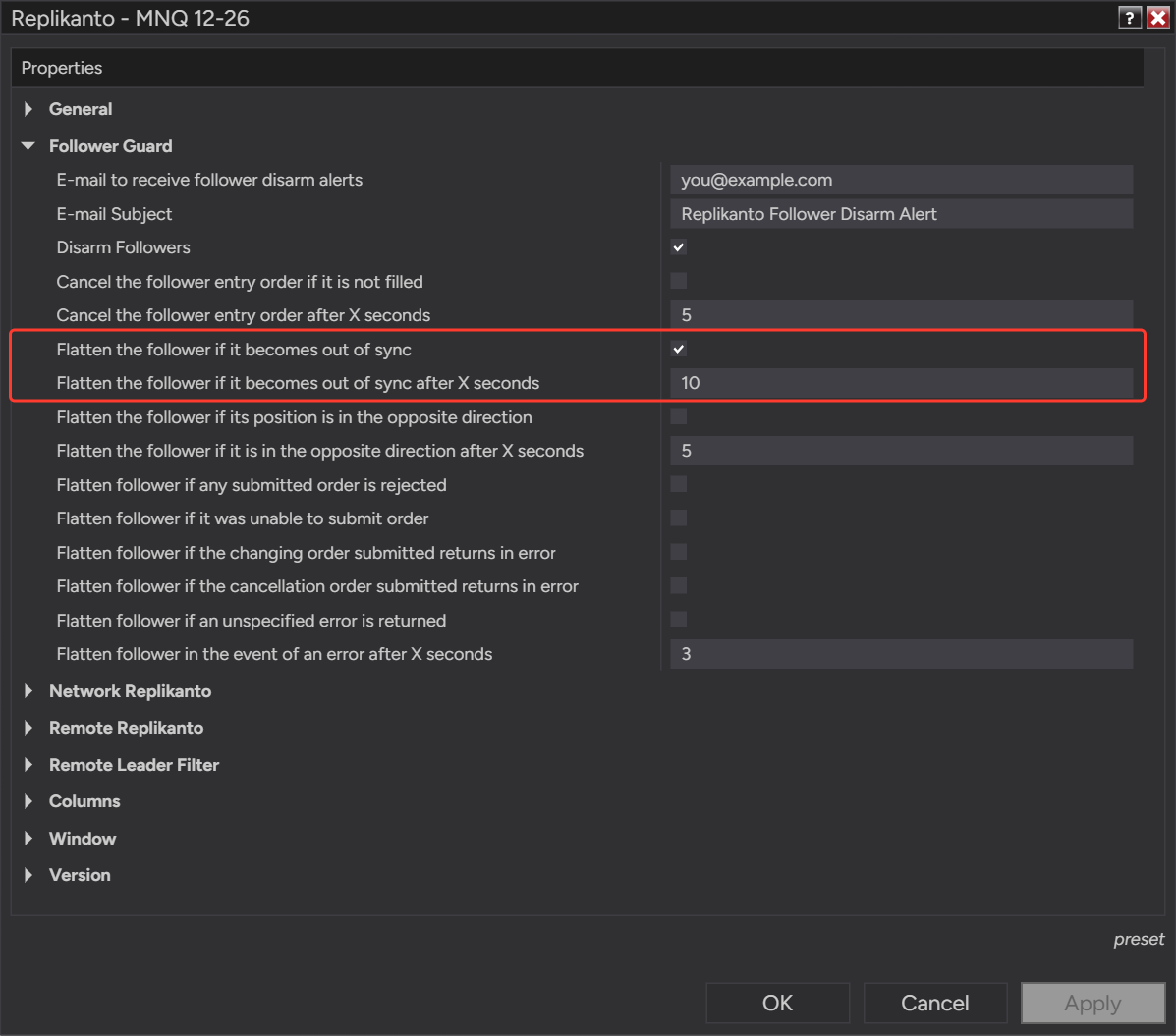
When a follower turns Out of sync, a countdown starts, set by Flatten the follower if it becomes out of sync after X seconds (10 by default). It is a grace period:

  • If the follower comes back in sync before the time is up, nothing is sent.
  • Each time this follower’s position on that instrument changes while it is Out of sync (each fill, including partial fills), the countdown starts again, so a follower that is still being filled in parts is not closed while it catches up. Updates from unrelated connections or accounts do not restart it.
  • When the time is up, Replikanto checks the follower again and flattens it only if it is still Out of sync and still has a position or a working order on that instrument. The flatten closes the position and cancels the working orders on that instrument.
  • On connections other than Rithmic, Replikanto first makes sure NinjaTrader has finished applying the follower’s latest fill or market order to its position. If it has not, nothing is flattened or disarmed yet: the follower stays Out of sync and Replikanto checks again on the next tick of the countdown, for up to about 30 seconds (or until the next tick, when the delay you set is longer). If the position is still not up to date after that, Replikanto acts on the position NinjaTrader shows, so check the follower after the flatten. Rithmic accounts do not use this wait, because their position is re-read from the broker.
  • Then, with Disarm Followers on, the follower is disarmed.

Keep the delay long enough for ordinary fill and reporting delays. A very short delay can close followers that were only catching up with the leader. The wait for late fills comes on top of this delay: it does not replace it, and it does not change the delay you set.

Follower Guard options Flatten the follower if it becomes out of sync and its delay, set to 10 seconds
Flatten a follower that stays out of sync

Flatten the follower if its position is in the opposite direction

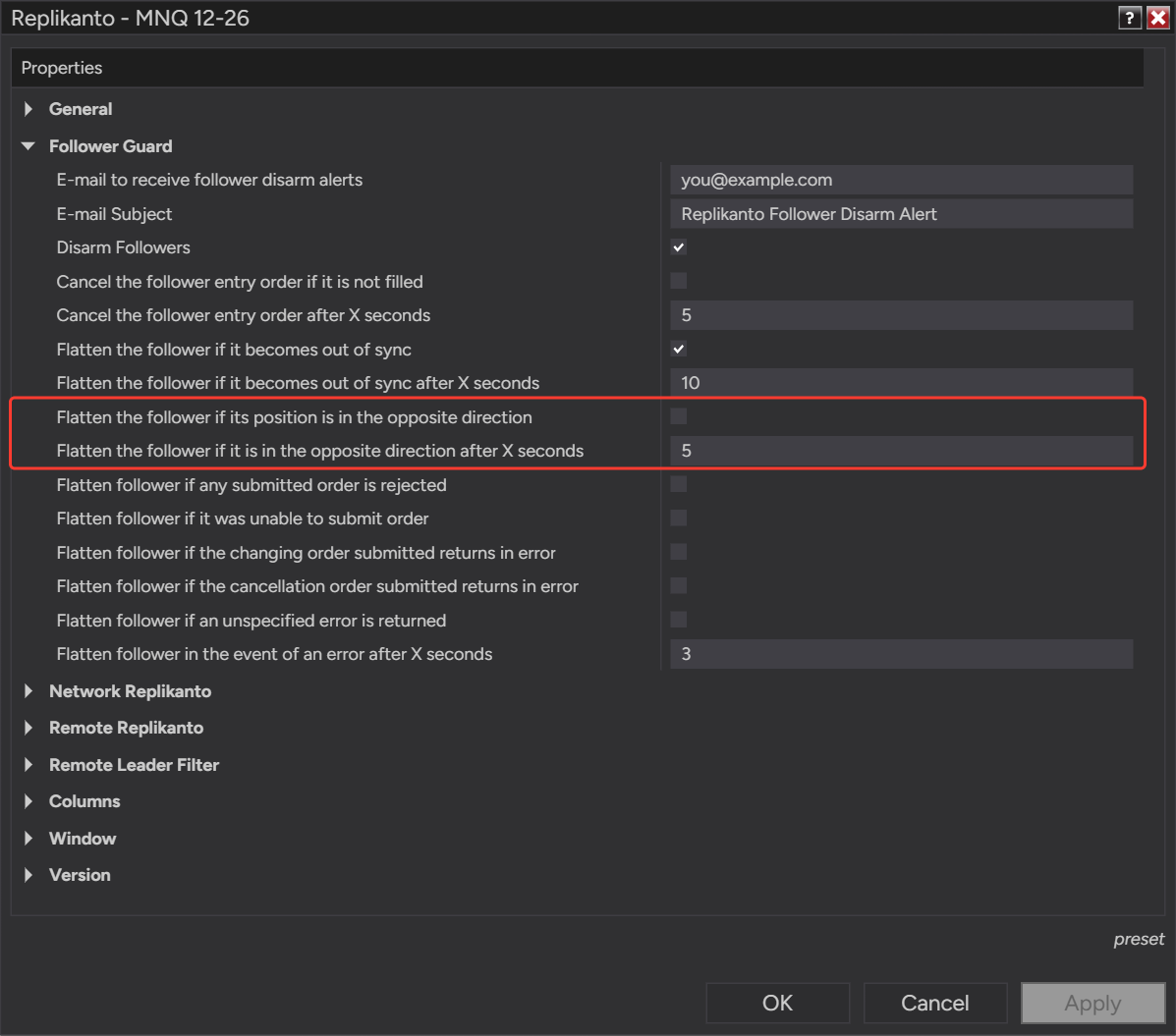
This option acts only when the leader and the follower both hold a position, on opposite sides. A quantity difference alone does not trigger it. Its countdown is set by Flatten the follower if it is in the opposite direction after X seconds (5 by default) and restarts each time a position changes on the tab (the leader’s or any follower’s) while this follower is still out of step. When both options are on, the shorter delay acts first; with the default delays, that is this one.

On connections other than Rithmic, this timer waits for NinjaTrader to apply the follower’s latest fill in the same way as the out of sync option above. After waiting, it reads the leader’s and the follower’s positions again and flattens only if they are still on opposite sides.

Follower Guard options to flatten a follower whose position is in the opposite direction and its delay, set to 5 seconds
Flatten a follower in the opposite direction

Flatten the follower when an order fails

These options watch the orders Replikanto copies to the follower. When the broker or NinjaTrader reports one of the errors you selected, Replikanto waits the delay in Flatten follower in the event of an error after X seconds (3 by default), disarms the follower if Disarm Followers is on, and flattens it on that order’s instrument.

  • Flatten follower if any submitted order is rejected: the broker rejected the order.
  • Flatten follower if it was unable to submit order: the order could not be submitted.
  • Flatten follower if the changing order submitted returns in error: a change of price or quantity failed. A change that fails only because the order had just filled or been cancelled does not trigger it.
  • Flatten follower if the cancellation order submitted returns in error: a cancellation failed.
  • Flatten follower if an unspecified error is returned: the operation was aborted or ended with an unspecified error.
The five Follower Guard options that flatten a follower on an order error, and the delay option set to 3 seconds
Flatten a follower when one of its orders fails

Exit-stop protection works together with the change option. When the leader moves an exit stop to a price the market has already passed, Replikanto waits for the leader’s result, then places the follower’s stop at a valid price and retries if the market keeps moving. A change the broker rejects while that retry is under way does not trigger the flatten; the flatten runs only if the retries run out. This helps avoid stop desync and unwanted flattening, although rare broker rejections are still possible.

Disarm Followers

Disarm Followers is on by default. After any Follower Guard action, the follower is disarmed: its dot turns red and it copies no new orders from the leader until you rearm it. With Disarm Followers off, the actions still run, but the follower stays armed and copies the leader’s next trade.

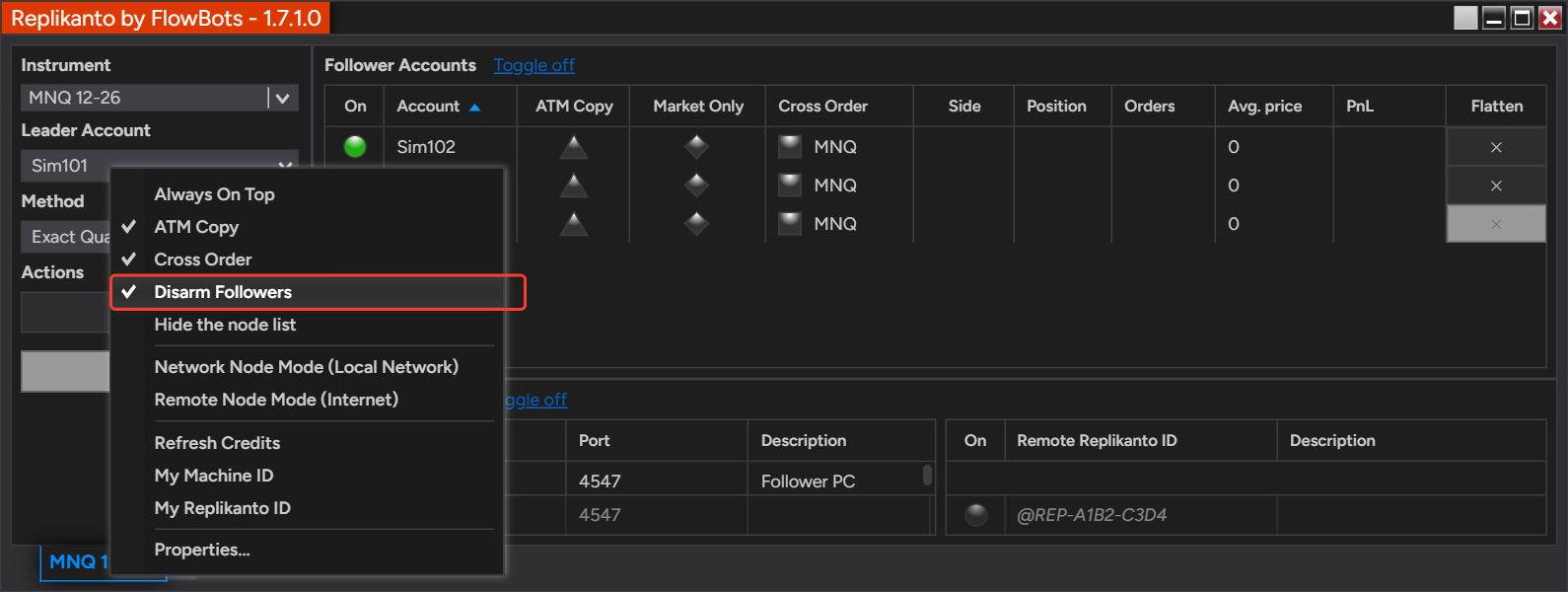
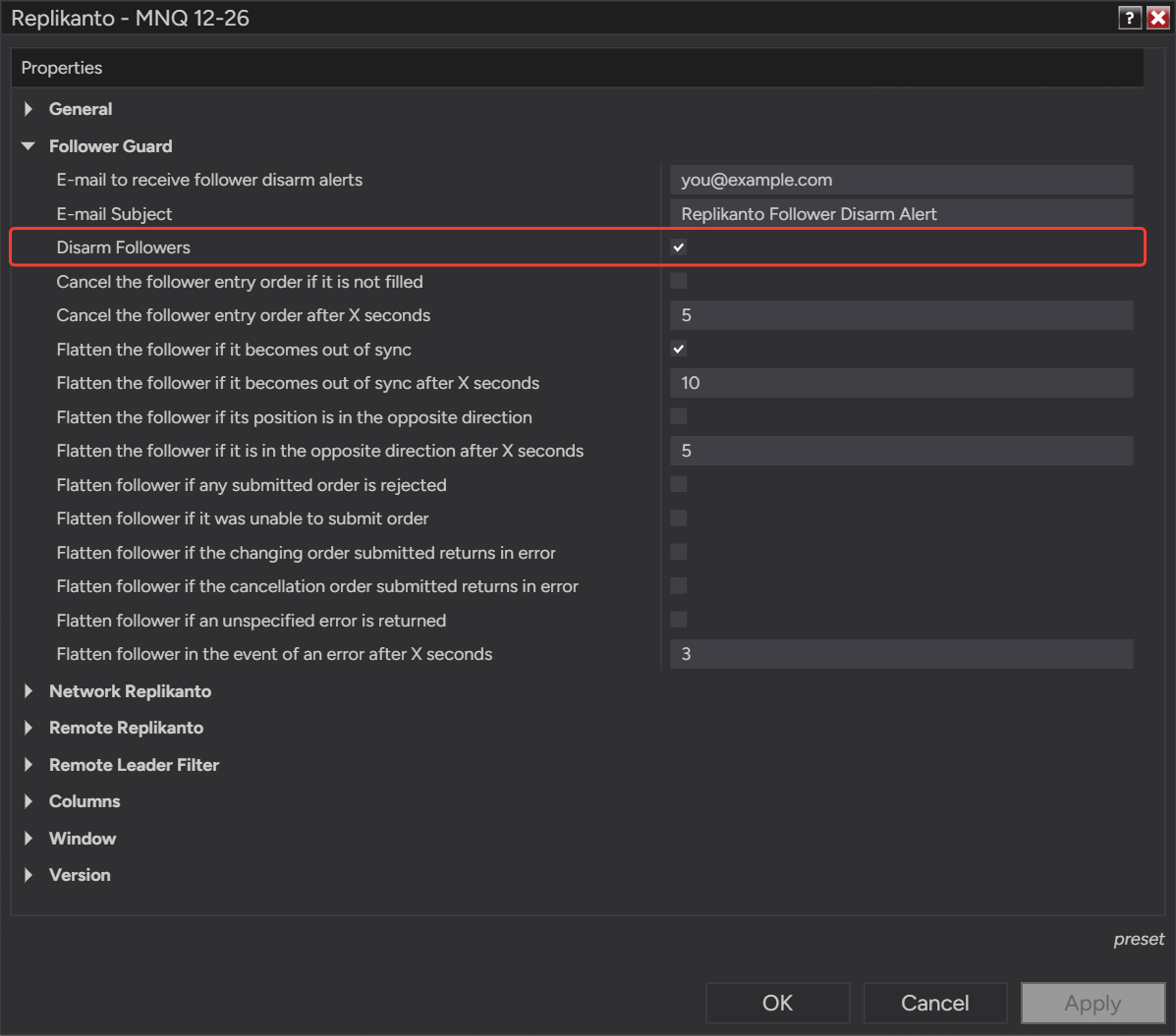
You can switch it in the menu you get by right-clicking the Replikanto window, or in the Properties. Both change the same setting.

Replikanto right-click menu with the Disarm Followers item checked and outlined in red
Disarm Followers in the Replikanto menu
Replikanto Properties, Follower Guard group, with the Disarm Followers option checked
Disarm Followers in the Replikanto Properties

When a follower is disarmed

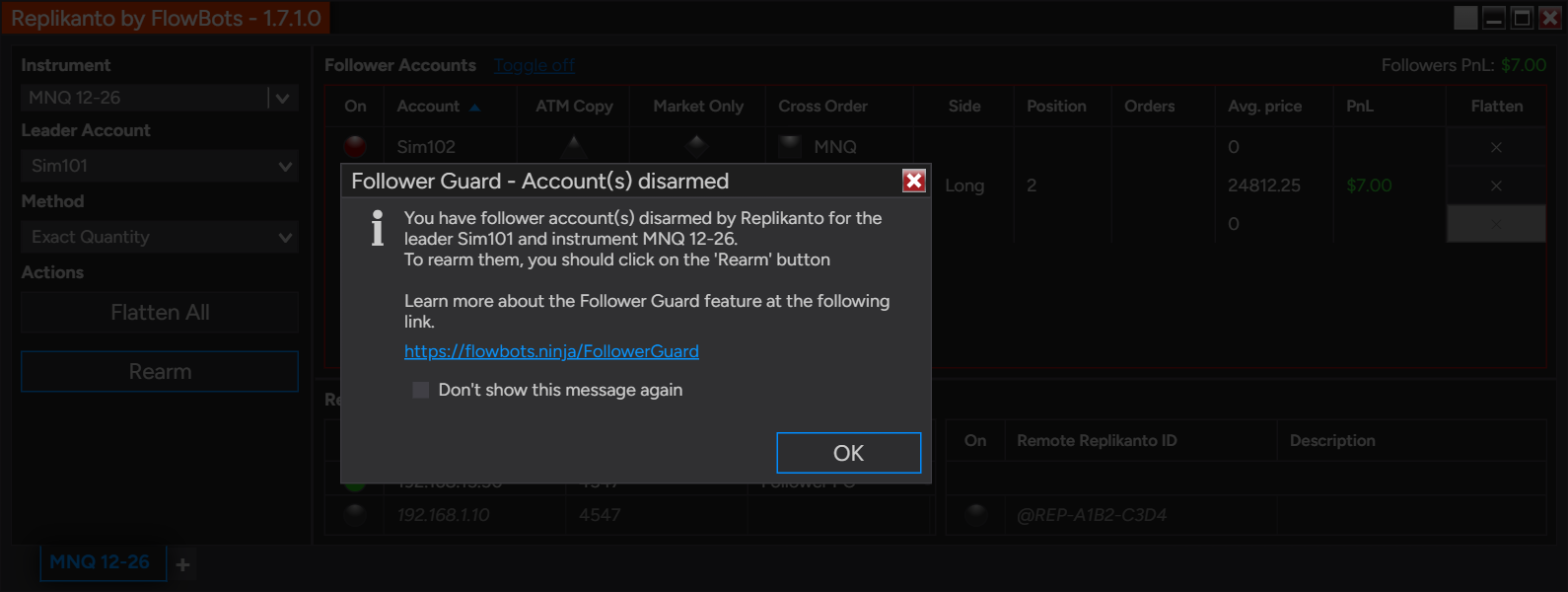
When the first follower on a tab is disarmed, Replikanto brings the tab to the front, outlines the follower grid in red and shows Follower Guard’s Account(s) disarmed message with the leader account and instrument. If you set an e-mail address, Replikanto also sends the alert. While a follower on the tab is still Disarmed, further disarms do not repeat the message or the e-mail.

Message Follower Guard - Account(s) disarmed over the Replikanto window, with a red follower dot and the follower grid outlined in red
The message shown when a follower is disarmed

E-mail alerts

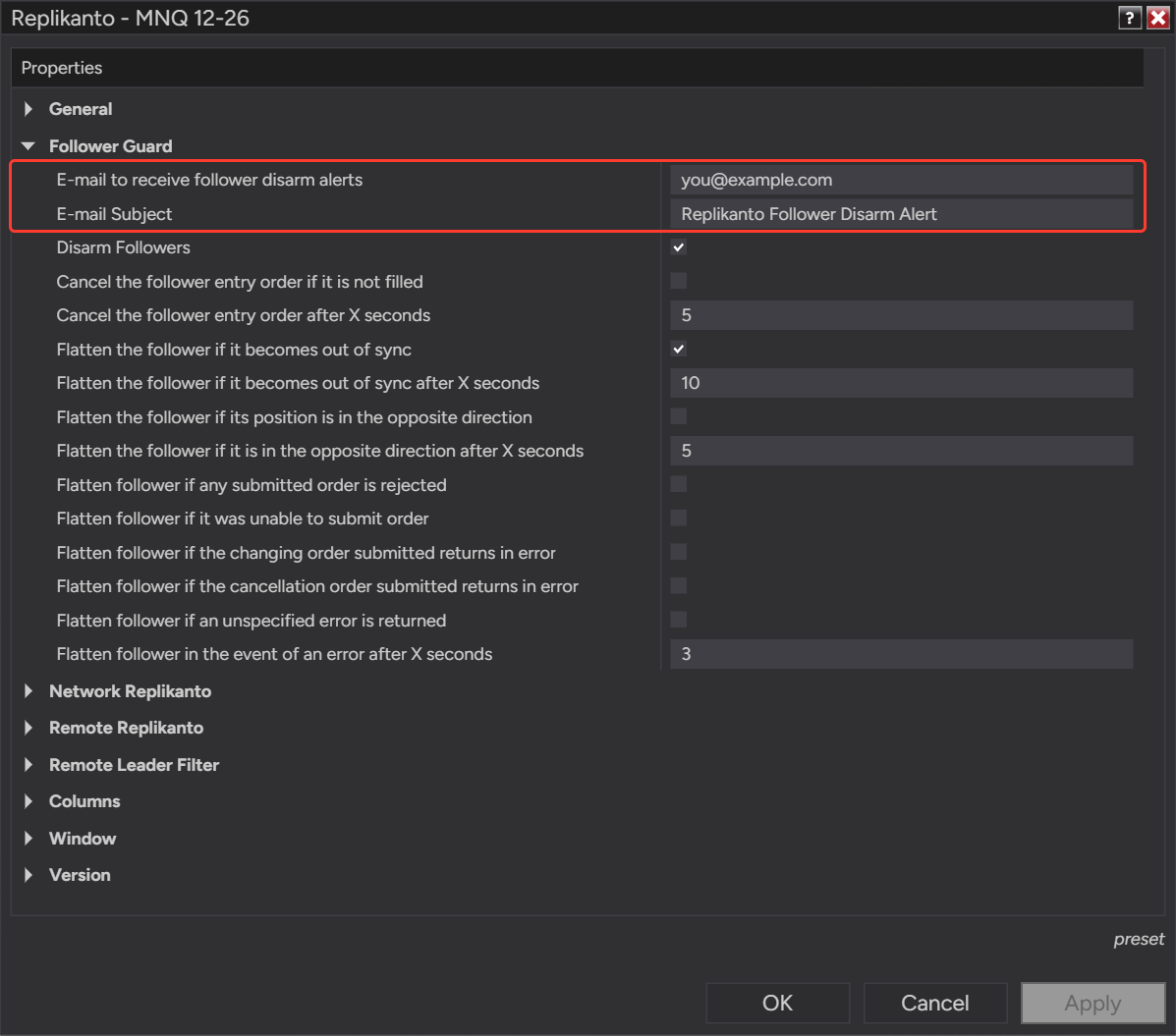
Enter an address in E-mail to receive follower disarm alerts and, if you like, a subject in E-mail Subject. The address and subject are shared by all your Replikanto tabs. Replikanto sends the e-mail through NinjaTrader, so NinjaTrader needs a default e-mail share service: in NinjaTrader, go to Tools > Options > General > Share services, add an Email service and mark it as the default. See NinjaTrader’s General options help.

Follower Guard group with the E-mail to receive follower disarm alerts and E-mail Subject fields filled in
The e-mail fields in the Follower Guard group

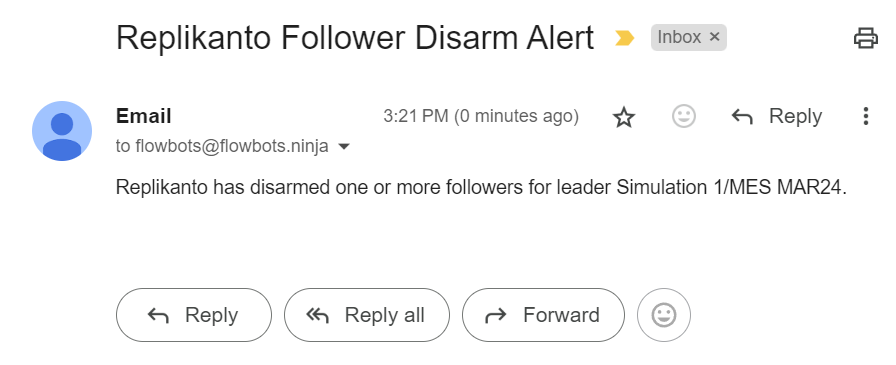
The e-mail names the leader account and instrument:

E-mail with the subject Replikanto Follower Disarm Alert and the text Replikanto has disarmed one or more followers for leader Simulation 1/MES MAR24
Example of a disarm alert e-mail

Rearm

The Rearm button is shown while Disarm Followers is on, or while any follower on the tab is Disarmed, and you can click it once a follower is Disarmed. You can rearm followers in several ways:

  • Rearm: every Disarmed follower on the tab turns back On, and the sync check runs again.
  • Flatten (×) on the follower’s row: flattens that follower on the tab’s instrument (or its Cross Order instrument) and turns it back On right away, without waiting for the position to show flat.
  • The follower’s dot in the On column: turns that follower back On.
  • Flatten All: flattens the leader and its followers that are not Off, on the tab’s instrument (or the follower’s Cross Order instrument), including Disarmed and Market Only followers, then turns back On each Disarmed follower whose position shows flat. A follower that still shows a position stays Disarmed: check it in NinjaTrader and rearm it once it is flat. With Pct Change, closing the leader’s position does not close the followers’ positions (Market Only followers excepted), so check Pct Change followers in NinjaTrader after Flatten All.
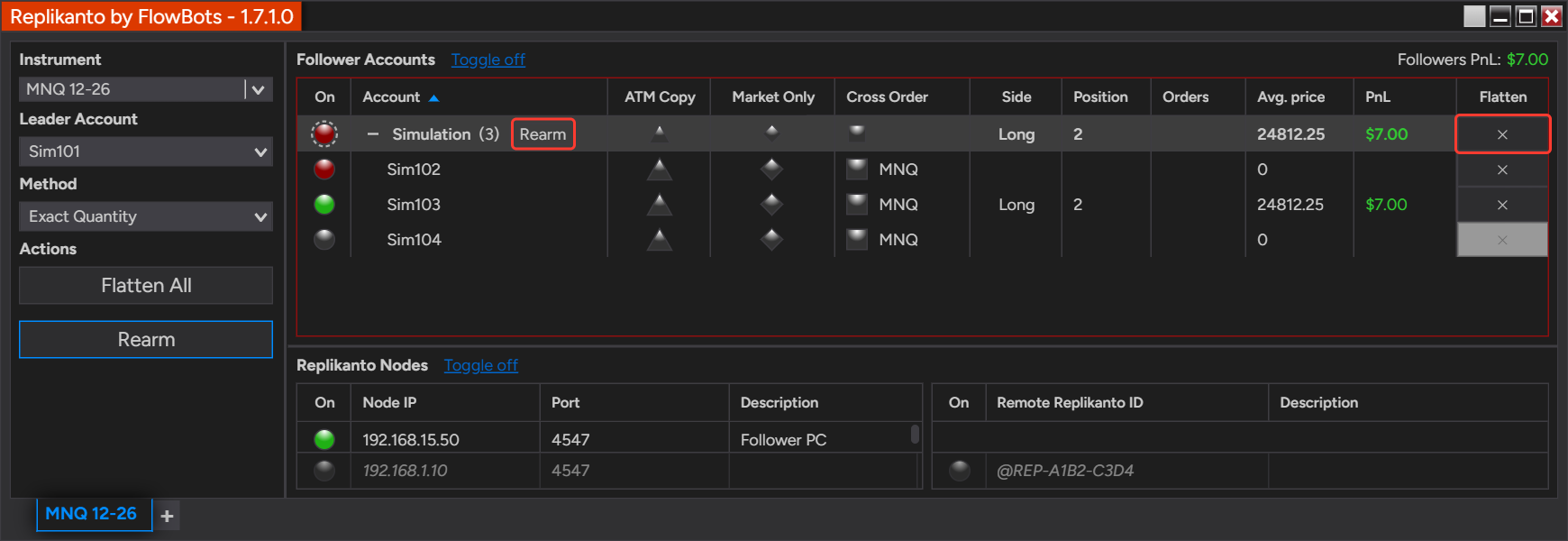
  • Rearm on a group header (when followers are listed in groups): turns back On the Disarmed followers of that group that are flat. A follower that still shows a position stays Disarmed and is listed in a message. It sends no orders.
  • Flatten (×) on a group header: asks first, then flattens every account of that group on the leader’s instrument, including followers that are Off, but not the leader. A Disarmed follower is turned back On only if its position shows flat.

Follower groups

Grouping is off by default: the list stays flat until you turn on Group followers by connection or create a custom group, for example Swing or Day trading. The group buttons above exist only when your followers are listed in groups. A group header also has its own dot in the On column that shows the most important status in the group (Disarmed, then Out of sync, then On, then Off), so a red header means at least one follower in that group is Disarmed.

Replikanto Follower Accounts grid with a group header showing the Rearm button and the Flatten button
Rearm and Flatten on a group header

Read more in Follower groups: organize and act on many accounts and in the Knowledge Center articles Flatten or Rearm a whole follower group and Follower groups in Replikanto: by connection or custom.

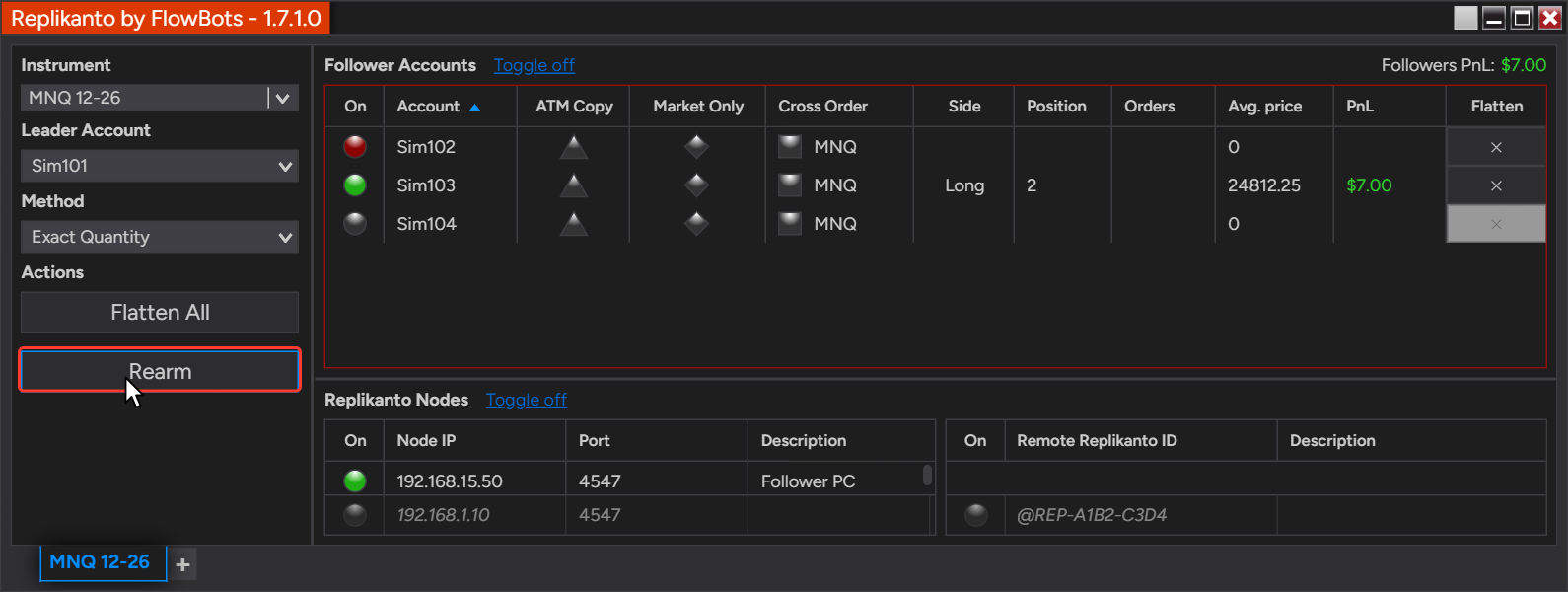
Rearming does not reopen any position that was closed. Copying restarts from what the accounts hold now, so before you rearm in the middle of a trade, check that the follower is flat and that you want it to follow the leader’s current position.

Replikanto window with the red Disarmed follower Sim102, the follower grid outlined in red and the mouse on the Rearm button
The Rearm button

Rithmic accounts: the position is re-read first

Rithmic does not always report position changes in step with fills, so NinjaTrader can show a Rithmic account in a position the broker has already closed, or miss a fill. Acting on that position could open a real one. To reduce that risk, Replikanto asks Rithmic for the account’s real position, with no order sent:

  • before it flattens a follower, whether the flatten comes from Follower Guard, the row’s Flatten button, Flatten All or a leader Close copied to the followers;
  • before the out of sync countdown flattens a follower, and during the sync check when a recent fill had no position update;
  • on its own, shortly after a fill on a Rithmic account that was not followed by a position update.

This is the option Refresh a Rithmic account’s position before acting on it in the General group of the Properties. It is on by default, covers every Rithmic account, leader or follower, and applies to all Replikanto tabs.

Remote node status

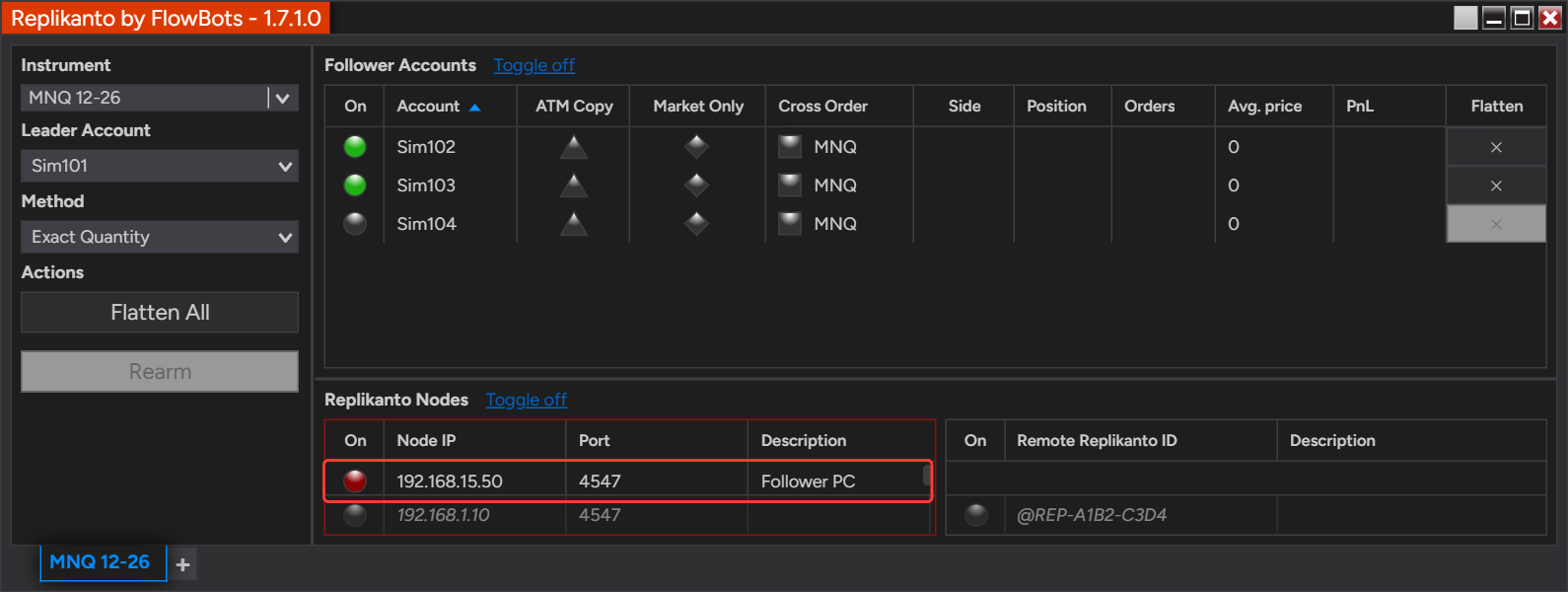
Computers that receive trades from this one are listed under Replikanto Nodes. Their dot shows only whether the node is On, Off or Away:

Three status dots, top to bottom: green, gray and red
  • On (green): the node receives the trades.
  • Off (gray): nothing is sent to the node.
  • Away (red): the last trade did not reach the node, or the node answered with an error. The node list is outlined in red.

Replikanto keeps sending trades to an Away node, and the node turns back On when one gets through. Check the NinjaTrader Log tab on both computers to find the cause. If an internet node stays Away, turn it Off until the problem is solved, so Submit credits are not spent on copies that may not arrive.

Replikanto window with a local network node whose dot is red (Away) and the node list outlined in red
A node marked Away

How to set it up

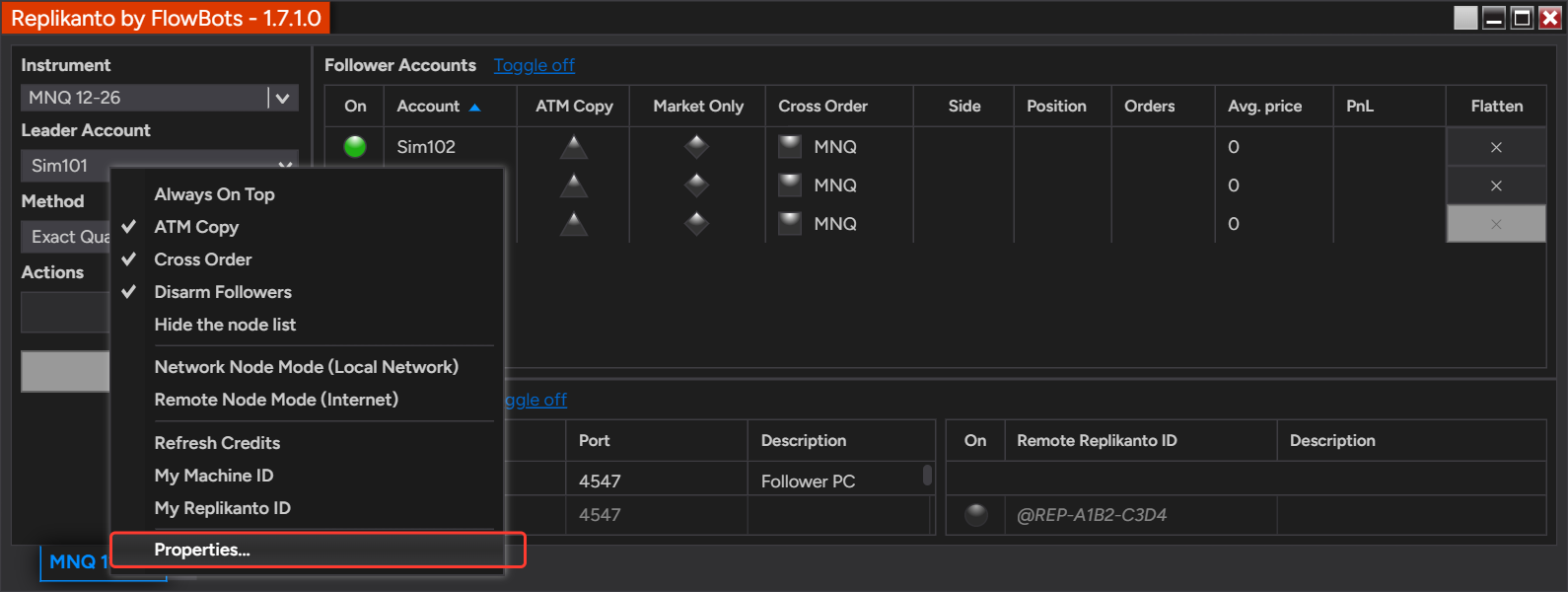
  1. Right-click the Replikanto window and choose Properties….
  2. In the Follower Guard group, leave Disarm Followers checked if a follower should stop copying after Follower Guard acts on it.
  3. Check the actions you want and set their delays: Cancel the follower entry order if it is not filled, Flatten the follower if it becomes out of sync, Flatten the follower if its position is in the opposite direction, and any of the Flatten follower if… error options with Flatten follower in the event of an error after X seconds.
  4. Optionally, enter E-mail to receive follower disarm alerts and E-mail Subject, and set up a default e-mail share service in NinjaTrader.
  5. If you trade Rithmic accounts, keep Refresh a Rithmic account’s position before acting on it checked in the General group.
  6. Click OK. The settings are saved with your NinjaTrader workspace.
Replikanto right-click menu with the Properties... item outlined in red
Open the Replikanto Properties from the right-click menu

Good to know

  • One tab, one instrument: Follower Guard acts on the tab’s instrument (or the follower’s Cross Order instrument). Positions the account holds on other instruments are not touched. Each Replikanto tab guards its own followers, and Rearm applies to the tab you click it on (a group’s Rearm applies to that group).
  • Followers only: Follower Guard does not act on the leader account, and it ignores followers that are Off.
  • Flatten is NinjaTrader’s Flatten: it closes the position with a market order and cancels the working orders on that instrument. The broker can still reject an order, so check the account after Follower Guard acts.
  • Waiting for late fills: the wait for NinjaTrader to apply a late fill is part of the two timer options, Flatten the follower if it becomes out of sync and Flatten the follower if its position is in the opposite direction, and only when they are checked. The delays you set are not extended. The wait does not apply to Rithmic accounts (their position is re-read from the broker). The order error options, Flatten All, a follower’s Flatten button and a leader Close copied to the followers do not use it either, although on connections other than Rithmic each of them also pauses briefly for a fill that NinjaTrader has not applied yet.
  • Followers on other computers: the out of sync check needs the leader’s position, so it runs only for followers on the leader’s computer. A follower on a computer in Network Node Mode or Remote Node Mode is not marked Out of sync, and the two flatten options that depend on it do not act there. The other options, Disarm Followers, the e-mail alert and Rearm run on the follower’s computer, with that computer’s own settings.
  • Rearming remote followers: the leader’s computer cannot rearm followers on another computer. Use Rearm, Flatten All or the row’s Flatten button in the Replikanto window on the follower’s computer. Flatten All on the leader’s computer also sends the flatten to the connected nodes. A group’s Flatten and Rearm act only on the followers listed on that computer.
  • Rithmic limits: the position re-read runs only while a Replikanto window is open, and followers on another computer are re-read by the Replikanto on that computer. Flatten All re-reads each follower before flattening it, but closes the leader with the position NinjaTrader shows at that moment, so if the leader’s position looks wrong, check it with your broker first. NinjaTrader’s own close and flatten buttons are not Replikanto actions and are not re-read beforehand. If Rithmic does not answer in time, the action goes ahead with the position NinjaTrader shows.
  • Settings locked during a trade: with Lock follower settings while in a trade on (the default, in the General group), you cannot change a follower’s sizing and copy options, or the tab’s leader account, instrument and copy method, while a trade is open. Such a change could put followers out of sync and, with a flatten option on, get them closed. Disarm Followers, Rearm, Flatten All, the row’s Flatten button, the On column and their equivalents on a group header are not locked.

Related

Questions? Browse the Replikanto Knowledge Center or contact us. New to Replikanto? Try it free for 7 days.
Posted on

Replikanto and ScalperTicket Integration

When you trade the leader account with ScalperTicket, Replikanto can price each follower’s order at that follower’s own current bid or ask instead of copying the leader’s price, and the ticket’s close button can run Replikanto’s Flatten All. This helps in fast markets, where the leader’s price may already be gone by the time a follower’s order is placed.

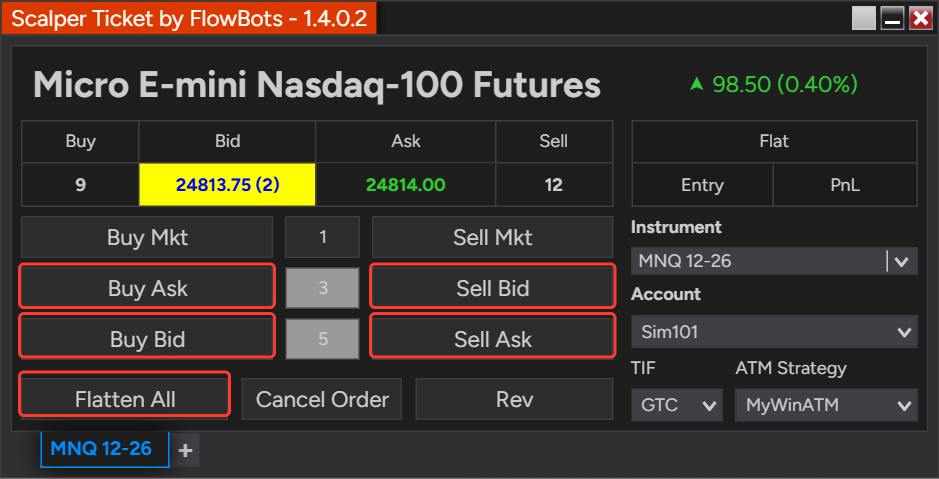
  • Bid and ask per follower: an order placed with the ticket’s Buy Bid, Buy Ask, Sell Bid or Sell Ask button reaches each follower at that follower’s current bid or ask, except followers with a negative ratio.
  • Flatten All on the ticket: one click on the ticket closes the leader and its followers that are not Off on the tab’s instrument.
  • Local and remote followers: followers on other computers price their orders at their own bid or ask too.
  • On by default in Replikanto: bid and ask pricing needs only ScalperTicket 1.4 or later on the leader’s computer; Flatten All on the ticket is a ScalperTicket option you turn on.

How it works

Bid and ask buttons

Replikanto normally copies a limit order at the leader’s price. When the leader’s order comes from one of ScalperTicket’s bid or ask buttons, Replikanto places each follower’s limit order at the current bid (Buy Bid, Sell Bid) or ask (Buy Ask, Sell Ask) of the instrument that follower trades, read at the moment the copy is placed. Each follower joins its own market instead of chasing a price the market may have already left.

A middle click on Buy Ask or Sell Bid places a simulated stop at the ask or the bid. Replikanto places each follower’s copy as a regular stop order at that follower’s own ask or bid.

Buy Mkt and Sell Mkt send market orders, which are copied as usual. If there is no bid or ask for a follower’s instrument at that moment, the follower’s order uses the leader’s price.

ScalperTicket window with the Buy Ask, Buy Bid, Sell Bid, Sell Ask and Flatten All buttons highlighted
The ScalperTicket buttons that work with Replikanto’s followers.

Flatten All on the ticket

With the ScalperTicket option turned on, the ticket’s close button becomes Flatten All. Clicking it runs Replikanto’s Flatten All on every Replikanto tab that has ScalperTicket product integration checked and whose leader account and instrument match the ticket’s account and instrument: it closes the leader and the followers that are not Off on that instrument, including followers on other computers. If no Replikanto tab matches, the button closes only the ticket’s own account on that instrument.

How to set it up

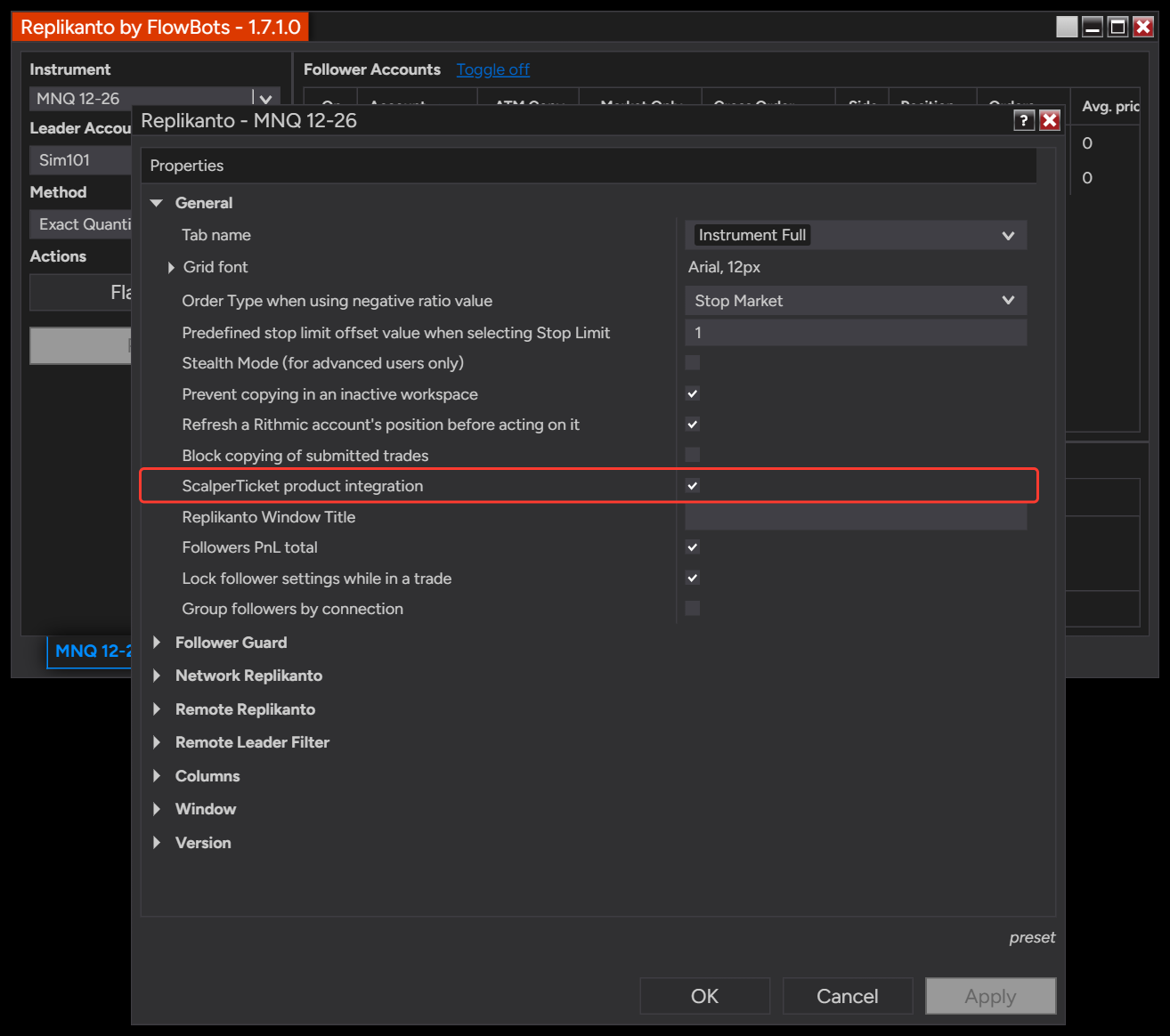
  1. In Replikanto, right-click the window and select Properties…. In the General group, make sure ScalperTicket product integration is checked (it is on by default), then click OK.
  2. Open ScalperTicket on the same computer and select the Replikanto tab’s leader account in Account and the tab’s instrument in Instrument.
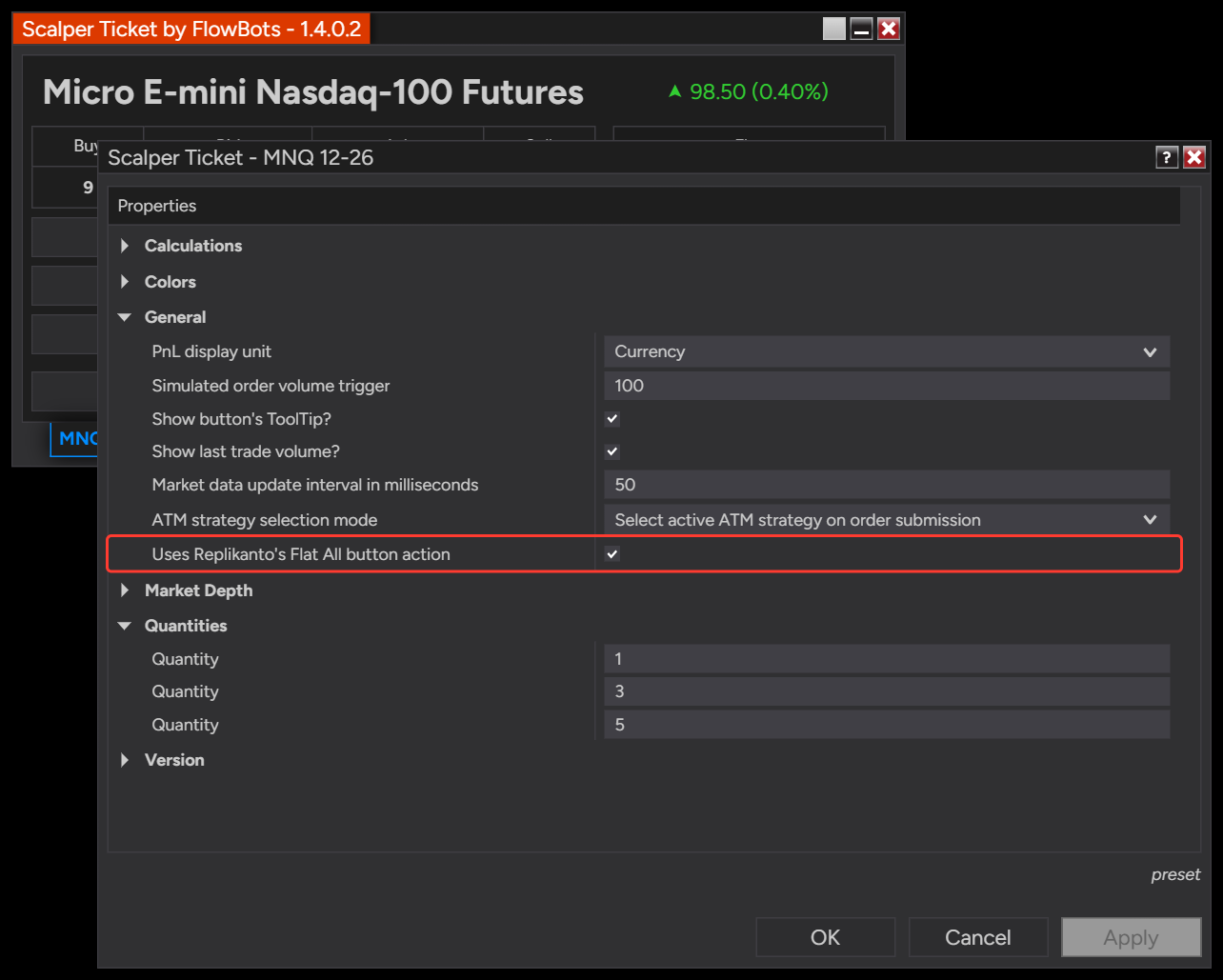
  3. To use Flatten All from the ticket, right-click the ticket and select Properties…. In the General group, check Uses Replikanto’s Flat All button action. The ticket’s close button then reads Flatten All.
  4. For followers on another computer, keep ScalperTicket product integration checked in the Replikanto tab on that computer.
Replikanto Properties window, General group, with the ScalperTicket product integration option checked
Replikanto Properties: ScalperTicket product integration.
ScalperTicket Properties window, General group, with the Uses Replikanto's Flat All button action option checked
ScalperTicket Properties: Uses Replikanto’s Flat All button action.

Good to know

  • Same computer: ScalperTicket and the Replikanto leader tab must run in the same NinjaTrader 8.
  • Market data: the computer that places a follower’s order needs a bid and ask for that follower’s instrument. Without them, the leader’s price is used.
  • Only when the order is placed: the bid or ask is read when the follower’s order is placed. Later changes you make to the leader’s order are copied as usual.
  • Market Only followers: Market Only followers copy the leader’s fills as market orders, so bid and ask pricing does not apply to them.
  • No confirmation: Flatten All from the ticket acts right away. Replikanto’s own Flatten All button asks you to confirm first.
  • Negative ratio followers: their order type is inverted, so they use the leader’s price instead of their own bid or ask.
  • Broker rules still apply: a follower’s broker can still reject an order, for example a stop order whose price the market has already passed when it arrives.

Related

Questions? Browse the Replikanto Knowledge Center or contact us. New to Replikanto? Try it free for 7 days.
Posted on

ATM Copy: run your ATM strategy on your followers

ATM Copy lets each follower run your NinjaTrader ATM strategy on its own position, instead of copying the leader’s stop and target orders one by one. The follower’s stops and targets are sized for the follower’s own position, which makes Ratio and Pre Allocation much easier to trade.

  • Exits sized for each follower: NinjaTrader’s ATM strategy on the follower places the stops and targets for that follower’s quantity.
  • No exits without a position: the follower’s ATM strategy places its stop and target only after the follower’s own entry fills.
  • Your changes follow: when you move or cancel the leader’s ATM stop or target, the same change goes to the matching stop or target of each follower’s ATM strategy.
  • Local and remote followers: remote followers need an ATM strategy template with the same name on their computer.
  • Per follower: turn it on only for the followers you choose. It cannot be combined with Market Only on the same follower.

How it works

An ATM (Advanced Trade Management) strategy is a NinjaTrader template that places predefined stop loss and profit target orders once your entry fills. When you place the leader’s entry in NinjaTrader with an ATM strategy selected, Replikanto copies the entry to every follower with ATM Copy on and starts that same ATM strategy on the follower’s order. The leader’s stop and target orders are not copied to those followers: the follower’s own ATM strategy creates them. Other followers receive copies of the leader’s stop and target orders instead, except Market Only followers.

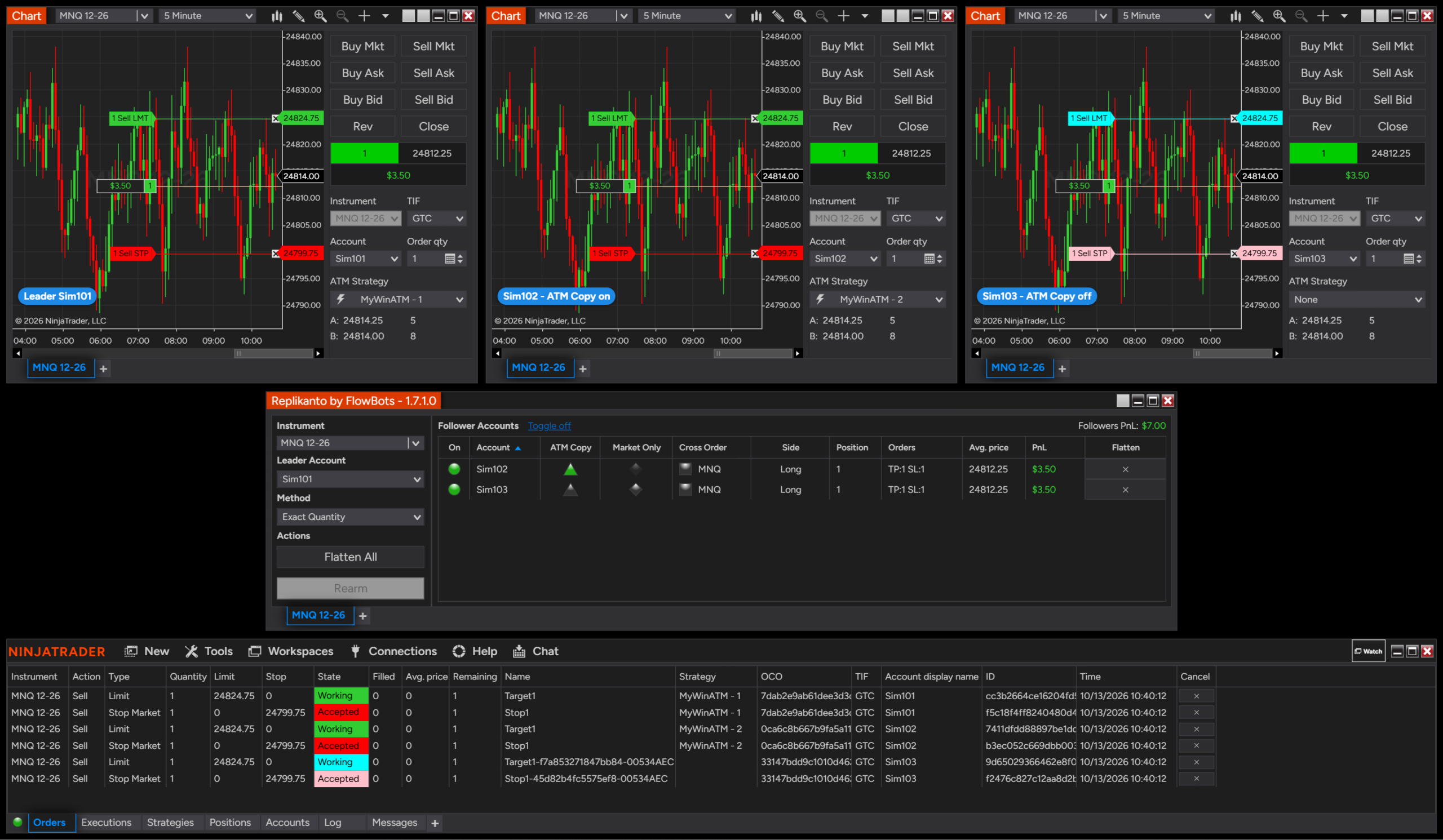
In the example below, Sim101 is the leader trading with an ATM strategy. Sim102 uses ATM Copy and Sim103 does not. In the Orders tab, the Strategy column shows that Sim102’s stop and target belong to its own ATM strategy, while Sim103 holds plain copies of the leader’s exit orders.

NinjaTrader charts and Orders tab: the leader Sim101 and the follower Sim102 each run their own MyWinATM strategy, while the follower Sim103 holds copies of the leader's stop and target
Sim102 (ATM Copy on) runs its own ATM strategy; Sim103 (ATM Copy off) copies the leader’s exit orders

With Ratio or Pre Allocation

With ATM Copy, NinjaTrader splits the follower’s quantity across the targets as your ATM template defines them, and any leftover quantity goes to the first target (a NinjaTrader rule). Without ATM Copy, Replikanto applies the copy method to each of the leader’s exit orders separately and rounds each one down to whole contracts, so a small exit can round down to zero and not be copied.

Take an ATM strategy (MyWinATM) with four targets of 1 contract each:

NinjaTrader ATM Strategy Parameters window for MyWinATM with four targets of 1 contract each
MyWinATM: four targets of 1 contract each

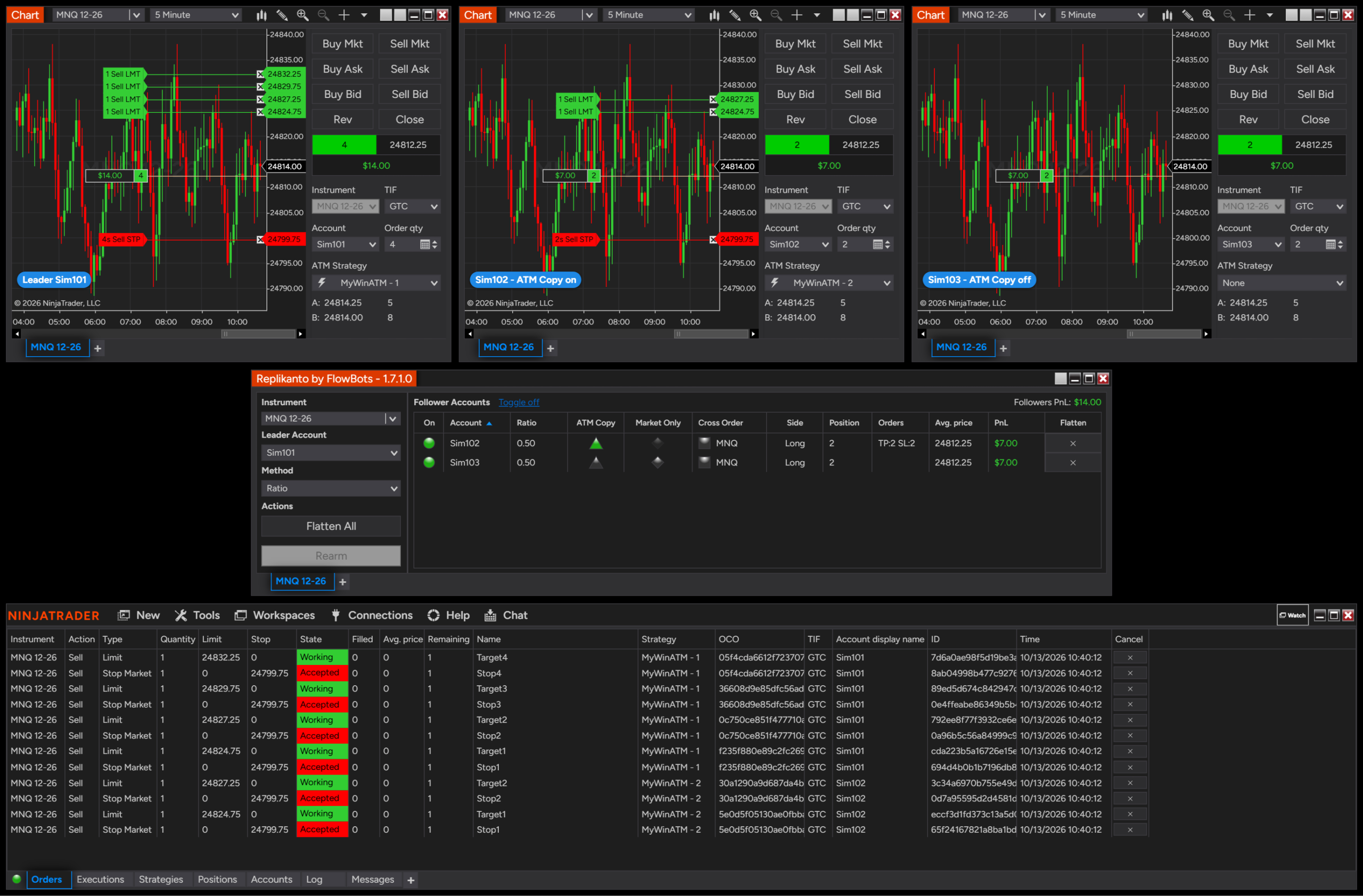
The leader buys 4 contracts and both followers use Ratio 0.5, so each follower buys 2. Sim102, with ATM Copy, gets its own two targets and two stops from its ATM strategy, matching its 2 contracts. Sim103, without ATM Copy, copies the leader’s exits: each one is 1 contract, which becomes 0.5 at Ratio 0.5 and rounds down to zero, so Sim103 is left with no exit orders.

Ratio 0.5 example: follower Sim102 with ATM Copy has two targets and two stops for its 2 contracts, follower Sim103 without ATM Copy has no exit orders
Ratio 0.5: Sim102 (ATM Copy) is protected, Sim103 has no exits

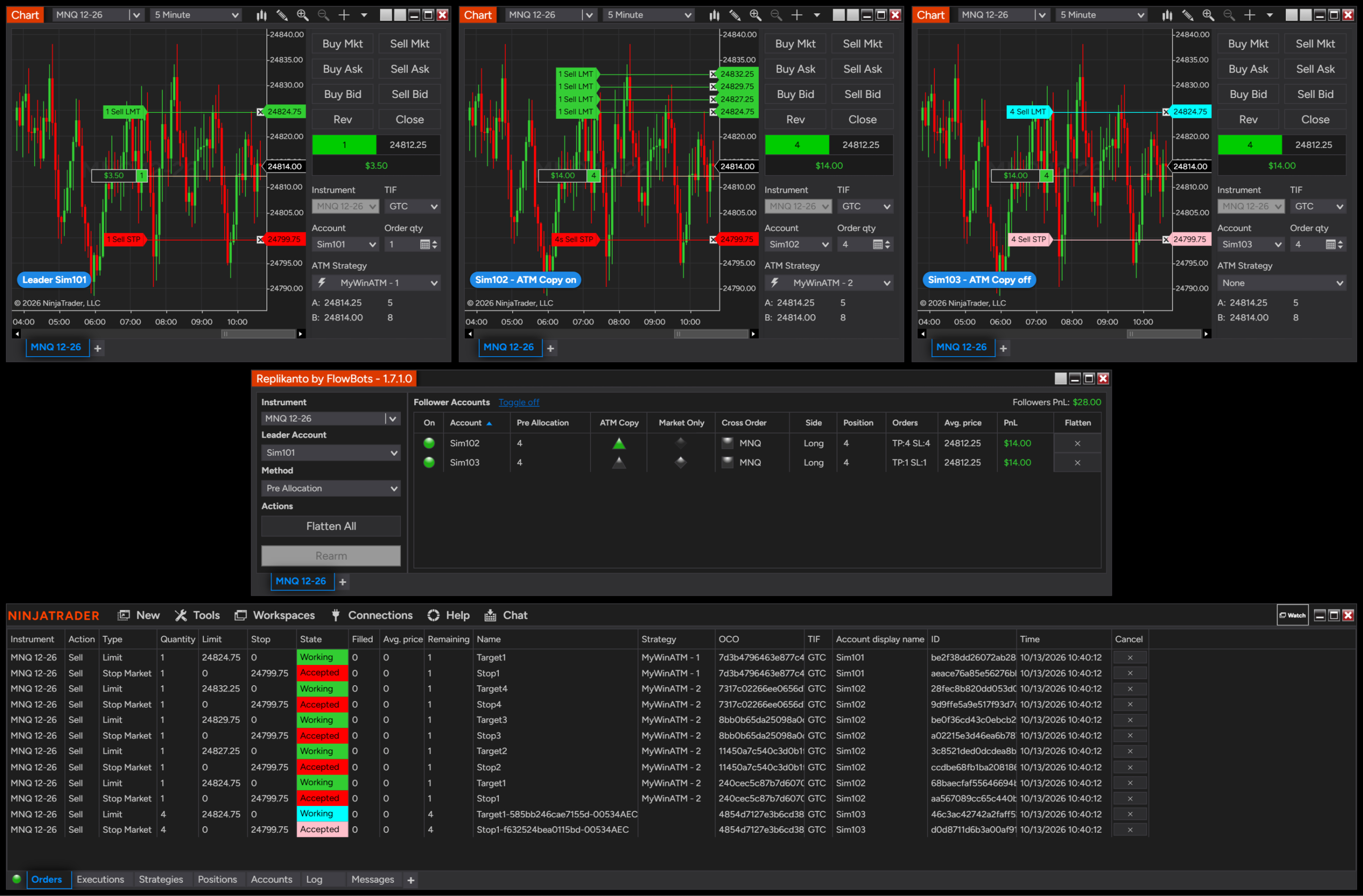
The same happens with Pre Allocation. Here both followers are pre-allocated 4 contracts and the leader trades 1, so the leader’s ATM strategy places a single target. Sim102’s ATM strategy spreads its 4 contracts across all four targets of the template, while Sim103 copies the leader’s single target and stop at 4 contracts.

Pre Allocation of 4 contracts: follower Sim102 with ATM Copy uses all four targets, follower Sim103 without ATM Copy has one target and one stop for 4 contracts
Pre Allocation 4: Sim102 (ATM Copy) uses all four targets

Moving and cancelling stops and targets

When you move or cancel the leader’s ATM stop or target, Replikanto applies the same change or cancel to the matching stop or target of each follower’s ATM strategy. Each follower’s ATM orders use their own OCO group, so a fill on one account does not cancel another account’s orders on the same broker connection.

When the leader does not use an ATM strategy

ATM Copy only acts on leader orders placed in NinjaTrader with an ATM strategy. Any other trade, including one that reaches the leader account from outside NinjaTrader such as TradingView, is copied as usual, with the leader’s exit orders copied to the followers. That is why you can leave ATM Copy on for followers that should use it whenever the leader does.

Remote followers

ATM Copy also works for followers on another computer, over your local network (Network Node Mode) or over the internet (Remote Node Mode). The follower computer starts its own saved ATM strategy template with the same name as the leader’s, so that template must exist there. Replikanto uses the follower computer’s copy of the template, so keep its targets and quantities the same as the leader’s: if they differ, moving or cancelling the leader’s stops and targets may not match the follower’s. A custom ATM strategy that is not saved as a template works for local followers only.

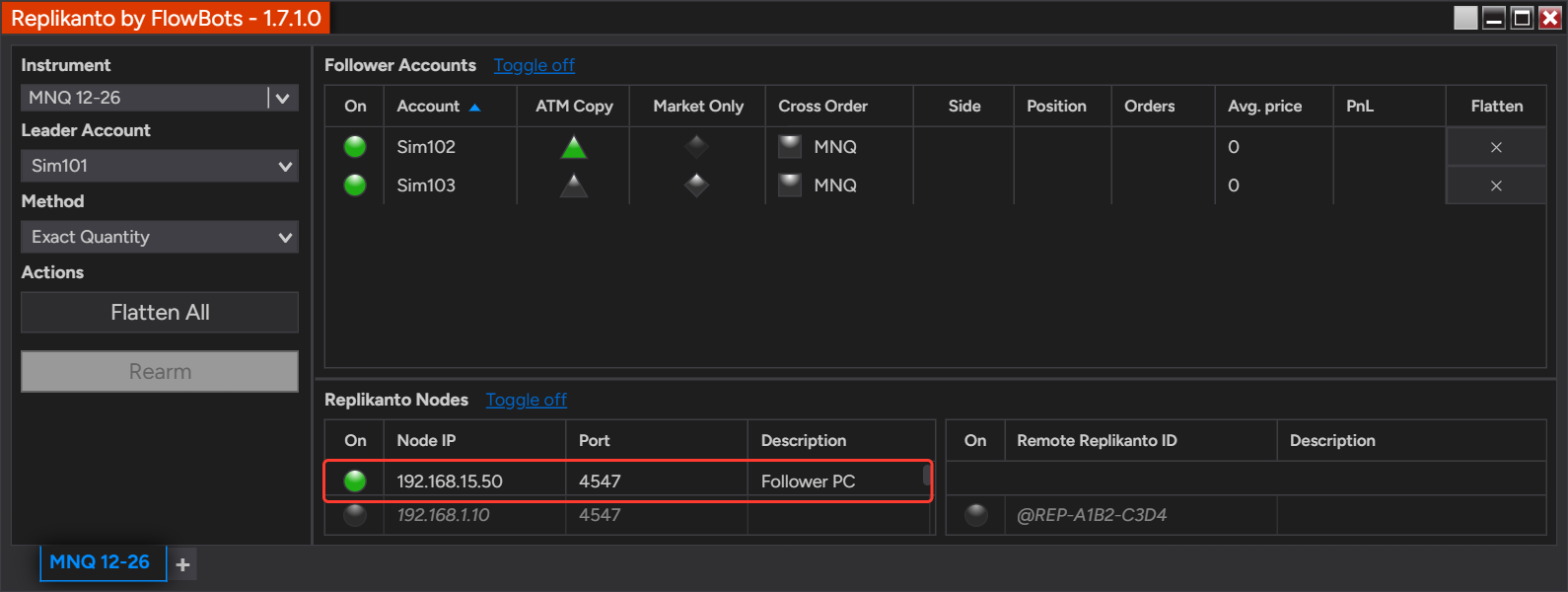
Leader Replikanto window with a follower computer added and turned on in the Replikanto Nodes list
Leader: a follower computer on the same local network, turned on in Replikanto Nodes
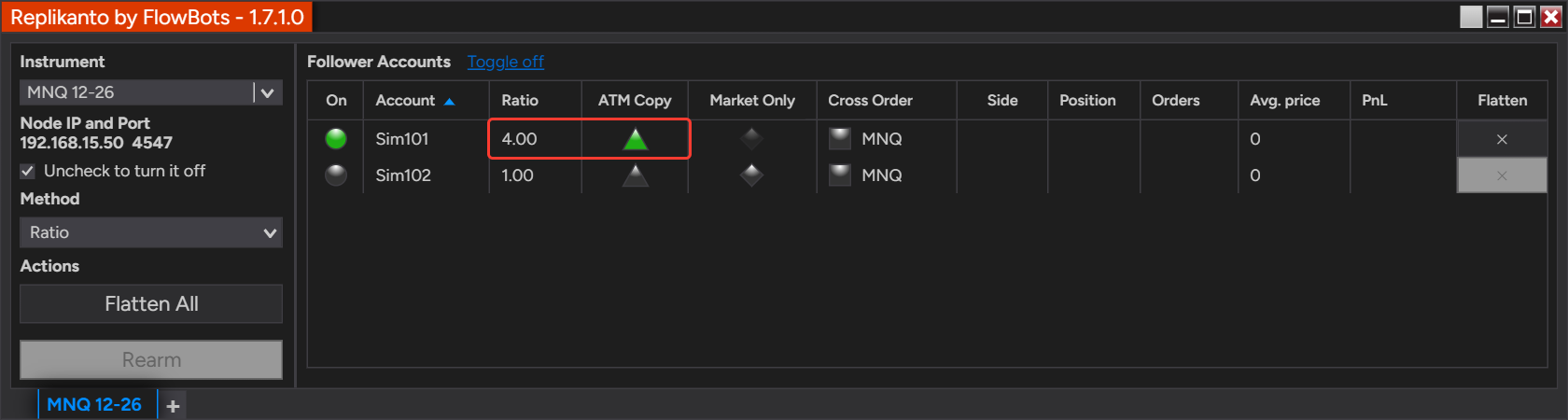
Follower computer's Replikanto window in Network Node Mode: follower Sim101 with Ratio 4 and ATM Copy turned on
Follower computer: Sim101 with Ratio 4 and ATM Copy on

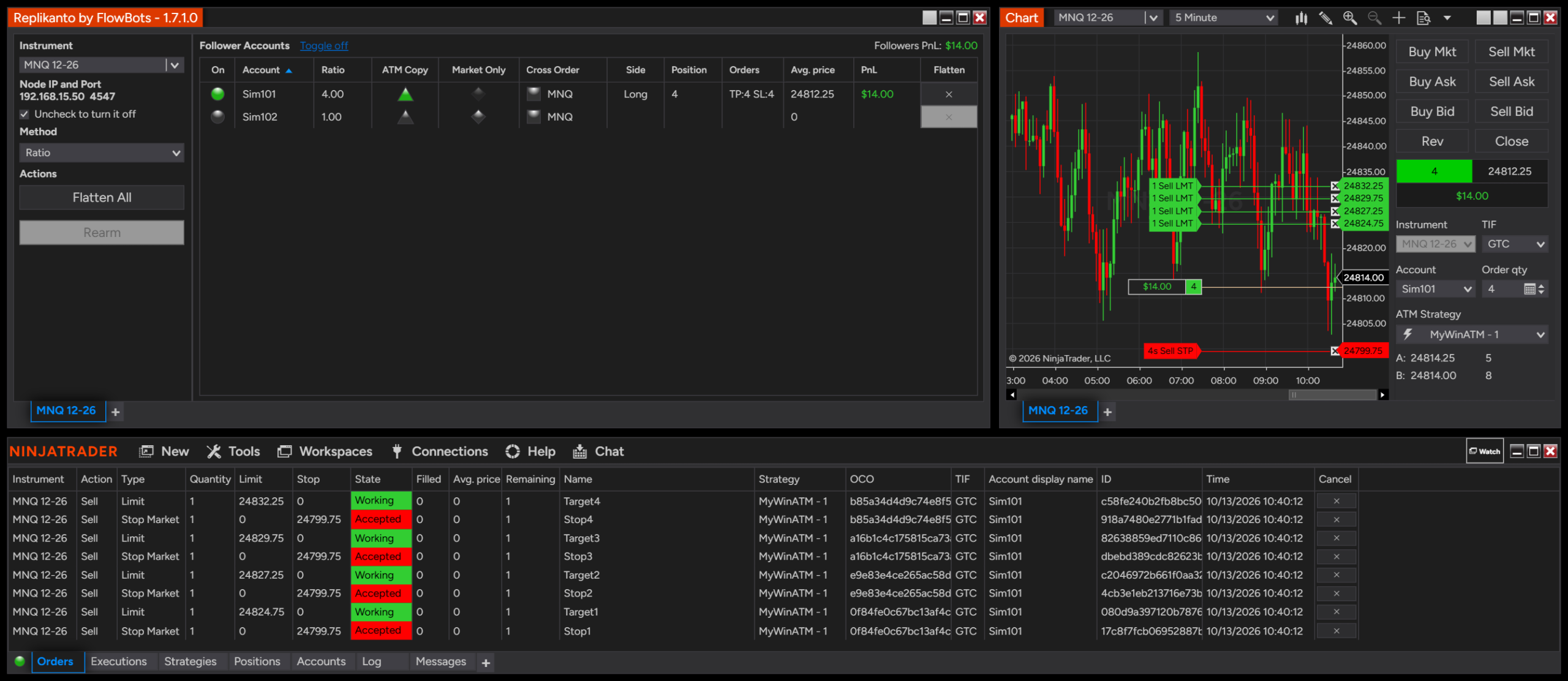
The leader sent 1 contract. Because the follower computer has the MyWinATM template with the same name, Sim101 bought 4 contracts and its ATM strategy placed four targets and four stops:

Remote follower Sim101 long 4 contracts with four targets and four stops placed by its own MyWinATM strategy
Remote follower: 4 contracts managed by its own MyWinATM strategy

If the follower computer does not have a template with that name, the follower is copied as if ATM Copy were off: it receives the leader’s exit orders.

How to set it up

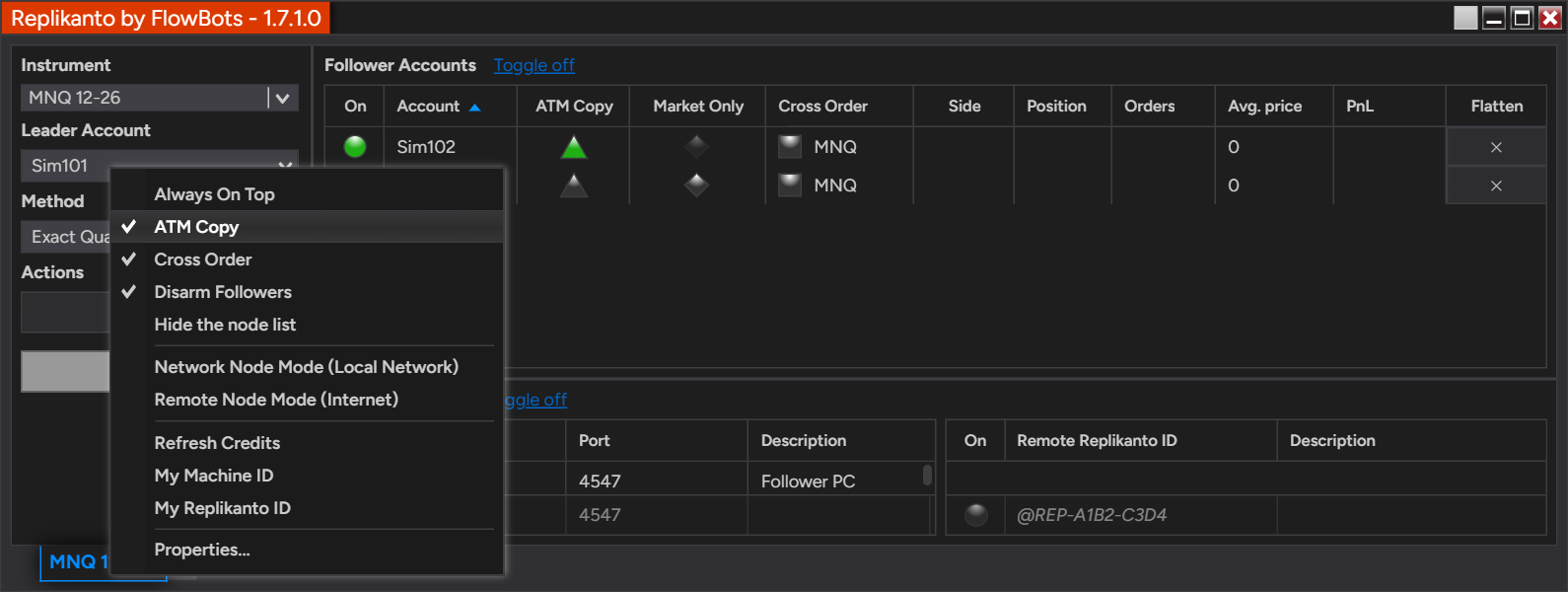
  1. Right-click the Replikanto window (for example the left panel with Instrument and Leader Account) and make sure ATM Copy is checked. It is checked by default, shows the ATM Copy column for that tab and is saved with your workspace. When it is unchecked, the column is hidden and no follower on that tab uses ATM Copy.
  2. In the Follower Accounts grid, click the triangle in the ATM Copy column of each follower that should run the leader’s ATM strategy. Green means on, grey means off. It is off for every follower until you turn it on.
  3. If a triangle is dimmed and its tooltip says ATM is unavailable, Market Only is on for that follower: click its diamond in the Market Only column to turn it off first. A dimmed triangle can also mean the follower is in a trade and its settings are locked.
  4. For followers on another computer, do the same in the Replikanto tab on that computer (Network Node Mode (Local Network) or Remote Node Mode (Internet)), and save the ATM strategy there as a template with exactly the same name as the leader’s.
  5. Place the leader’s trade in NinjaTrader with the ATM strategy selected, and test it on Sim accounts first.
Replikanto right-click menu with the ATM Copy option checked
The ATM Copy option in the Replikanto right-click menu
Follower Accounts grid with the ATM Copy triangle green for follower Sim102 and grey for Sim103
ATM Copy column: green triangle means on for that follower

Good to know

  • ATM Copy and Market Only cannot be combined on the same follower. Turn one off before turning the other on.
  • With Lock follower settings while in a trade on (the default), you cannot change a follower’s ATM Copy while it holds a position or a working order, and the ATM Copy menu option is locked while any follower on the tab is in a trade.
  • If you list your followers in groups, the group header has its own ATM Copy cell: one click turns ATM Copy on for the whole group, or off when it is on for all of them. The cell exists only while ATM Copy is checked in the tab’s right-click menu. It skips accounts that are in a trade while Lock follower settings while in a trade is on, and it does not turn ATM Copy on for an account with Market Only on. Grouping is off by default: the list stays flat until you turn on Group followers by connection or create a custom group. Read more in Follower groups: organize and act on many accounts and Apply a setting to a whole follower group at once.
  • An ATM strategy applied from the Positions tab to a position that is already open is not copied: followers with ATM Copy on get no stop or target from it, and followers with ATM Copy off receive plain copies of its orders. Select the ATM strategy before you place the entry.
  • Remote followers need a saved ATM strategy template with the same name on their computer. A custom ATM strategy that is not saved as a template works for local followers only.
  • With ATM Copy, NinjaTrader decides how the follower’s quantity is split across the targets. Plan your template’s target quantities with the followers’ quantities in mind.
  • If your ATM template uses a Custom Stop Strategy, use a regular stop loss when copying at a ratio other than 1: the custom stop does not account for the follower’s scaled quantity.
  • If NinjaTrader cannot start a follower’s ATM strategy, that follower does not copy that leader order. If NinjaTrader had already sent the follower’s entry, Replikanto cancels it. If the entry filled, fully or partly, or NinjaTrader refuses the cancel, the Log tab shows an Error: the follower may hold a position without a stop or target from Replikanto, and Replikanto does not close it for you, so check that follower in the Orders and Positions tabs and manage it yourself. If the Log says NinjaTrader had not submitted the entry, nothing is cancelled: check the Orders tab and cancel the entry there if it shows as working. If the Log mentions NinjaTrader’s Use server side ATMs option, turn it off in Tools > Options > Strategies. The ATM Copy step-by-step article lists these Log messages.
  • The follower’s broker can still reject an order. With the matching options turned on, Follower Guard can flatten and disarm a follower when that happens or when it gets out of sync.

Related

Questions? Browse the Replikanto Knowledge Center or contact us. New to Replikanto? Try it free for 7 days.
Posted on

Replikanto Stealth Mode (for advanced users only)

Stealth Mode reduces Replikanto-specific identifiers in order metadata, including order names and OCO labels. It is an option for advanced users: Replikanto then keeps the link between each leader order and its follower copies itself, so it asks for a little more care when you close NinjaTrader with orders still working.

  • Order names: follower orders carry no Replikanto tab identifier in their name; a copied order keeps the leader order’s own name.
  • OCO ids: each follower account gets its own OCO id for each bracket, with no Replikanto identifier in it.
  • Changes still follow: Replikanto keeps the link between leader and follower orders, so when you move or cancel a leader order, the follower copies follow.
  • Off by default: you turn it on per Replikanto tab, in Properties.

How it works

To know which follower order is the copy of which leader order, Replikanto needs a link between them. Stealth Mode changes where that link is kept.

Without Stealth Mode

Replikanto writes the link into the follower order itself. The order name is the leader order’s name followed by part of the leader order’s id and the Replikanto tab identifier. The OCO field holds the leader’s OCO id followed by the tab identifier and a number that identifies the follower account. Because the link travels with the order, Replikanto can find the follower copy of a leader order after NinjaTrader restarts. ATM Copy followers are the exception: Replikanto keeps their link itself, as it does with Stealth Mode.

NinjaTrader Orders tab without Stealth Mode: the follower orders show a Name and an OCO that include the Replikanto tab identifier
Without Stealth Mode: the follower orders’ Name and OCO carry the Replikanto tab identifier.

With Stealth Mode

Replikanto keeps the link in its own memory instead of writing it into the order. The follower order keeps the leader order’s own name (Market Only copies are sent with no name), and its OCO field holds an id made for that follower account alone: the two legs of one bracket share it, and no other account, leader included, uses it. So a fill on one account does not cancel a working order on another account, even when several accounts share the same broker connection.

When a leader order is renamed, Replikanto updates its link, so later changes and cancels of that order still reach the follower copies.

NinjaTrader Orders tab with Stealth Mode on: the follower orders show no Replikanto identifier in the Name or OCO columns
With Stealth Mode: no Replikanto identifier in the follower orders’ Name or OCO.

When you close NinjaTrader with orders working

Because the link is not written on the orders, Replikanto cannot rebuild it from the orders after a restart. When you close the Replikanto window, or NinjaTrader, while this tab’s followers still have working orders, Replikanto saves the links to a file and reads them back when you reopen the same saved workspace.

The links are lost if NinjaTrader closes unexpectedly, or if you open a new Replikanto window instead of the saved workspace. Replikanto then no longer copies later changes or cancels of those leader orders: check the follower orders that are still working and manage them by hand. With no working orders when you close, there is nothing to lose.

How to set it up

  1. Make sure the tab’s followers have no working orders on the tab’s instrument. While they do, the option is shown but cannot be changed.
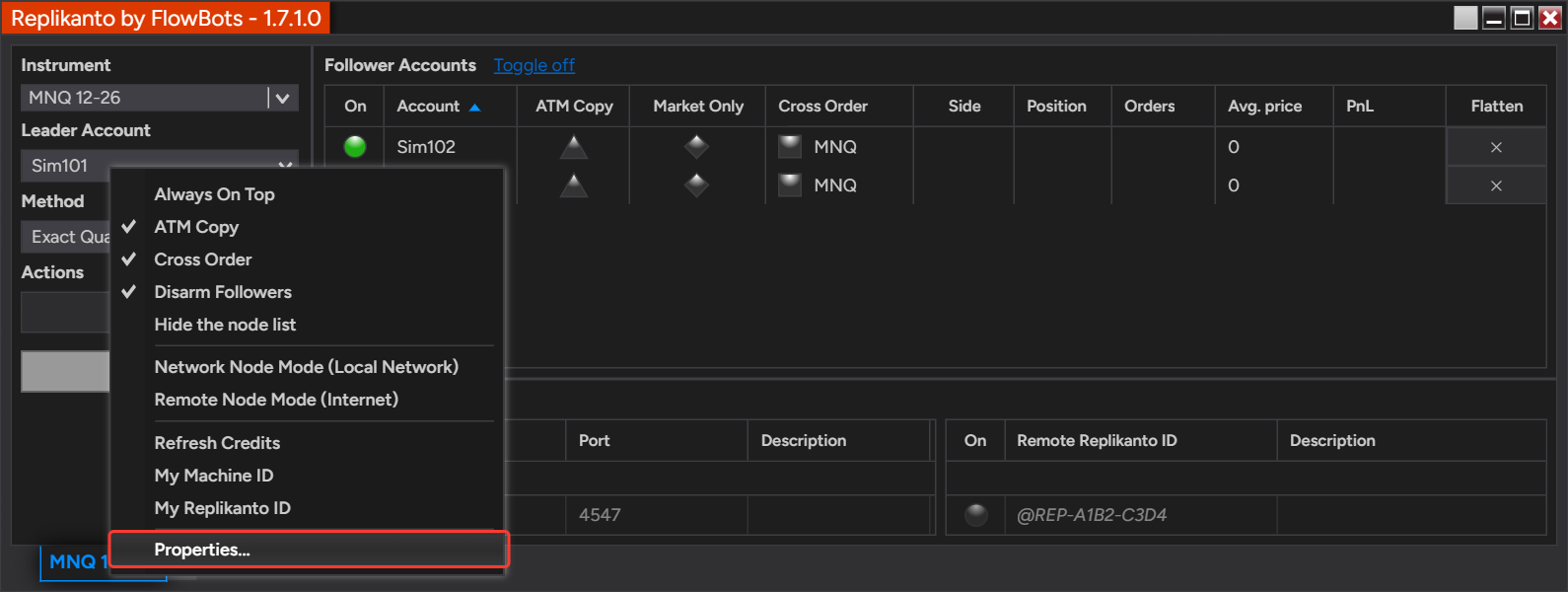
  2. Right-click the Replikanto window and select Properties….
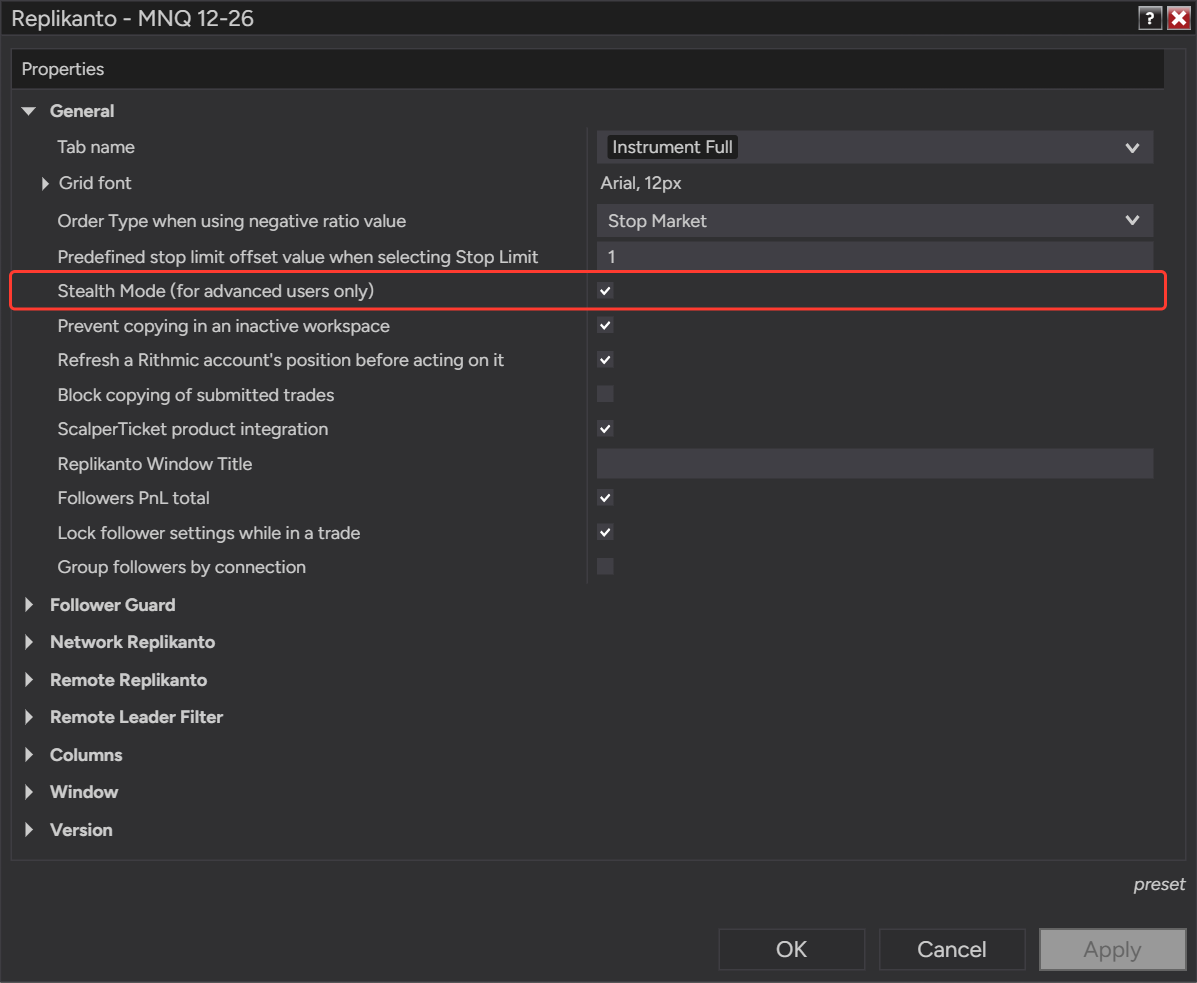
  3. In the General group, check Stealth Mode (for advanced users only).
  4. Click OK.
  5. For followers on another computer, repeat these steps in the Replikanto tab on that computer.
Replikanto window right-click menu with the Properties item highlighted
Right-click the Replikanto window and select Properties.
Replikanto Properties window, General group, with the Stealth Mode check box selected
Stealth Mode is in the General group of the Replikanto Properties.

Good to know

  • Per tab: the option applies to every follower of the tab where you turn it on. Other Replikanto tabs keep their own setting.
  • Remote followers: with Network Node Mode or Remote Node Mode, the follower orders are placed by the Replikanto tab on the follower’s computer, so that tab’s setting is the one that applies to them.
  • What it does not change: which orders are copied, their quantities and their prices are the same with Stealth Mode on or off.
  • Closing with orders working: close NinjaTrader normally and reopen the same workspace to keep the links. The safest moment to close is when no leader or follower orders are working.
  • Your responsibility: you remain responsible for complying with all applicable broker, platform and prop firm rules and account agreements.

Related

Questions? Browse the Replikanto Knowledge Center or contact us. New to Replikanto? Try it free for 7 days.
Posted on

Finding your Replikanto Remote ID

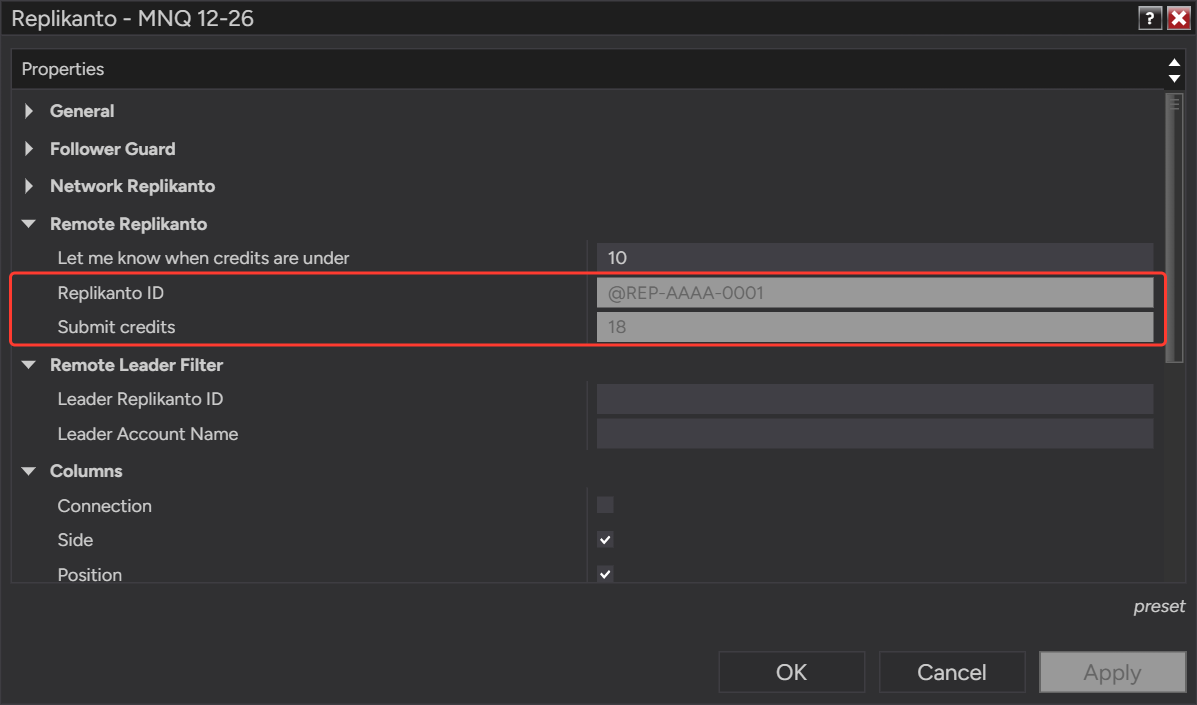
Your Replikanto Remote ID identifies the Replikanto on your computer for copying over the internet. A leader needs each follower computer’s ID to send trades to it, and Submit credits are added to the ID of the computer that sends the trades.

  • Format: @REP- followed by two groups of four letters or digits, such as @REP-AAAA-0001 (a made-up example).
  • One ID per computer: every Replikanto window and tab on the same computer shows the same ID.
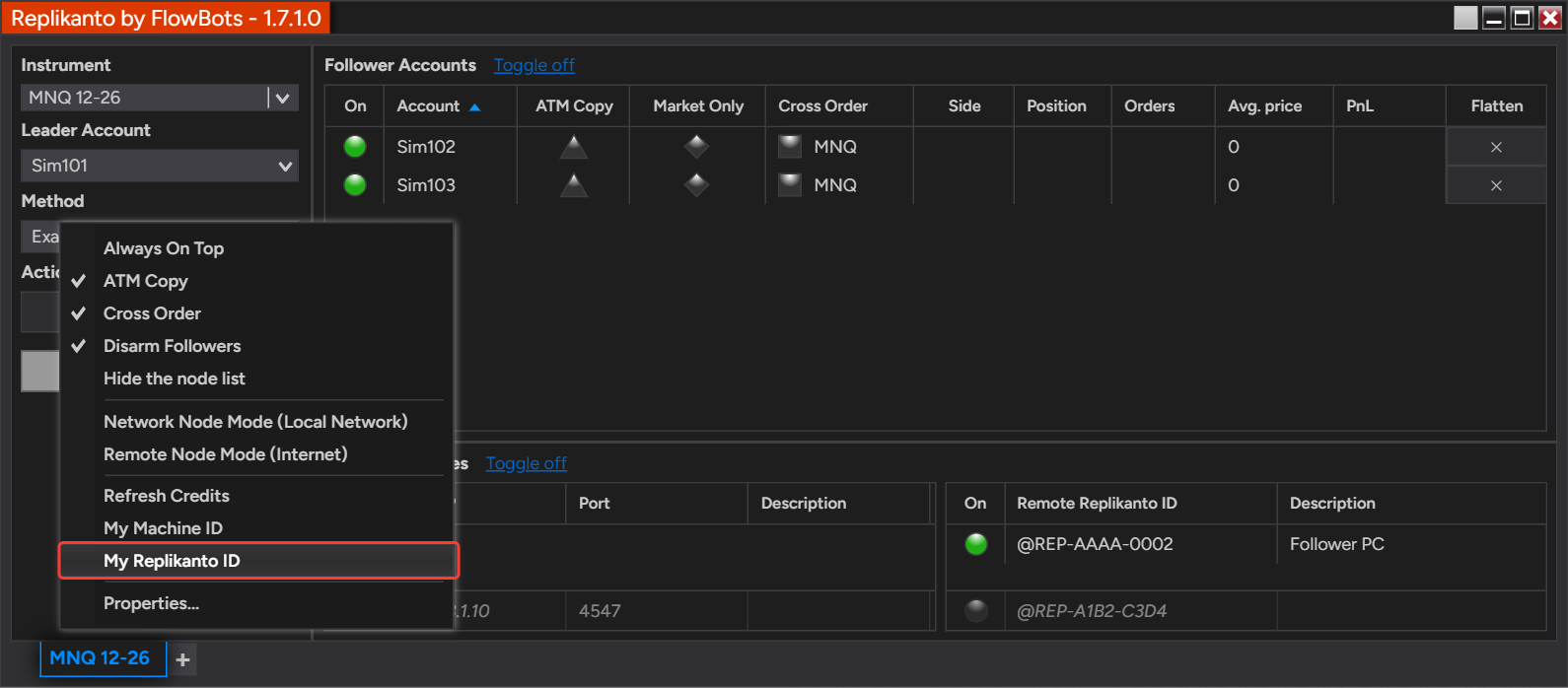
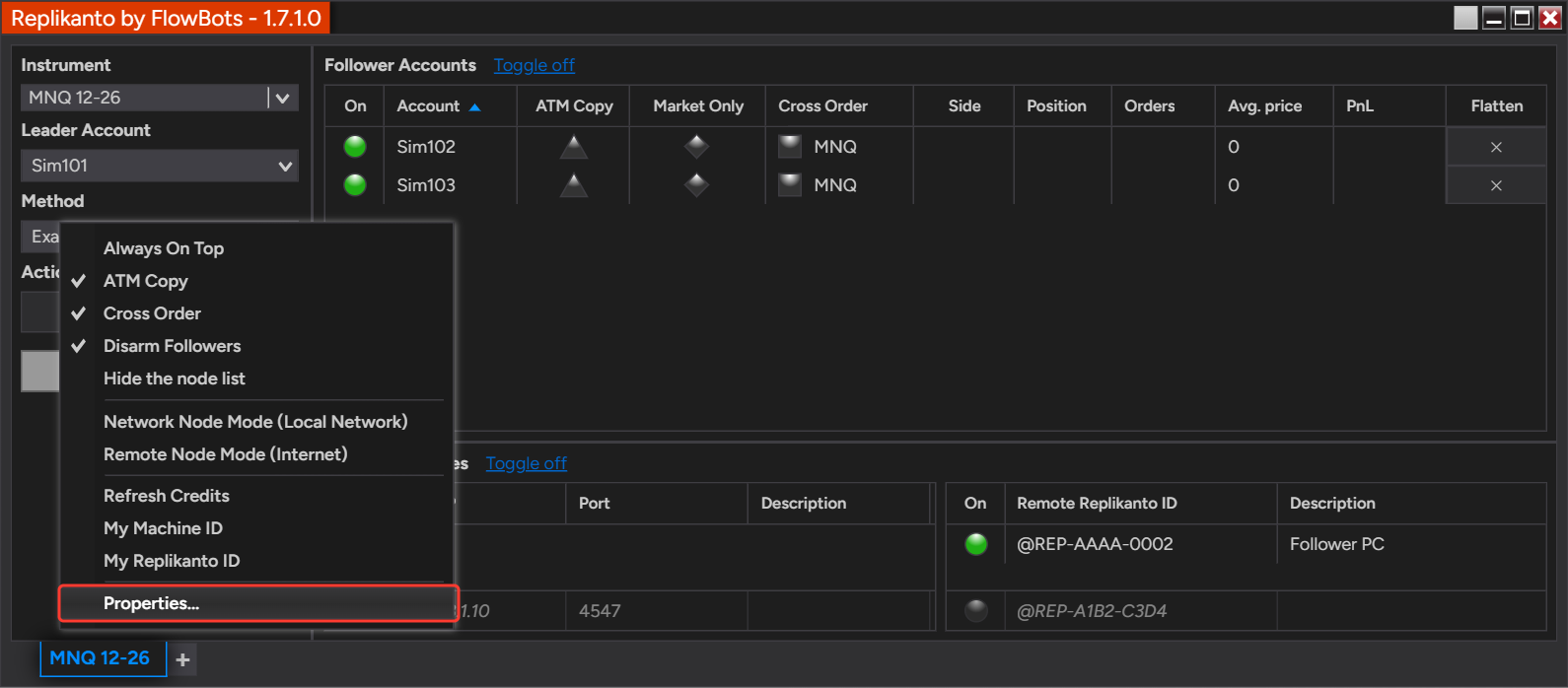
  • Copy it in one click: right-click Replikanto and select My Replikanto ID to copy it to the clipboard.
  • Credits go to the sender: when you buy Submit credits, enter the ID of the computer that sends the trades.

How it works

Replikanto receives its Remote ID from the Replikanto server when it starts, together with your Submit credits balance. The ID belongs to the computer, so it is the same in every Replikanto window and tab there, whatever the tab’s mode.

Where to find it

My Replikanto ID in the right-click menu copies the ID to the clipboard and writes it in the NinjaTrader Log tab (Control Center > Log): “Your Replikanto Remote ID is ‘…’. It has also been copied to the clipboard, so you can press Ctrl+V to paste it.”

Replikanto right-click menu with the My Replikanto ID item highlighted, between My Machine ID and Properties
My Replikanto ID copies the ID to the clipboard

The ID is also shown in Properties (right-click the Replikanto window and select Properties), in the Remote Replikanto group, as Replikanto ID, next to your Submit credits balance.

Replikanto right-click menu with the Properties item highlighted
Open Properties from the right-click menu
Replikanto Properties window with the Remote Replikanto group open, showing the made-up Replikanto ID @REP-AAAA-0001 and a Submit credits balance of 18
Replikanto ID and Submit credits in the Remote Replikanto group

On a tab in Remote Node Mode (Internet), the ID is also shown at the top of the tab, under Remote Replikanto ID.

Which ID goes where

  • The follower computer’s ID goes into the leader’s node list, in the Remote Replikanto ID column under Replikanto Nodes, so the leader can send trades to it over the internet.
  • The leader computer’s ID goes into the checkout when you buy Submit credits, and into Remote Leader Filter on a follower that should copy only that leader.

Submit credits and your ID

Submit credits are used only for internet copying (Remote Node Mode). The sending computer uses one credit per order for each remote computer it sends to; changes and cancellations are free, and copying on the same computer or over your local network uses none. When credits run out, trades are not sent over the internet. Every license includes 20, and more credits can be bought at any time. The credits you buy are added to the Replikanto Remote ID you enter at checkout.

How to set it up

  1. On the computer whose ID you need, right-click the Replikanto window and select My Replikanto ID. Paste the ID where you need it with Ctrl+V.
  2. To copy trades to a follower computer over the internet, send its ID to the leader. On the leader tab, type it in the empty row at the bottom of the Remote Replikanto ID column under Replikanto Nodes, then click the circle in the On column to turn sending on.
  3. To buy Submit credits, copy the leader computer’s ID and paste it into the Replikanto Remote ID field at checkout on the Replikanto Remote Credit page.
  4. After the payment, right-click the Replikanto window on the leader computer and select Refresh Credits. Replikanto shows your updated balance, which you can also check in Properties, under Submit credits.

Good to know

  • No ID yet? The ID appears the first time Replikanto runs on the computer, so the simplest way is to install Replikanto (the free trial works) and copy the ID before you buy credits. If you buy Replikanto and credits together before that, enter @REP-XXXX-XXXX in the checkout field, then send your real ID to FlowBots support so the credits can be added to it.
  • If Replikanto shows no ID, it most likely could not reach the Replikanto server when it started. Check the computer’s internet connection, then select Refresh Credits, which also fetches the ID again.
  • Internet copying also needs a signed NinjaTrader Machine ID on each computer. My Machine ID, next to My Replikanto ID in the right-click menu, copies it to the clipboard.
  • Test it live: add @REP-TEST-ECHO to the Remote Replikanto ID list of a leader tab and place an order: it shows up on replikanto.com a moment later. The demo does not use your credits, but your balance must be above zero.
  • Copying on the same computer or over your local network does not need a Remote ID: local network nodes are added by Node IP and Port (on a local network, only Remote Leader Filter’s Leader Replikanto ID uses it).
  • Let me know when credits are under, in the same Properties group, sets the balance below which Replikanto warns you, so you can buy more before they run out.
  • Credits are personal, non-transferable and non-refundable.

Related

Questions? Browse the Replikanto Knowledge Center or contact us. New to Replikanto? Try it free for 7 days.
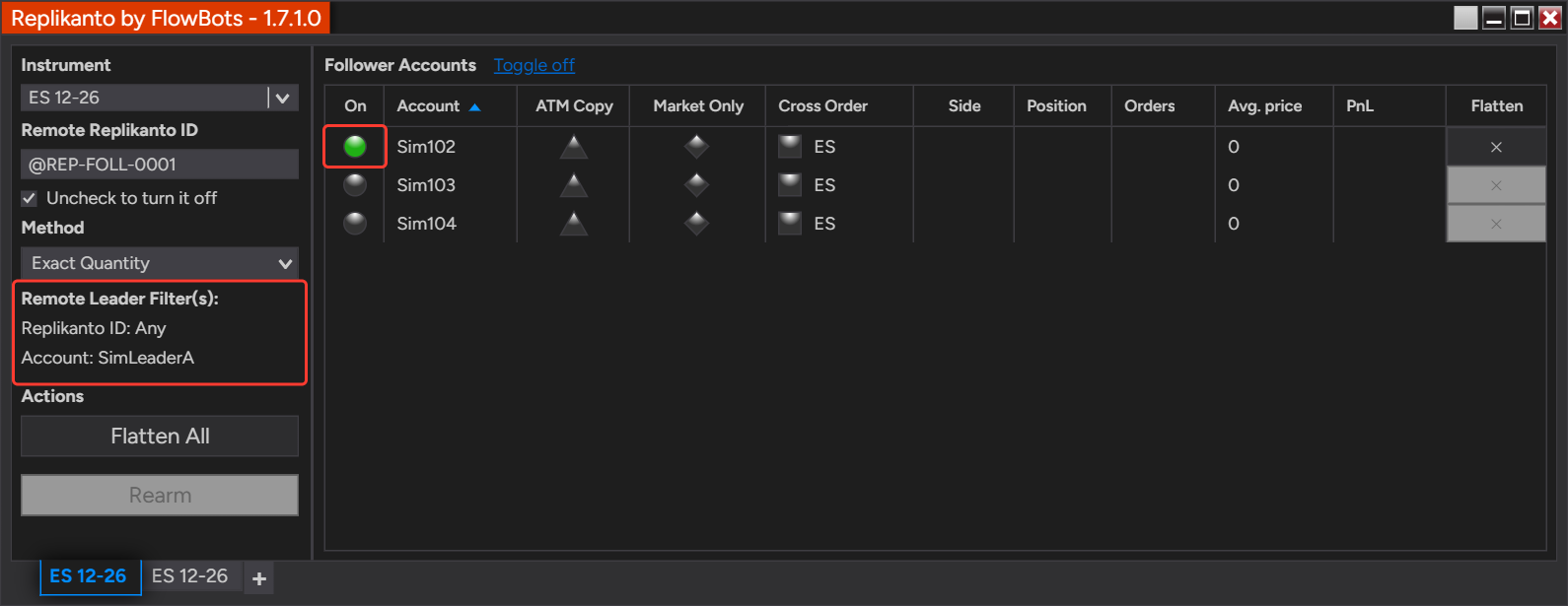
Posted on

How to Generate a Signed NinjaTrader Machine ID

Every FlowBots license is tied to the signed NinjaTrader Machine ID of the computer where you run NinjaTrader 8. You generate it once, in NinjaTrader’s 3rd Party Licensing window, and paste it at checkout.
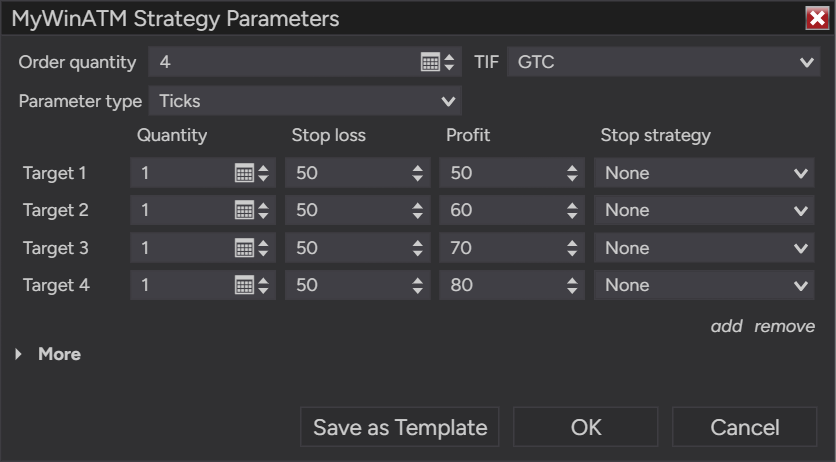
  • One per computer: a license for two machines needs a signed Machine ID from each computer.
  • Signed only: checkout accepts only a signed Machine ID, which ends with a dash and your User defined ID.
  • Generated by NinjaTrader: NinjaTrader registers it with the FlowBots vendor on its own license server.
  • Changeable later: new computer or a changed Machine ID? Update it yourself in your FlowBots account, at no charge.

How it works

NinjaTrader creates a Machine ID from the computer’s hardware and software. When you submit the vendor name FlowBots and a User defined ID in the 3rd Party Licensing window, NinjaTrader links that Machine ID and your User defined ID to FlowBots on the NinjaTrader license server and shows you the signed Machine ID: the Machine ID, a dash, then your User defined ID.

  • Signed (accepted): AAAAAAAAAABBBBBBBBBBCCCCCCCCCCAA-JohnSmith
  • Unsigned (not accepted): AAAAAAAAAABBBBBBBBBBCCCCCCCCCCAA

How to set it up

  1. Open NinjaTrader 8 on the computer you want to license. In the Control Center, click Help > 3rd Party Licensing…
  2. In Vendor name, enter FlowBots, with a capital F and a capital B.
  3. In User defined ID, enter a name that identifies you or this computer, using letters and digits only, for example JohnSmith or JohnLaptop. NinjaTrader does not accept spaces or other characters here.
  4. Click Submit just once.
  5. Copy the signed Machine ID that NinjaTrader shows, then close the 3rd Party Licensing window. NinjaTrader suggests emailing it to the vendor: you do not need to, pasting it at checkout is enough.
  6. At checkout, paste it in the Signed NinjaTrader® Machine ID 1 field. For a two-machine license, repeat steps 1 to 5 on the second computer and paste its signed Machine ID in Signed NinjaTrader® Machine ID 2.

Good to know

  • Change it after purchase: log in and open the NinjaTrader® Machine IDs page of your account. After a change, the page shows how long you must wait before changing it again. Restart NinjaTrader after the change.
  • Reuse the signed ID you have: if a FlowBots notification in NinjaTrader already shows a Machine ID signed with your User defined ID, use that one. Generate a new one only when it is not signed.
  • Why it can change: a new computer, new hardware, a BIOS or UEFI update, a new NinjaTrader installation and, rarely, a Windows update can give the computer a new Machine ID. If a valid license suddenly shows an invalid license notification when NinjaTrader starts, update your Machine ID.
  • Replikanto internet copying: copying trades over the internet with Replikanto needs a signed Machine ID on each computer involved.

Related

Questions? Browse the FlowBots Knowledge Center or contact us.