
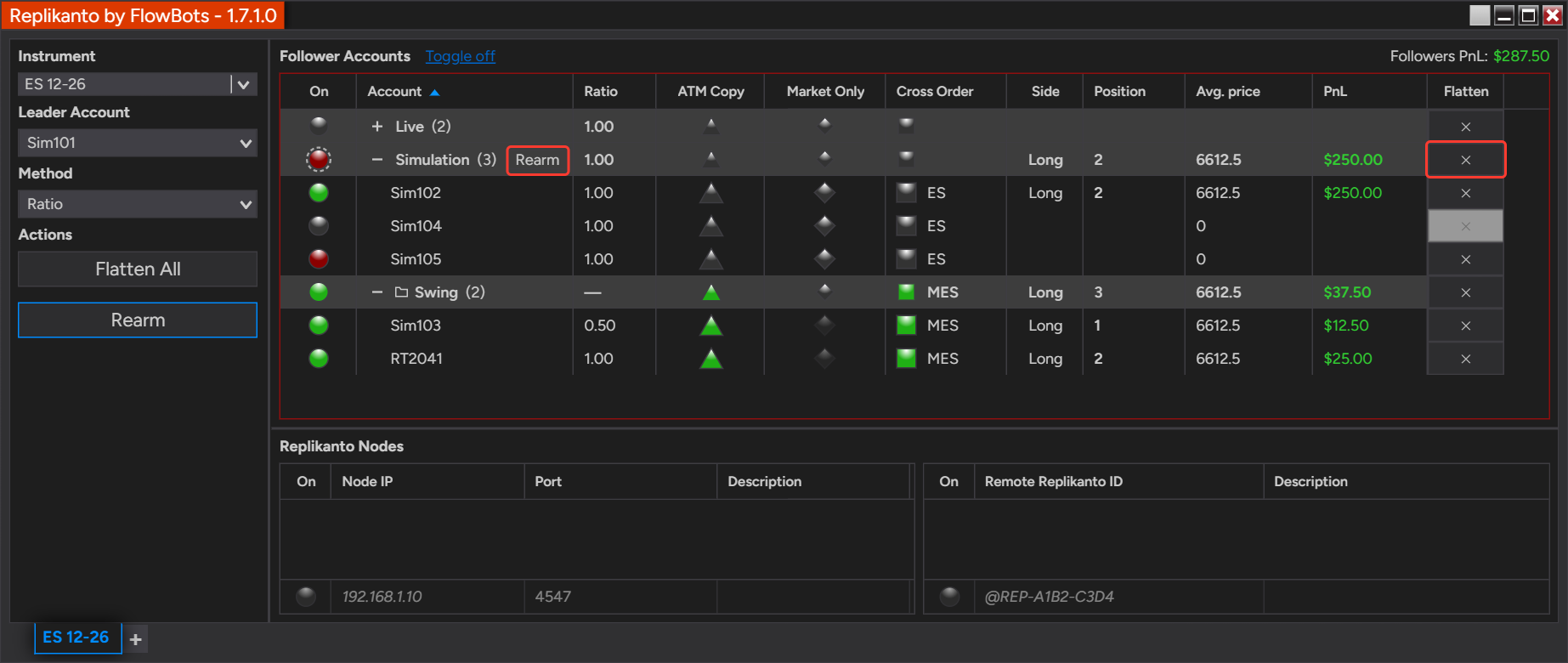
Follower groups put your follower accounts under collapsible headers, one row per group, so a long list is easy to scan and you can act on several accounts with one click. A group header shows how its accounts are doing together, and it has its own Flatten and Rearm buttons.
- Two kinds of follower group: list your followers under one header per broker connection, or build custom groups with the accounts you choose.
- One row tells the story: the header shows the group’s most important status and the combined position, orders and PnL of its accounts.
- One click for the whole group: turn it on or off, switch ATM Copy, Market Only or Cross Order, or type a Ratio, Pct. Change or Pre Allocation value for every account at once.
- Flatten or Rearm one group: close the positions of a single group after a question, or re-arm its Disarmed accounts that are flat.
- Copying stays the same: grouping is off by default and does not change how trades are copied. Each follower keeps its own ratio, status and settings.
How it works
Groups organize the Follower Accounts list and let you act on several accounts together. Replikanto copies each follower with that follower’s own Ratio, status and options, whether or not the account sits in a group. Until you turn on grouping by connection or create a custom group, the list is a flat list, as usual.
Two kinds of group
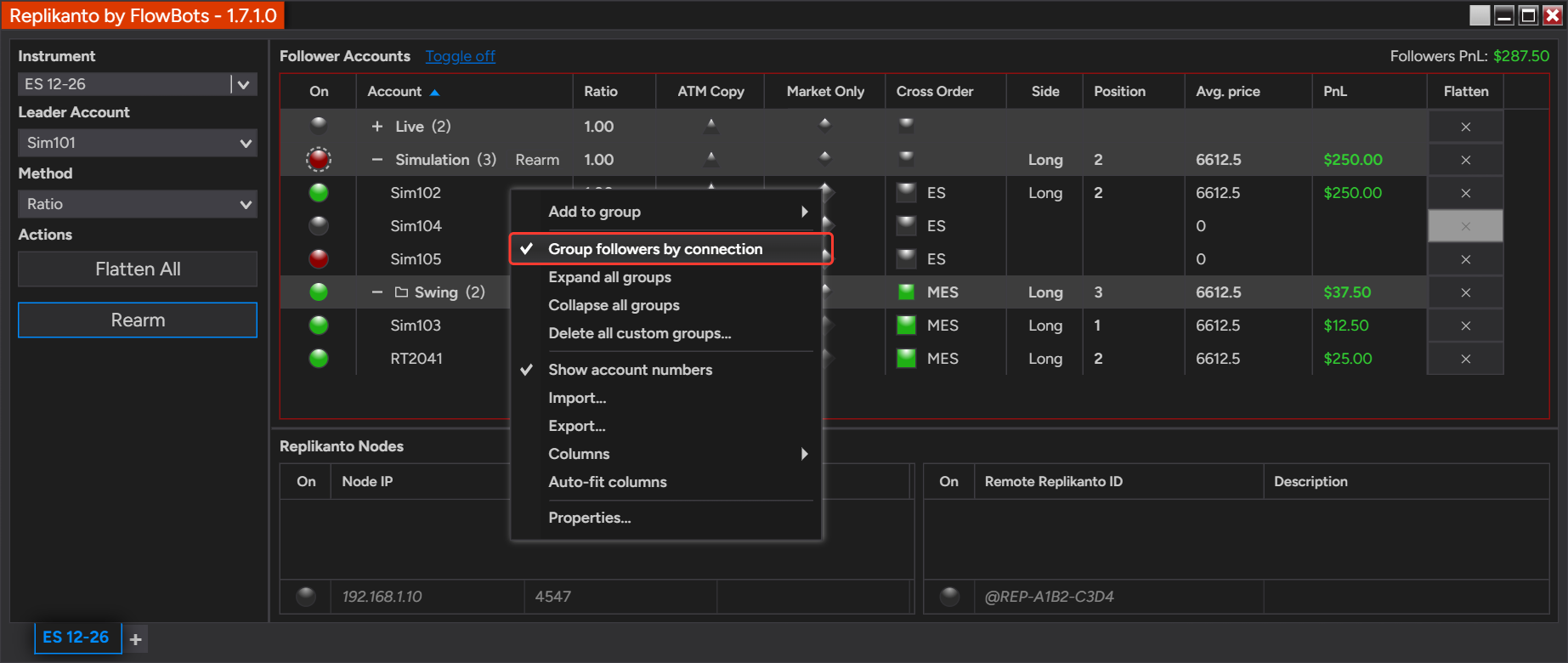
- By connection. Replikanto lists the followers under one header for each broker connection, for example Simulation or Live. You turn it on with Group followers by connection. It is off by default and is set separately for each Replikanto tab. A connection header is listed only while at least one of its accounts is in the list.
- Custom groups. You pick the accounts and name the group, for example Swing or Day trading. A custom group does not depend on the connection, and its header stays in the list even when all of its accounts are disconnected.
The two kinds work together, and the custom group wins. An account in a custom group is listed under that group, not under its connection. An account in no custom group goes under its connection header when Group followers by connection is on, and stays loose in the list otherwise. An account can be in at most one custom group. The groups come first, sorted by name, then the accounts that are in no group.
Reading a group header
Each header shows the group name and the number of accounts, for example Simulation (3), and each cell summarizes the accounts of the group.
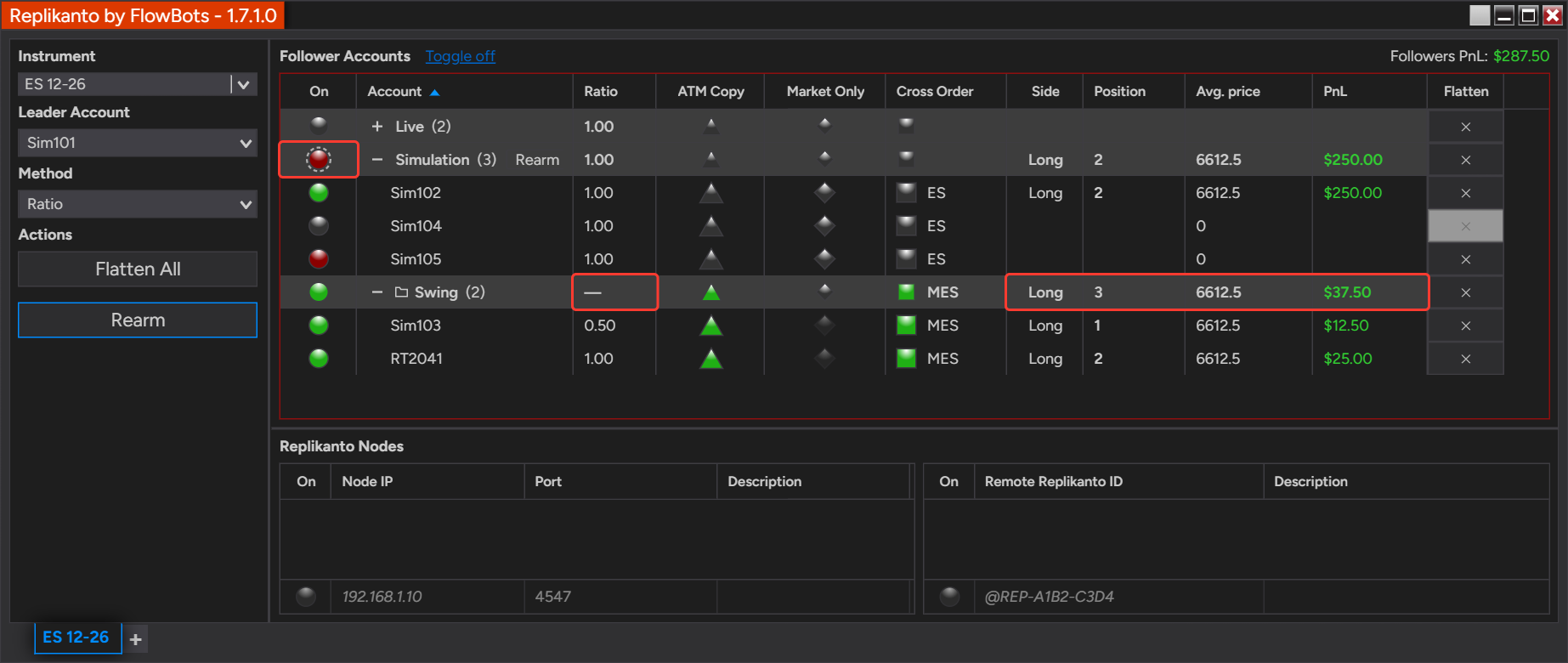
- Status circle (On): the most important status in the group, in this order: Disarmed (red), Out of sync (yellow), On (green), Off (gray). A dashed ring means the accounts do not all have the same status, and hovering over the circle shows the counts.
- ATM Copy, Market Only and Cross Order: the state shared by the group. A half-filled box means the accounts differ.
- Ratio, Pct. Change and Pre Allocation: the value when all accounts have the same one, or a dash when they differ. Only the column of the active copy Method is shown.
- Side, Position, Orders and PnL: combined figures of the accounts that are not Off. The average price is weighted by position size and by the value of a point of each account’s instrument, and PnL shows a dash when the accounts use different currencies.
A custom group with accounts that are not connected shows two numbers, such as Swing (2/3): 2 of its 3 accounts are present in the list. Click the + or – button, or double-click the header, to open or close a group. A collapsed group still works: its header keeps its status and totals, and its buttons keep working.
One click on a whole group
Each cell of a header acts on every account of the group, with the same rules as the cell of a single account. Replikanto writes an account only when its value changes, and adds one line to the NinjaTrader Log tab for each group action.
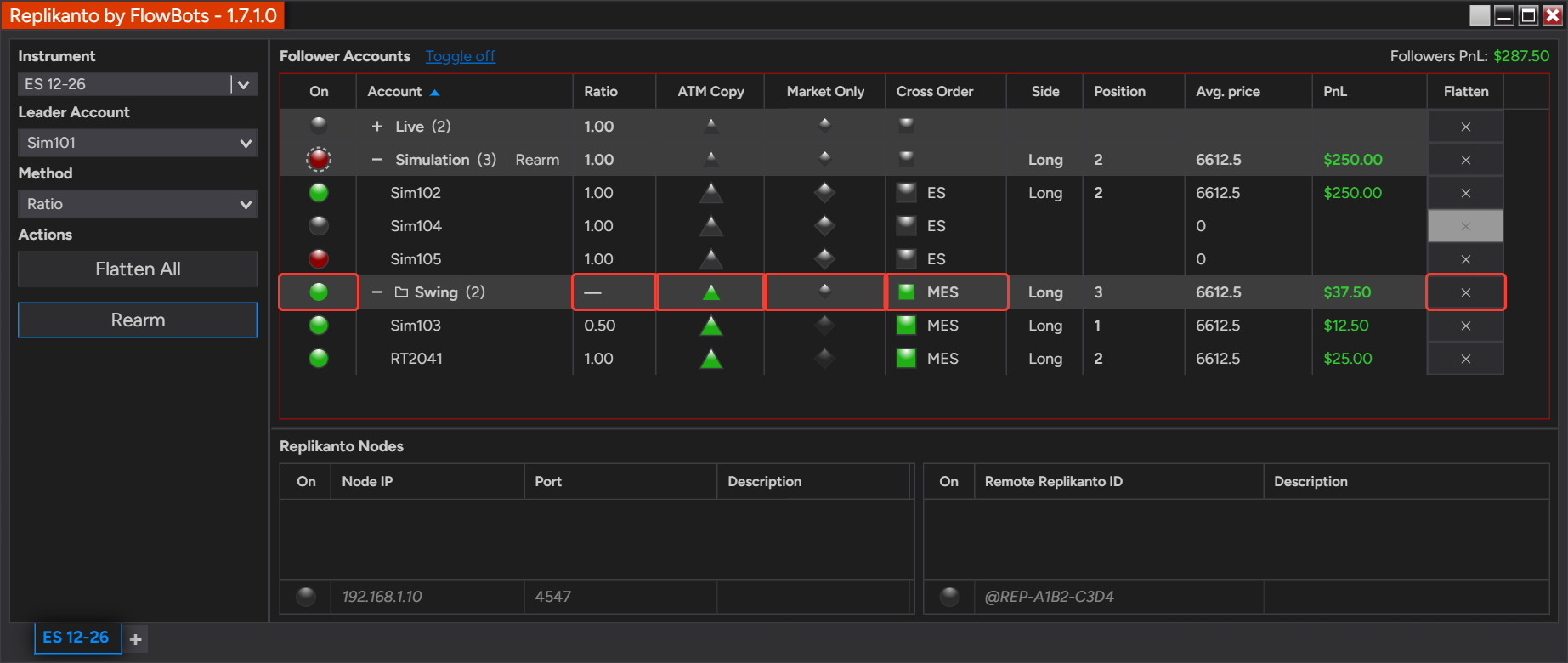
- Status circle: if some account is Off and can be turned on, the click turns on only the accounts that are Off. When none can be turned on, the click turns the whole group Off. Turning a group on does not re-arm a Disarmed account (see Follower Guard): use Rearm for that.
- ATM Copy and Market Only: a click turns the option on for the group, or off when it is on for all. ATM Copy and Market Only do not work together on the same follower, so ATM Copy is not turned on for an account that has Market Only on, and Market Only is not turned on for an account that has ATM Copy on.
- Cross Order: when all accounts have the same target, a click moves them to the next one. When they differ, a click turns them all Off.
- Ratio, Pct. Change and Pre Allocation: click the cell, type a value and press Enter. A value outside the limits of the single-account cell is not accepted and nothing changes, instead of being adjusted to the nearest allowed one.
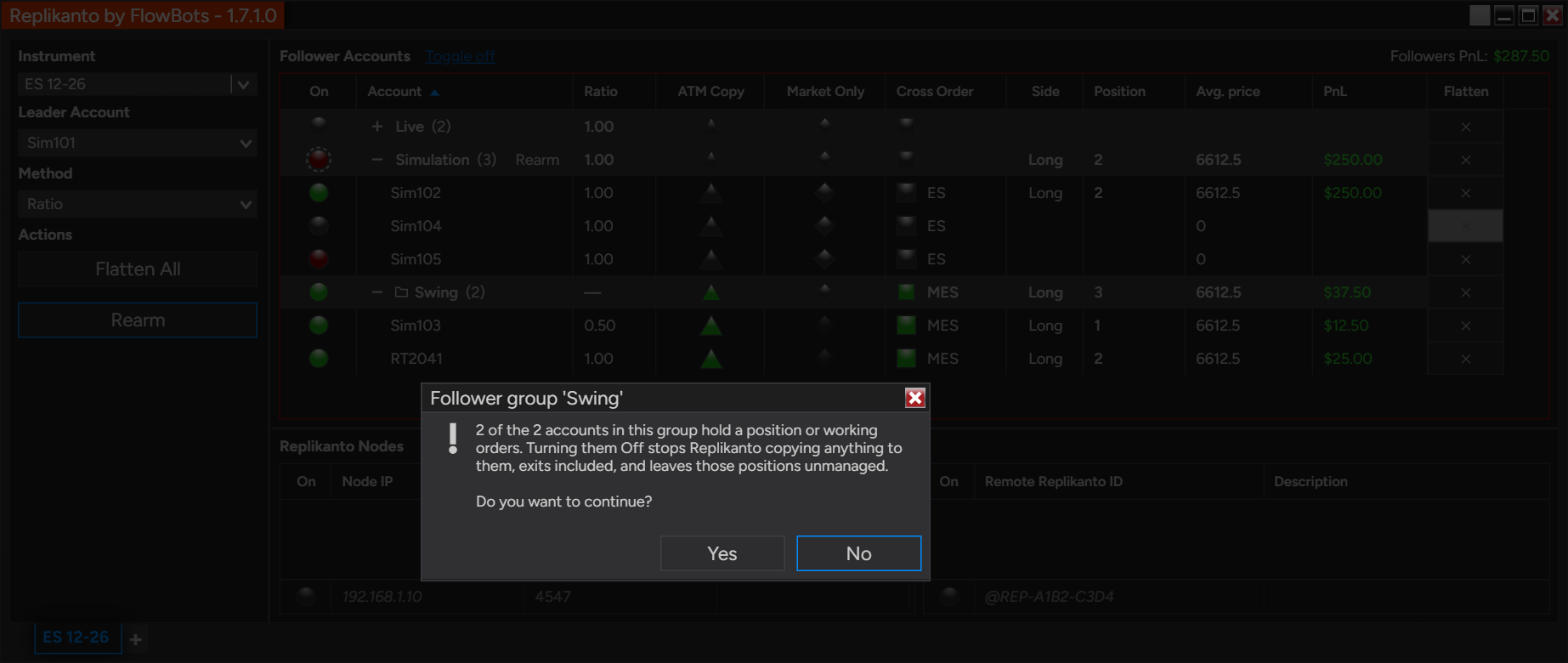
Before a click that could leave positions unmanaged or resize other followers, Replikanto asks a Yes/No question, and the default answer is No. This happens when you turn off accounts that hold a position or working orders, when you turn accounts on while the leader holds a position, and when the Copy Method sizes each follower from the number of active followers (Pooled Quantity, Available Cash or Net Liquidation) while the leader or another follower is in a trade. These questions come with the status click.
With Lock follower settings while in a trade on (the default, see Why you cannot change follower settings during a trade), a header click skips the accounts that are in a trade for ATM Copy, Market Only, Cross Order and the typed values. A window then lists the accounts that were not changed and why, and the Log tab records the same list. The Status click is the exception: you can turn an account Off while it is in a trade.
Flatten and Rearm a group
The × in the Flatten column of a header flattens only that group, on the leader’s instrument. It asks first, and like Flatten All its confirmation has a “Don’t show this message again” box for traders who want the click to flatten at once. Unlike Flatten All, it also closes accounts that are Off, and it does not close the leader account.
- What it closes: the position and the working orders of every follower account in the group, whatever its status and whether or not it uses Market Only.
- After the flatten: a Disarmed account is re-armed only if its position reads flat. Flatten sends the close order, and the broker decides whether it fills. If the account still shows a position, it stays Disarmed and the Log tab says so.
- The Rearm button appears next to the group name only while the group has a Disarmed account. It re-arms the Disarmed accounts that are flat, leaves the ones that still hold a position as they are, and sends no order.
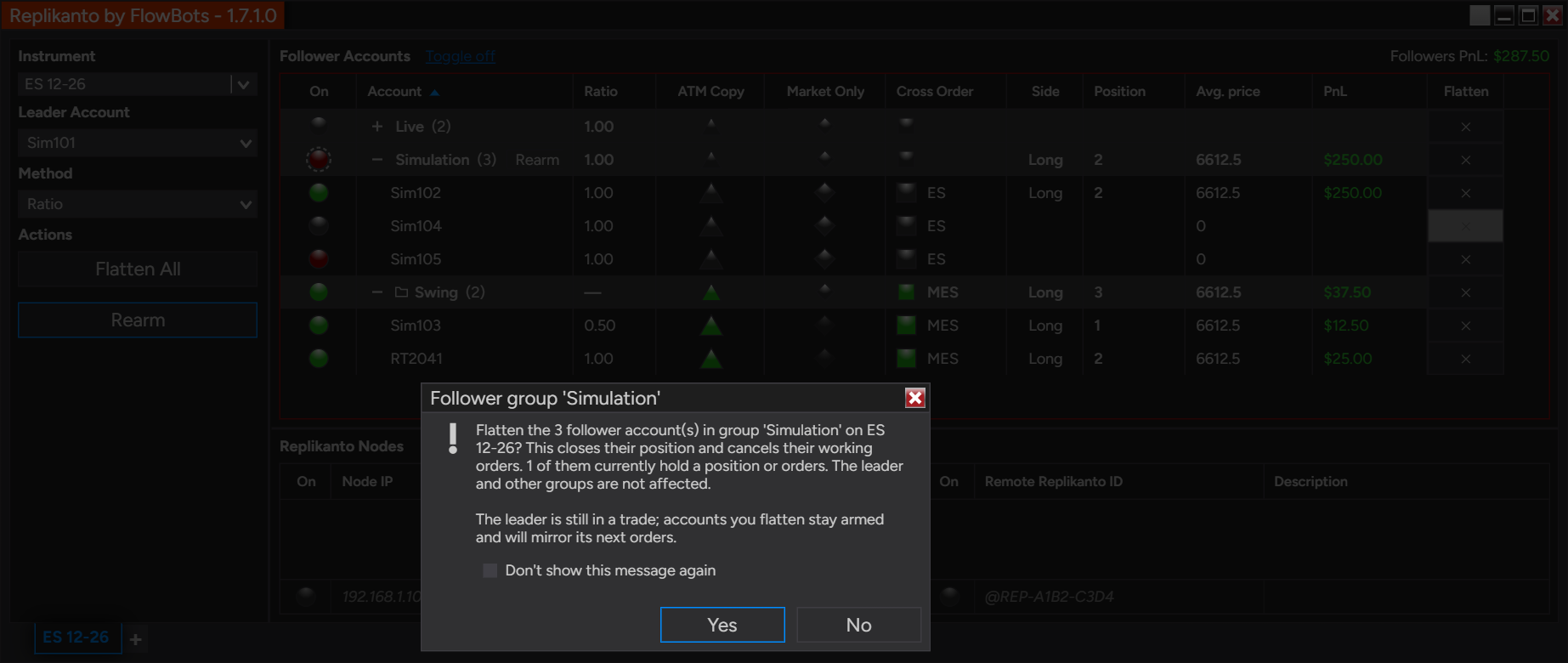
A group Flatten closes positions and cancels orders, but it does not turn any account Off. An account that is On stays armed and mirrors the leader’s next orders. To stop copying to it, turn it Off.
Saved with the workspace, and Export and Import
- Workspace: your custom groups, their accounts, which headers are collapsed and the Group followers by connection setting of each tab are saved with the NinjaTrader workspace.
- Export and Import: Export… writes the name of each account’s custom group as a ninth field at the end of its line, and a file with no groups keeps eight fields per line. Import… creates the groups named in the file, or puts the account in the group that already has that name. An empty group field leaves an account in its group unless the file names a different group for it. Grouping by connection is not in the file.
- Earlier versions of Replikanto: a workspace saved with groups can be opened in an earlier version, where the groups are ignored. If you save it there, the groups are dropped. Your followers and their settings stay, so export the follower list first if you plan to go back.
A line of the follower file with a custom group looks like this, with the group name as the last field:
Sim103;True;MES;0.5;0;0;Checked;False;SwingHow to set it up
- Open the Replikanto tab, right-click inside the Follower Accounts grid and check Group followers by connection. You can also check it in Properties… under General.
- Click the + or – button of a header to open or close one group. Right-click the grid and choose Expand all groups or Collapse all groups to change them all.
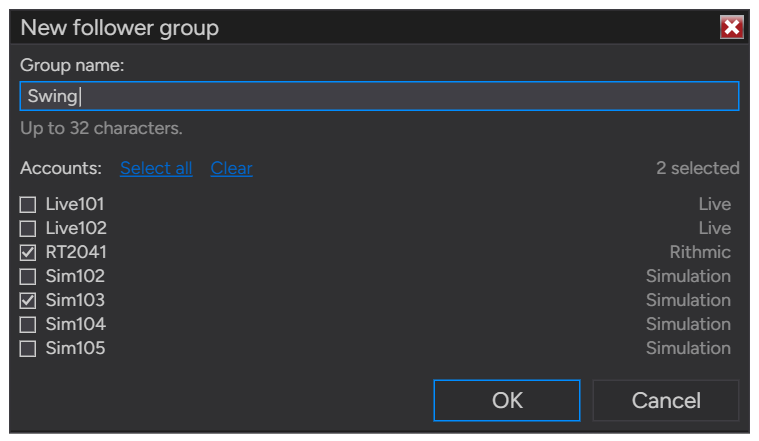
- To build a custom group, right-click a follower account and choose Add to group > New group…. The account is already checked in the window. To start with nothing checked, right-click an empty part of the grid and choose New group….
- Type the name in Group name:, check the accounts in Accounts: and click OK. The header appears with its accounts under it.
- To add an account to a group you already have, right-click it, choose Add to group and click the name of the group.
- To change a group later, right-click its header and choose Edit group…, Rename group… or Delete group. To take one account out, right-click it and choose Remove from group.
- Try a header click on Sim accounts first: click the status circle or the ATM Copy cell of a group and read the question or the list that Replikanto shows.
- Save the NinjaTrader workspace, so your groups are there the next time you start NinjaTrader.
Good to know
- Name rules: a custom group name has up to 32 characters, cannot contain a semicolon, and must differ from the other groups. Upper and lower case do not count as different.
- One group per account: choosing an account that is in another custom group moves it. A custom group is removed when its last account leaves. Delete group removes only the group, and its accounts stay in the list with their settings.
- Accounts that are not connected: an account whose broker connection is offline has no row. It is left out of the header figures and of what a click applies, except that turning the group Off is also saved for it. When the connection comes back, the account appears under its group again.
- Which cells you see: the ATM Copy cell exists only while ATM Copy is checked in the Replikanto window’s right-click menu, and the Cross Order cell only while Cross Order is checked and the leader has an instrument with a counterpart.
- Group Flatten covers your own list: it flattens the follower accounts in this tab’s list. Followers on other computers, reached through the Replikanto Nodes lists (Network Node Mode or Remote Node Mode), are not flattened by this button.
- Editing is paused during a Flatten: for a moment after you confirm a group Flatten, the group items of the Follower Accounts right-click menu are disabled.
- Show account numbers: when it is unchecked in the Follower Accounts right-click menu, the account names in the group window are masked, as in the grid.
Related
- Follower Guard: how a follower is disarmed and re-armed
- Export and import your follower list and node lists
- ATM Copy: run your ATM strategy on your followers
- Market Only: copy only the leader’s executions
- Follower groups in Replikanto: by connection or custom
- Create, edit and delete custom follower groups
- Apply a setting to a whole follower group at once
- Flatten or Rearm a whole follower group
- Why you cannot change follower settings during a trade
Questions? Browse the Replikanto Knowledge Center or contact us. New to Replikanto? Try it free for 7 days.